.png)
To perform a consent to PortalTalk, these administrative role is needed:
-
Global Admin in Microsoft 365, to do the PortalTalk App Consent
-
PortalTalk Admin in PortalTalk, to make changes to the PortalTalk configuration (optional)
Steps to perform:
-
Update PortalTalk’s permissions within your Microsoft 365 tenant. This is also referred as ‘the consent’.
If the above actions are not executed, certain new functions of PortalTalk can fail. Please take our advise to always take care of an up-to-date PortalTalk consent.
Execute the PortalTalk consent
Execution
-
Make sure you're signed in to Microsoft 365 as a Global Admin
-
Navigate to the PortalTalk web UI via PortalTalk
-
At the top of the screen a notification shows the consent needs to be updated ('Because of a new software version, the consent has to be updated.')
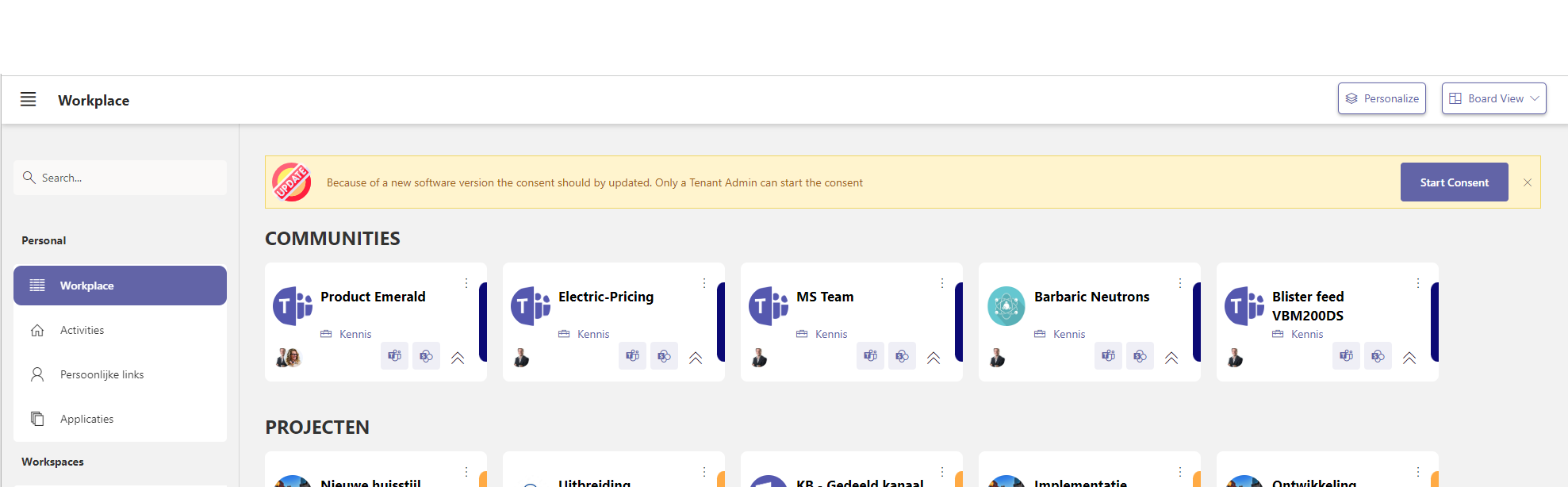
-
In the yellow update bar, click the ‘Start Consent’ button
-
You will be prompted to log on again. NOTE: this must be done by a Global Admin account
-
The screen below is displayed. Click on 'Accept' and the additional consent will be added.
.jpg?cb=7433e903f4190fc9e456a466beffca04)
-
The required consent is hereby granted and ready for the new PortalTalk release