.png)
As already said, there is no direct UI involved for User KPI Analytic. They are presented as MS Teams Activities. They will only pop-up to users if they apply to certain KPI metrics. If not, user will not notice these activities.
To show your users examples of these KPI Analytic activities, we build in this special ‘Trigger User Actions’ function. You can use this function for training and demo scenario’s.
This function will instantly sent a demo Analytic activity, It contains only dummy data. You can choose a specific action and select a user who receives this MS Teams activity immediately.
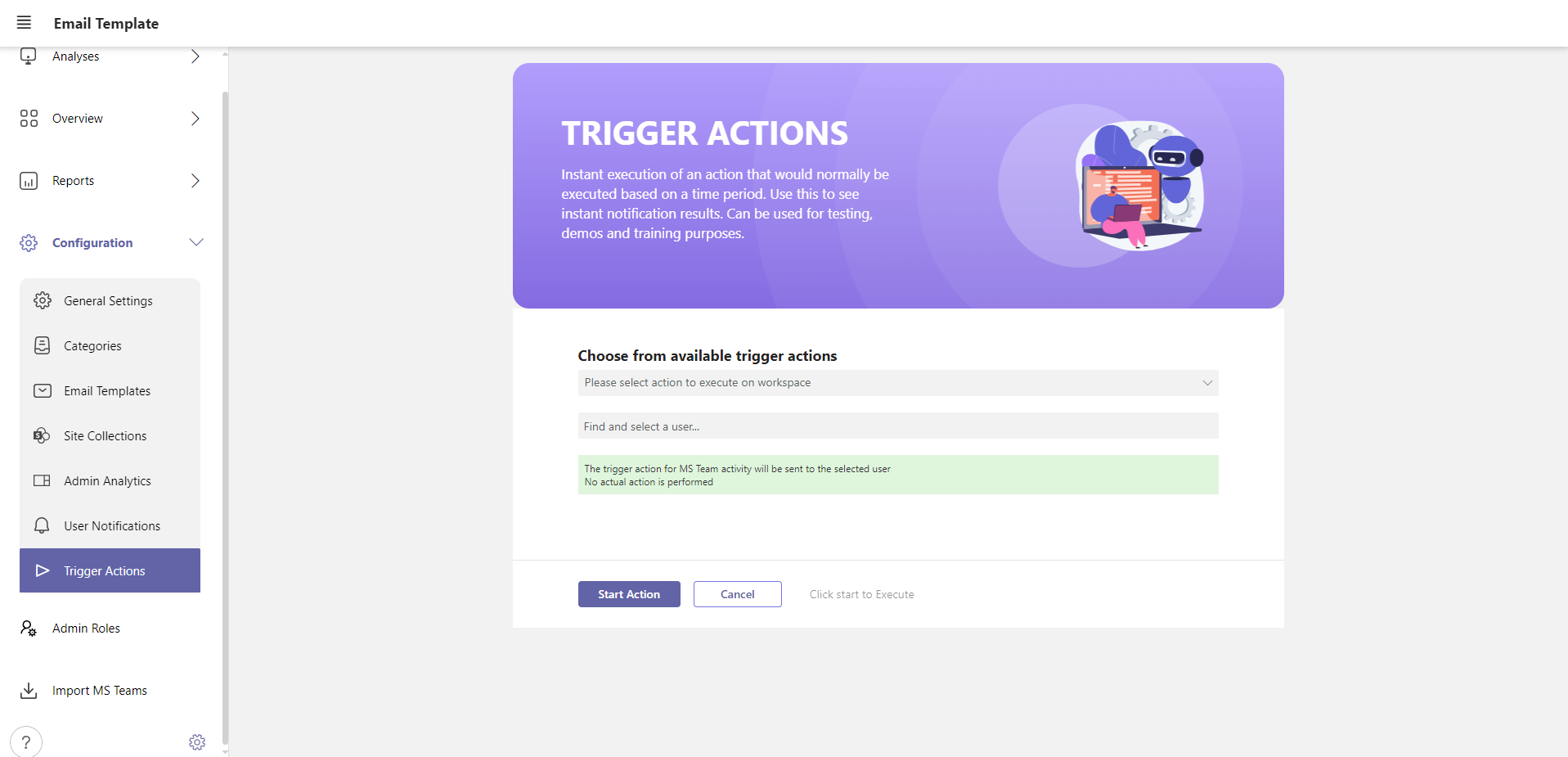
It works like this
-
Go to the PortalTalk Admin Center
-
From the left menu, choose Configuration → Trigger Actions
-
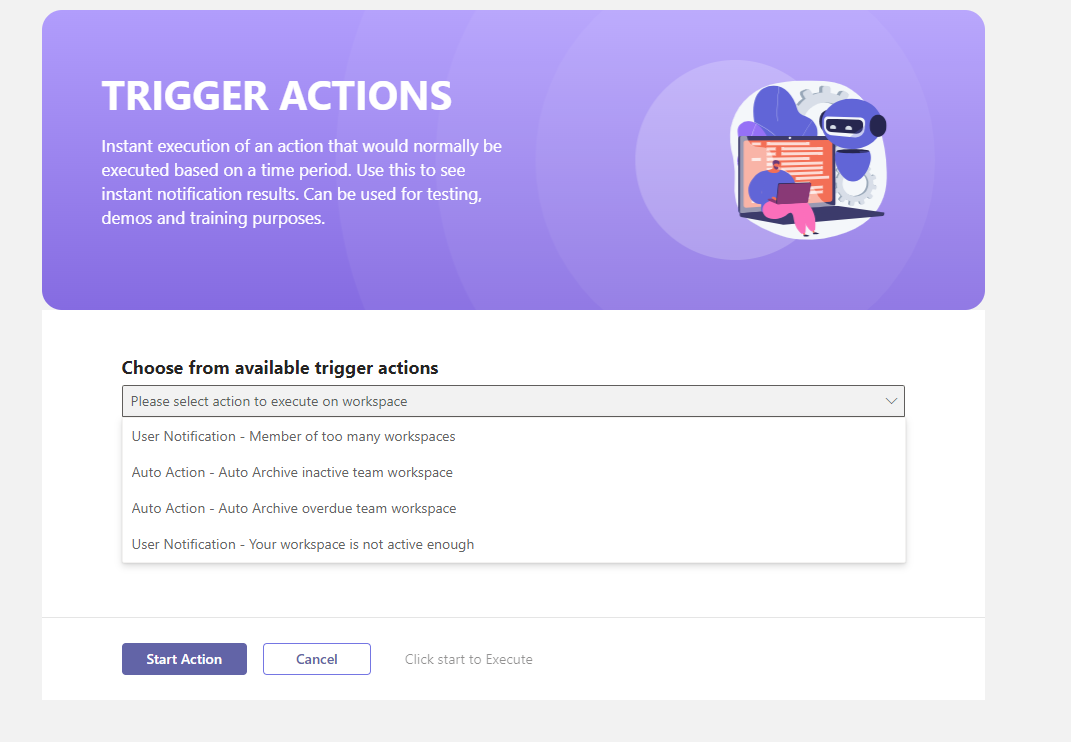
Start to click the available triggers list
-
Choose the specific analytic activity you want to sent
-
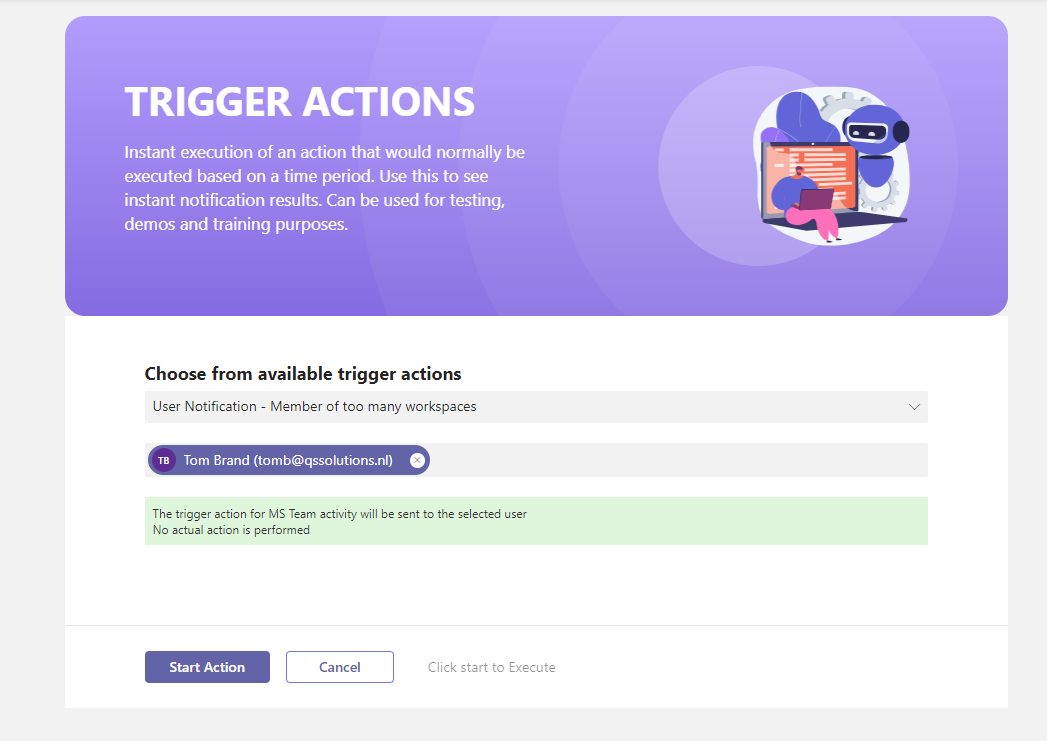
Search a specific user were the activity will be delivered
-
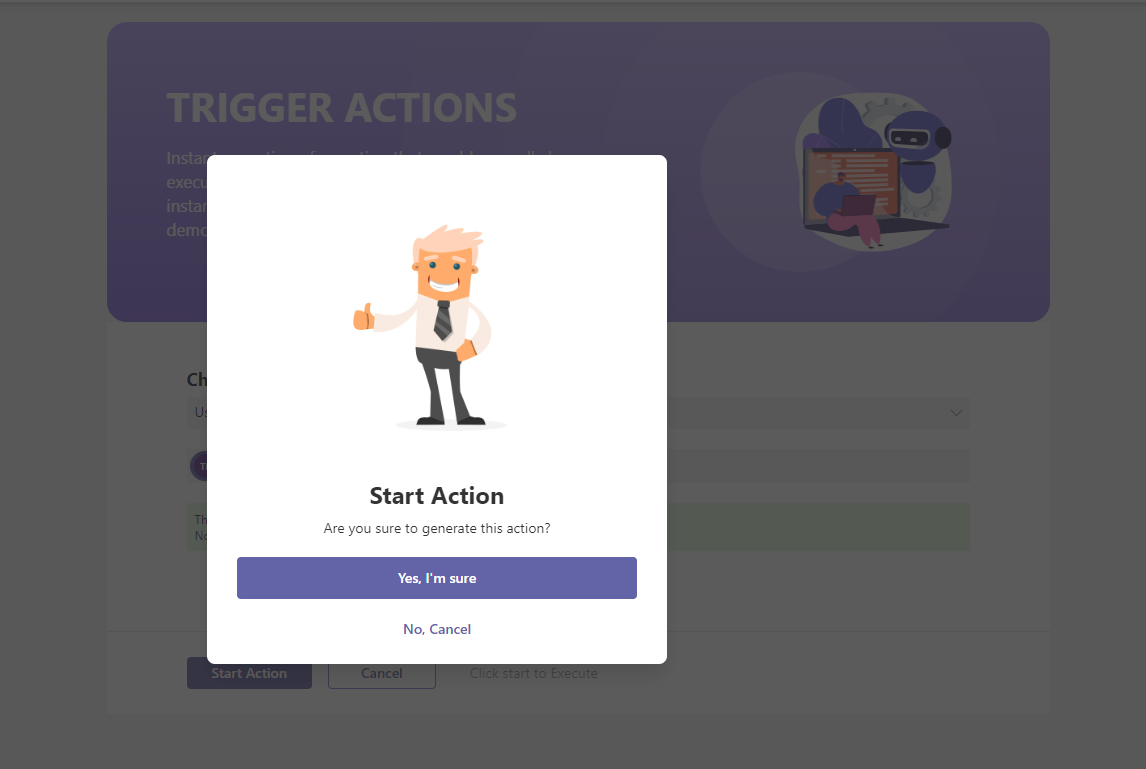
Click ‘Start Action’
-
Acknowledge the function
Go to the device of the assigned user and check the MS Teams app activities
-
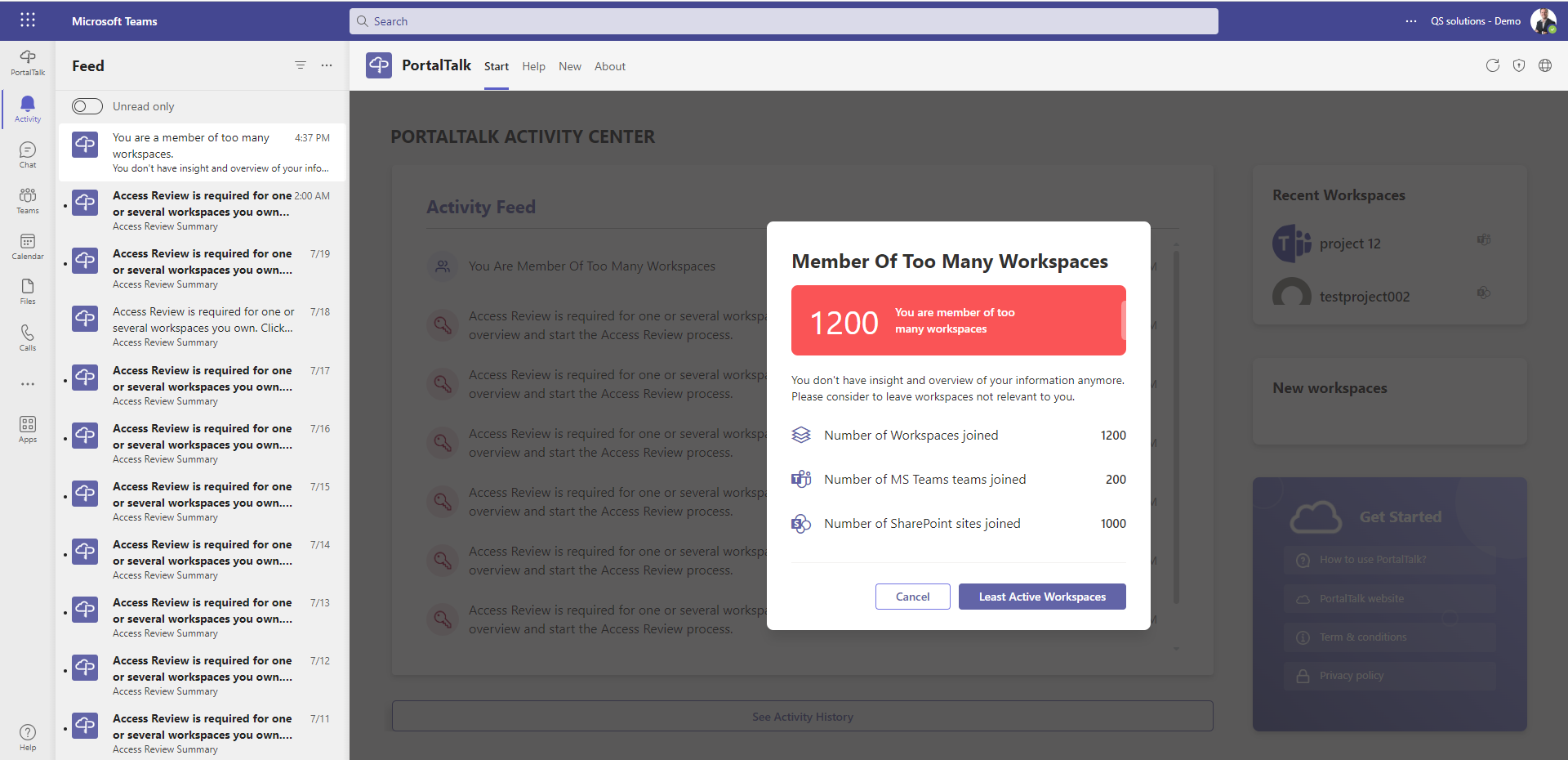
Open the new received Teams Activity
-
The User KPI activity is shown
-
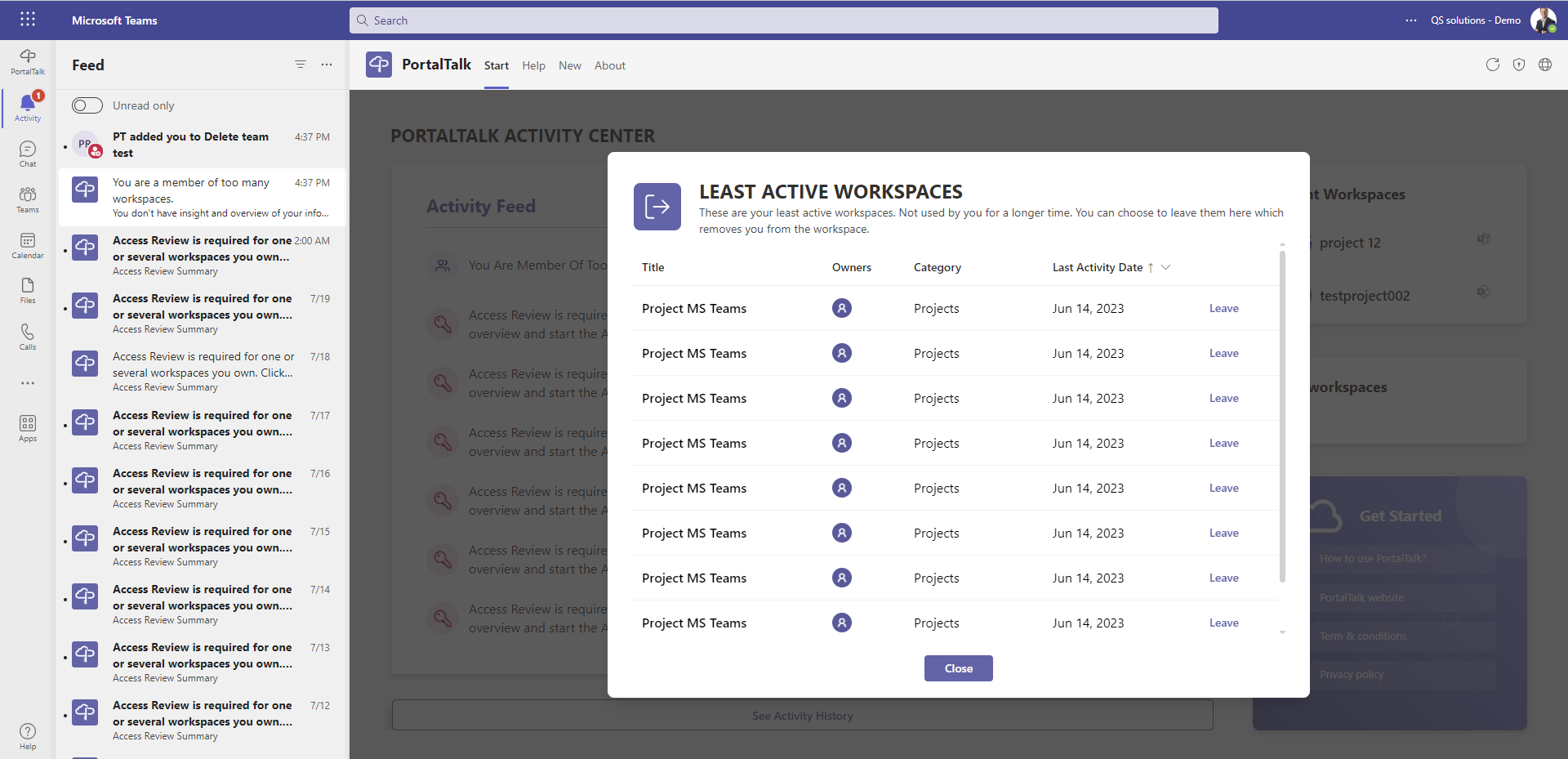
Even the Action button works
-
But keep in mind, the data presented is all dummy data