.png)
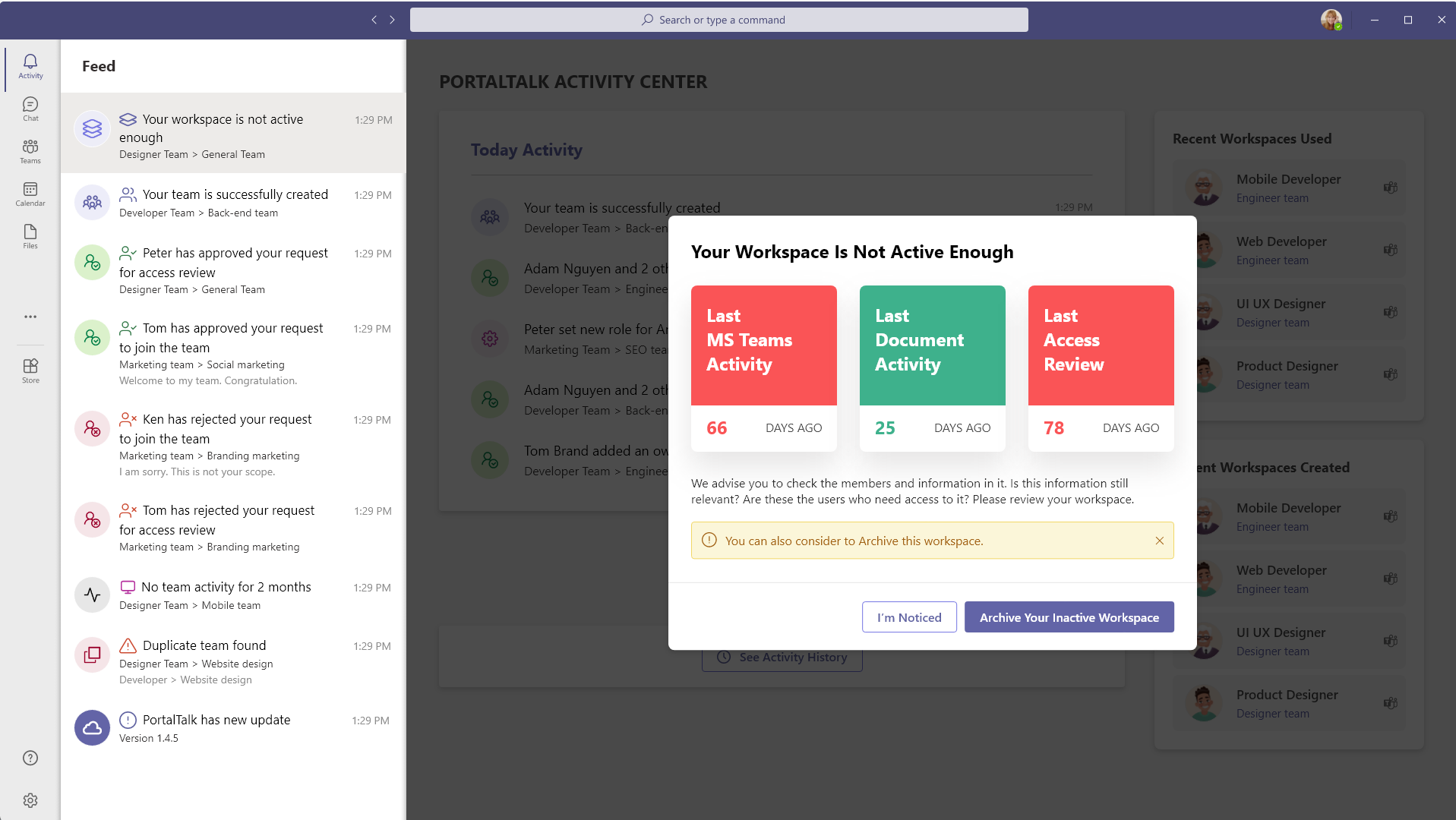
‘Analytics for the User’ are presented as MS Teams activities. User will see them as part of the normal daily MS Teams activity feed. It’s important to not over-feed the end users with PortalTalk activities. So, Analytic KPI activities are only sent to users if they met certain criteria of a KPI. Furthermore, you are able to set the frequency a KPI will be processed (1 to 6 months). If criteria of a specific KPI are met, the Analytic KPI activity will be sent to the user.
Configure Analytics for Users
The PortalTalk Admin Center is used to configure the User Analytics.
-
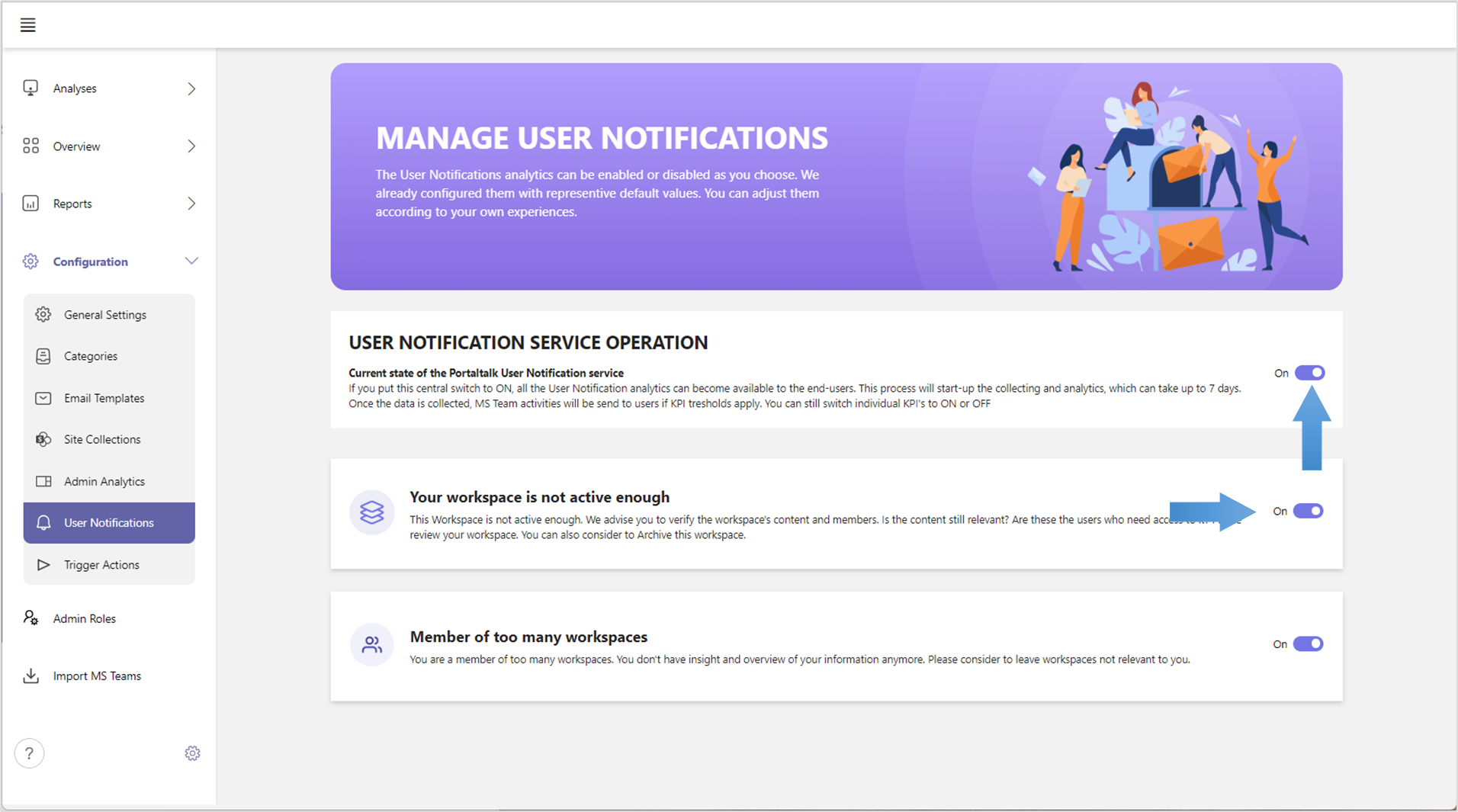
From the left main menu, choose ‘User Notification’
-
The ‘User Notification service operation’ can be switched ON of OFF by this main switch.
The default status of this service is OFF. If the General Analytic Service operation (part of the Configuration → Admin Analytics screen) is switched to OFF, this User Notification service cannot be set to ON. All single User KPI functions are also set to OFF.
-
The User KPI can be switched ON of OFF, according to your configuration.
Configuration of a User KPI activity
Every User KPI activity can be configured. The values can be configured according to you own experiences. We already configured them with values based on our experiences and best practices. Our advise is to first test the analytics by using the default values. If you build some experience with it, you can start to experiment with some other values.
-
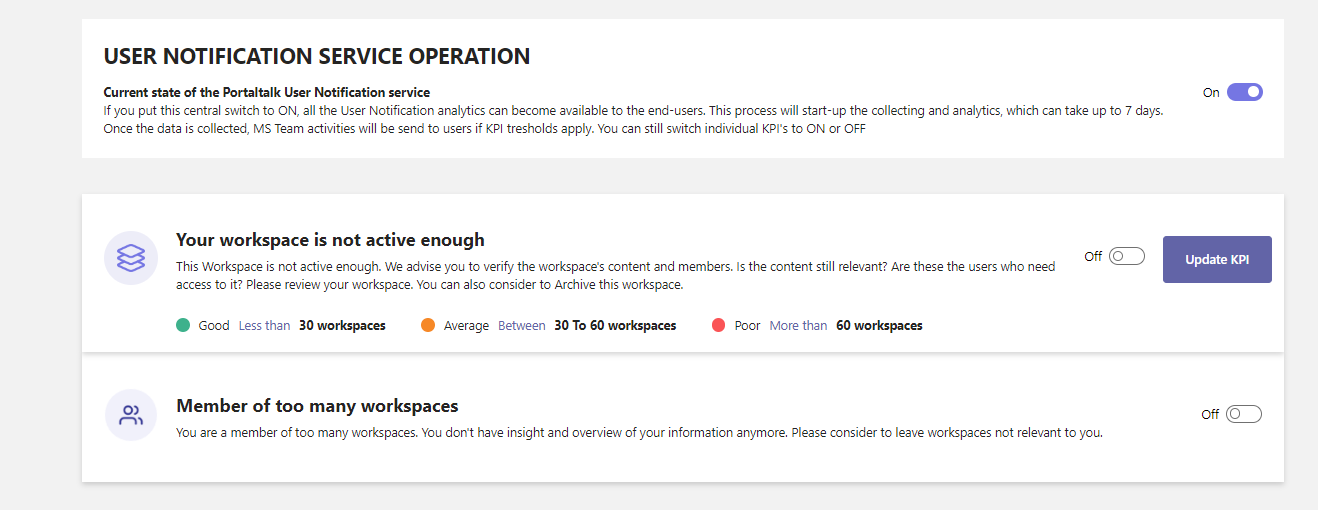
When you hoover a User KPI activity additional information is shown
-
Now you already can see the details of the KPI values
-
When you click a KPI board, more detailed information is shown. Especially the KPI values are shown.
-
Click on ‘Update KPI’ to see and change the KPI values
-
Every KPI has a GOOD (green), Average (yellow) and POOR(red) value
-
These can be changed according to your experience
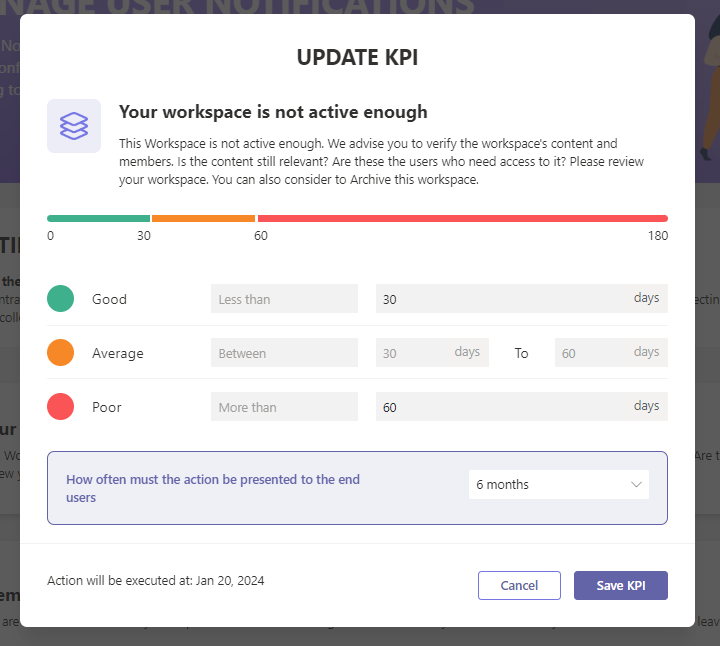
-
Now you can start entering your own KPI values. Only the GOOD en POOR values can be entered. AVARAGE is calculated automatically.
-
The KPI also protects you from filling incorrect values. It’s not possible to fill incorrect values
-
Please be careful by changing the default values. First build up some expertise by using the default values. Afterwards you can start to make soms small changes.
-
The KPI activity will be checked every period to select users where the KPI metrics will apply.
-
This check period can be selected by the pull-down menu. You can choos a value between 1 and 6 months.
-
At the left bottom., it shows the date of the next execution
Show Analytic User KPI as MS Teams activity
This preview version only exists of two User KPI Activities. This will be extended in upcoming releases
The User KPI activities are not visible to the users yet. Theis will be only presented to users who met criteria of specific KPI’s. So, there is no direct UI presentation involved.
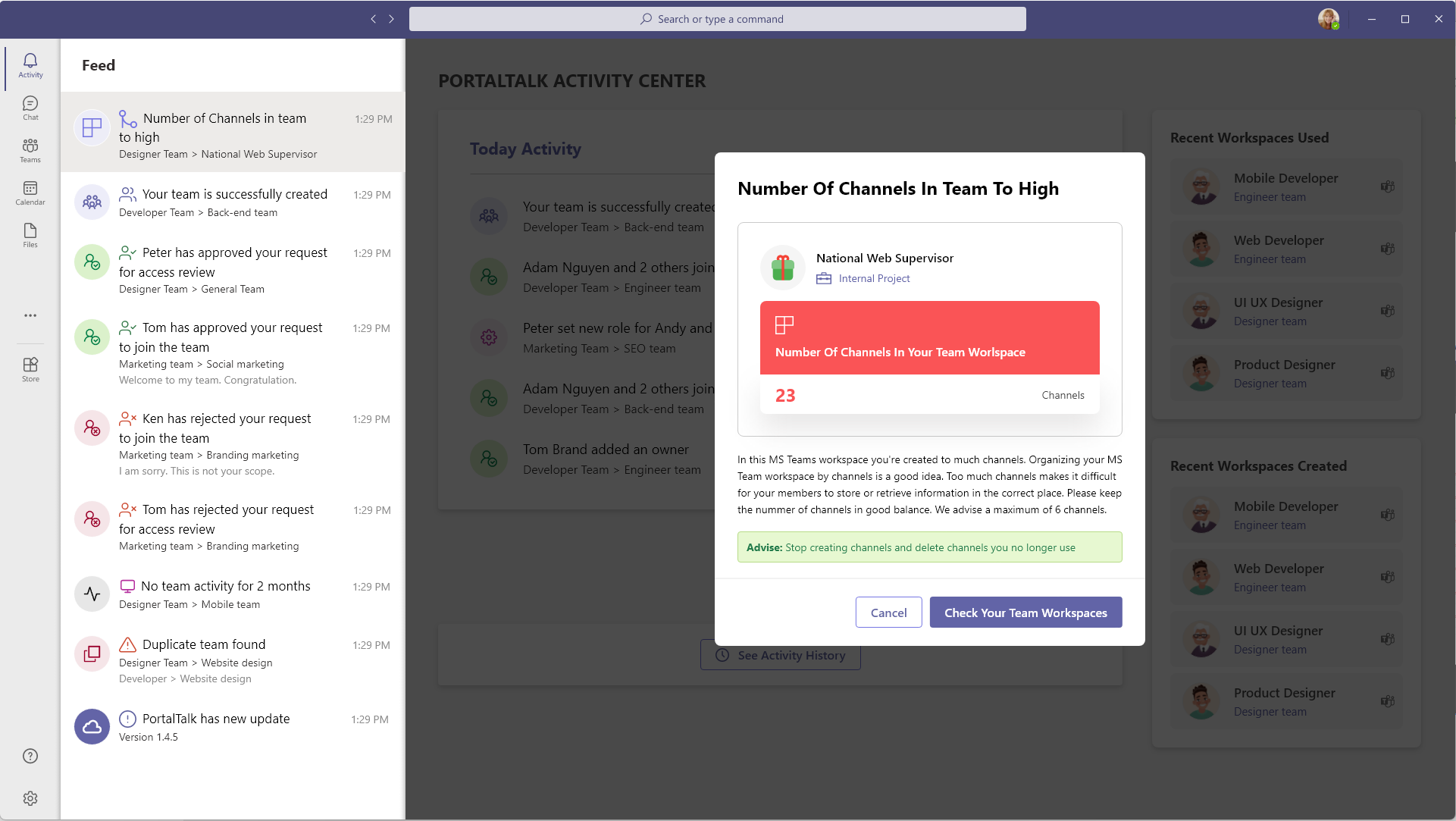
As already explained, the User KPI activity is presented as MS Teams activity. To give an impression, please see this example.