.png)
If users see the 'Access for' column empty in their Access Review of the Shared Document process, the SharePoint External Invite authentication uses its old setting. Switching to the new setting fills the 'Access To' column in the Access Review Shared Documents.
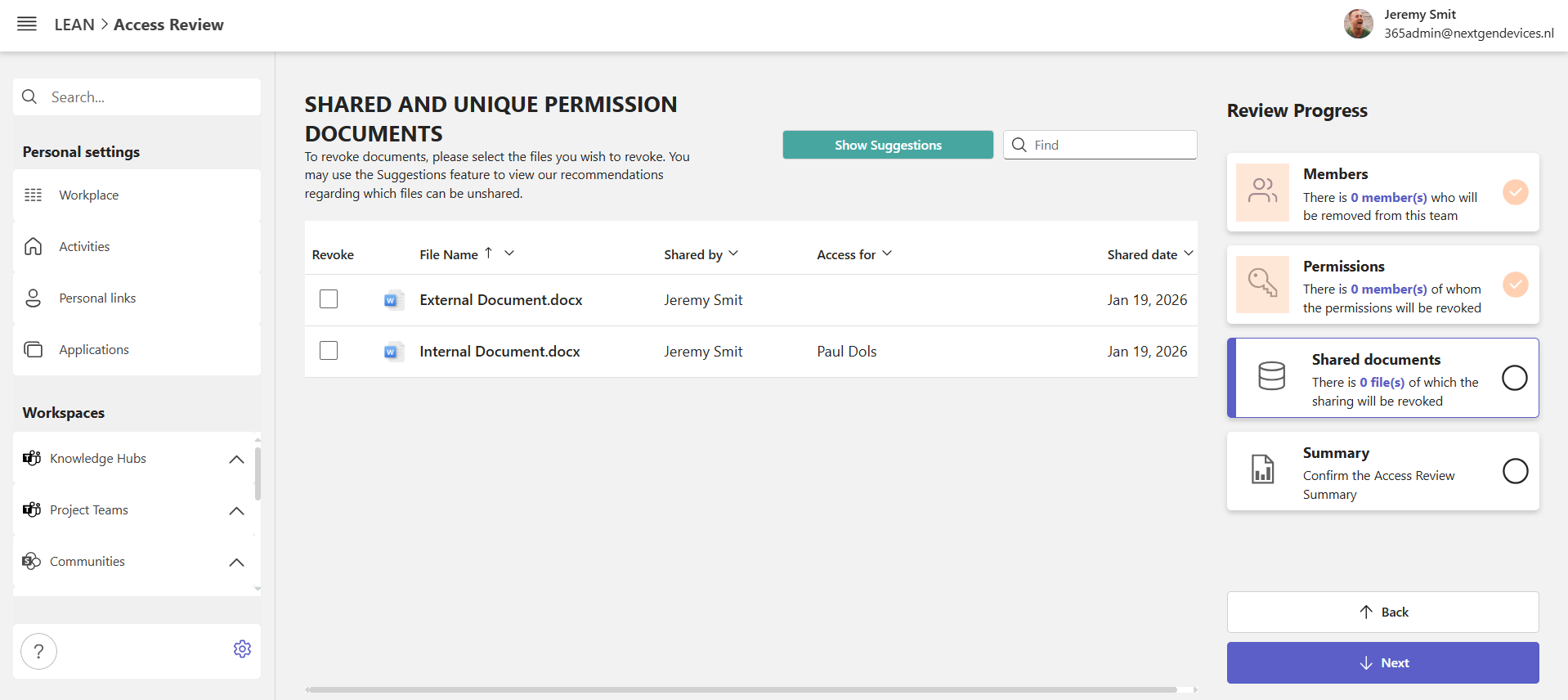
This article explains the difference between the settings so you can decide whether to switch to the new one.
For the PortalTalk 2.12 release, we will notify your owners during Access Review. If your tenant uses the old setting, the 'Access to' column will show 'Not Available'.
Why are the guest names not shown for External Documents
The root cause of this problem lies in the two invite options available in the SharePoint External Authentication function. First, explain the two methods available.
1. SharePoint External Authentication (B2B Integration disabled)
-
The user is authenticated by SharePoint/OneDrive using email-based one-time passcodes (OTP).
-
No guest account is created in Entra ID.
-
Microsoft Entra settings do not apply.
-
This was the default setting for older tenants (Microsoft does not communicate the exact period)
-
If the Access Review Shared Document column ‘Access for’ is not showing the External User name, you are on this old setting.
2. Microsoft Entra B2B Integration (B2B Integration enabled)
-
Guest accounts are always created in Entra ID.
-
SharePoint/OneDrive sharing follows Entra ID governance and policies.
-
This is the default setting for newer tenants ((Microsoft does not communicate the exact period))
-
If the Access Review Shared Document column ‘Access for’ is showing the External User name, you are on this old setting.
This is what Microsoft states about the 2 methods of External Authentication: Entra ID external collaboration setting
How to verify the root cause
Your tenant will not create guest accounts if:
-
Your SharePoint Online tenant has B2B integration disabled
-
You shared a file using a link that does not require sign‑in
-
The external user used a one-time passcode instead of logging in with a Microsoft/Entra ID account
How to fix it so guests are created in the future
If you want all external users to become Entra ID guest accounts, your admin must enable:
Set-SPOTenant -EnableAzureADB2BIntegration $true
Do I have to change to B2B guest account creation
The PortalTalk team leaves it to you and your organization to decide the value of this setting. This article explains why the column ‘Access for’ sometimes does not show for External shared documents.
If B2B integration is disabled, we display ‘Not Available’ in the ‘Access for’ column for External Shared documents.
If the setting follows B2B guest account creation, we show the external user's name the document is shared with.