.png)
Introduction
In MS Teams, a central setting controls the invitation of external users. It can be set to ON, allowing invitations, or OFF, prohibiting them.
PortalTalk offers more refined options. Below is an explanation of the available choices and how this function works.
For Q4-2025 (2.10 release), we updated the external invite process of PortalTalk. The external invite options for Microsoft Information Protection labels, part of the MS Purview solutions, are now natively supported by PortalTalk.
PortalTalk invite external users in MS Teams
Inviting external users in MS Teams for PortalTalk starts with the central setting for this. Just like MS Teams itself, PortalTalk also has a central setting. This must always be in sync with those in MS Team itself. Unfortunately, it is not yet possible to control the setting in MS Teams from PortalTalk. Therefore, manually keep in sync.
Learn More
PortalTalk 'Categories' and 'Workspace' Types for restrict invite externals
In addition to the central setting, PortalTalk also has a method to further limit the invitation of external parties. This does not go down to team workspace level, but is linked to the 'Categories' and 'Workspace Types' of PortalTalk, which are used to organize workspaces.
The organization of workspaces starts with a category. Within this, at least one subcategory, the 'Workspace Type', must always be created. Each team workspace created must always have at least one 'Workspace Type'. If only one is created, it is automatically assigned. If several have been created, then when creating or requesting a workspace in this category, you will be asked to fill in the form.
For each created 'Workspace Type', the setting can be chosen if external users may be invited. By default, it is ON. This setting can be set once when creating the Workspace Type. For example, multiple workspace types with different settings for inviting external guests can be created in a category.
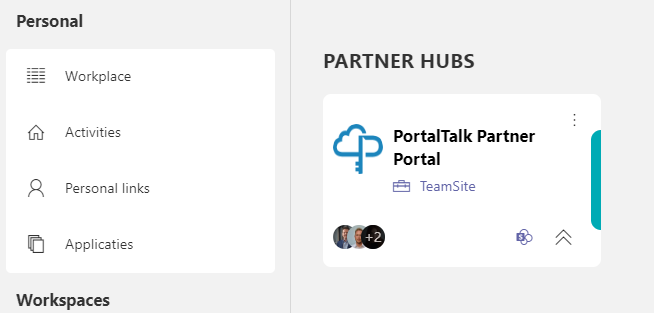
A user gains insight into the different workspace types because it is shown on the workspace screen. In example below; In the 'Category' Partner Hubs, 'TeamSite' is the 'Workspace Type'
'Workspace Type'. is part of the category 'Partner Hubs'
Example
A good example to use these feature is;
-
There is a category 'Projects'
-
In 'Internal' projects, only members of the organisation are allowed to work
-
In 'Customer' projects, external users are also allowed to work
-
In the 'Projects' category, select a Workspace Type 'Internal' and set externals to OFF
-
As a second Workspace, create Type 'Customers' and set invite to ON.
-
If a user creates a project in the correct WorkspaceType, the external user invite is automatically set up properly
-
A team workspace owner can't customize the external invite setting
-
The Owner can move the team workspace. For example, an 'Internal' project later becomes a 'Customer' project
-
In PortalTalk, the workspace team owner can adjust the workspace type from 'Internal' to 'Customer'. This makes it possible to invite external guests to that project.
Learn More
Category Settings MS Team
Manage MS Team Workspace Types
PortalTalk support for MS MIP lables
MS Teams, combined with Microsoft Information Protection (PurView MIP), restricts external user invitations and enhances team workspaces. By applying a security label to a team workspace, you can support external invites, prevent the sensitivity setting from being public, and control document sharing with external users.
This offers more functionality than the PortalTalk External Invite. However, every user needs an MS Purview MIP license for this to work.
MIP label support is built into PortalTalk, similar to the PortalTalk External Invite option. You can set the MIP label at the Category → Workspace Type level, which is only supported for MS Teams categories.
The Workspace Type settings allow you to select a MIP label configured as a container label, suitable for controlling external access to created teams. If a label is applied to a Workspace Type, all teams created there will receive the assigned MIP label.
Learn More
Please consult these links for more information about Microsoft MIP sensitivity labels and the specific configuration of MIP labels for PortalTalk.
Sensitivity labels for Microsoft Teams | Microsoft Information
Manage MS Team Workspace Types - Configuration of External Invite
Import from existing teams workspaces and external user setting
When importing existing teams workspaces, PortalTalk takes into account the setting of the external users per team workspace. This can be different because Microsoft Information Protection (MIP) security labels are already used to restrict external invites per team workspace.
PortalTalk provides two options to import existing teams workspaces where the status of inviting external users can be affected.
Manual import by the PortalTalk Administrator
The administrator can import workspaces into the Admin Center, not yet registered in PortalTalk. These are created under the MS Teams app itself via the 'Create Team' button. With manual importing, the default setting ON for inviting external users will almost always be active. Using Microsoft Information Protection (MIP), it can create a team workspace where inviting external users is OFF. With the Import, PortalTalk will offer only that category and workspace type that corresponds to the setting for inviting external guests of the team to be imported. As a result, a correct choice and guarantee of correct governance will always be enforced.
Automatic import
In the Admin Center under the general settings for MS Teams, the automatic import can be configured. Here a existing PortalTalk category can be set. This means that all team workspaces created outside of PortalTalk are automatically assigned to the configured category. Here too, PortalTalk supports the assignment of whether or not external users can be invited. Two Workspace Types are automatically created in the configured category. One for team workspaces where external invitations are allowed, and one where they can't. Upon import, PortalTalk will examine the in progress team workspace and assign it to the corresponding correct Workspace Type.
As next step, the owner of the imported team workspace can assign a different category and workspace type in the ‘Edit’ function of the workspace. Only the permitted configurations are possible. This will bring the imported workspace to the correct category and workspace type.