.png)
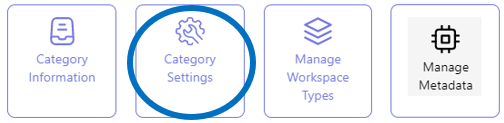
The settings that determine the behavior of the MS Team workspaces within the user application
All category configuration actions are performed from the category list view in the Admin Center.
In the category list view, you can configure the workspace categories relevant to your organization.
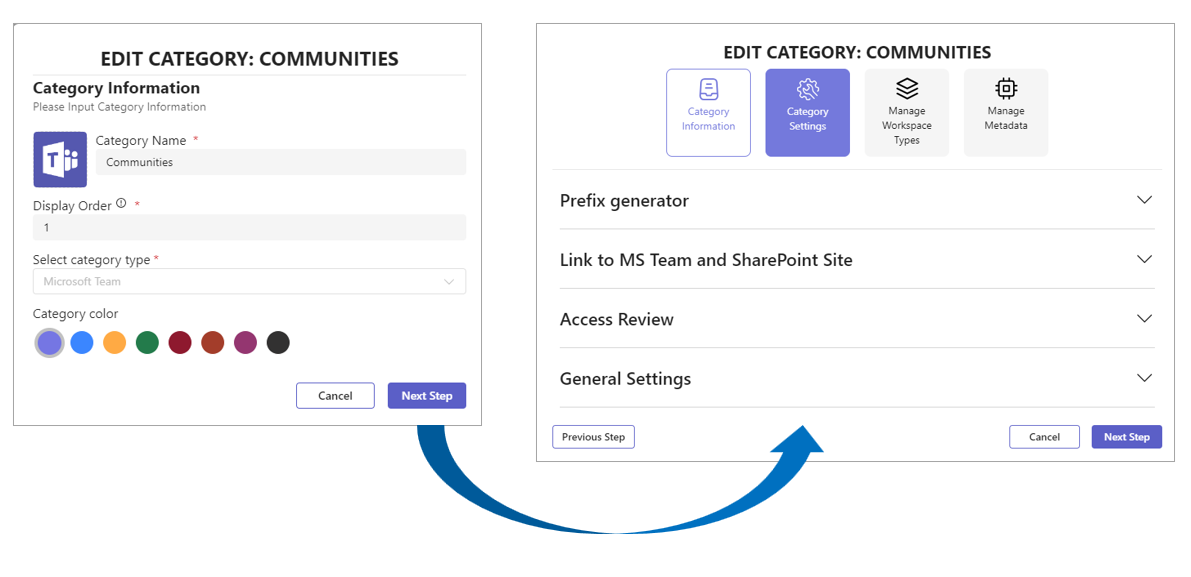
In the second step of the MS Team workspace category configuration process, the settings are configured that determine the behavior of the category’s workspaces within the user application. If the category is set up for automatic import of MS Teams, the attribute by which the MS Teams are to be identified is also specified here.
If necessary, refer to the page on the MS Team category Information configuration for a detailed explanation of the first step in the category configuration process.
Access the Category Settings configuration form
-
Access the PortalTalk Admin Center.
-
Select the Configuration - Categories navigation option to access the Workspace Category list.
-
Find the workspace category of type Microsoft Team of which you need to configure the category settings.
-
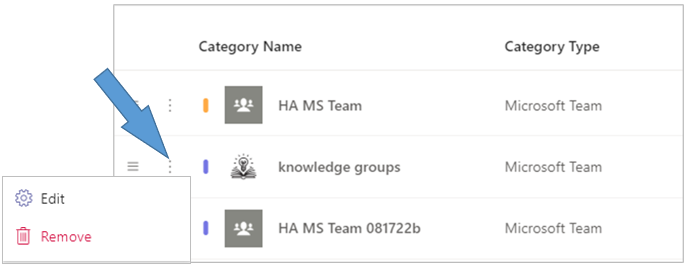
Click the category’s ellipsis menu button and select the Edit option to open the Edit Category - Category Information form
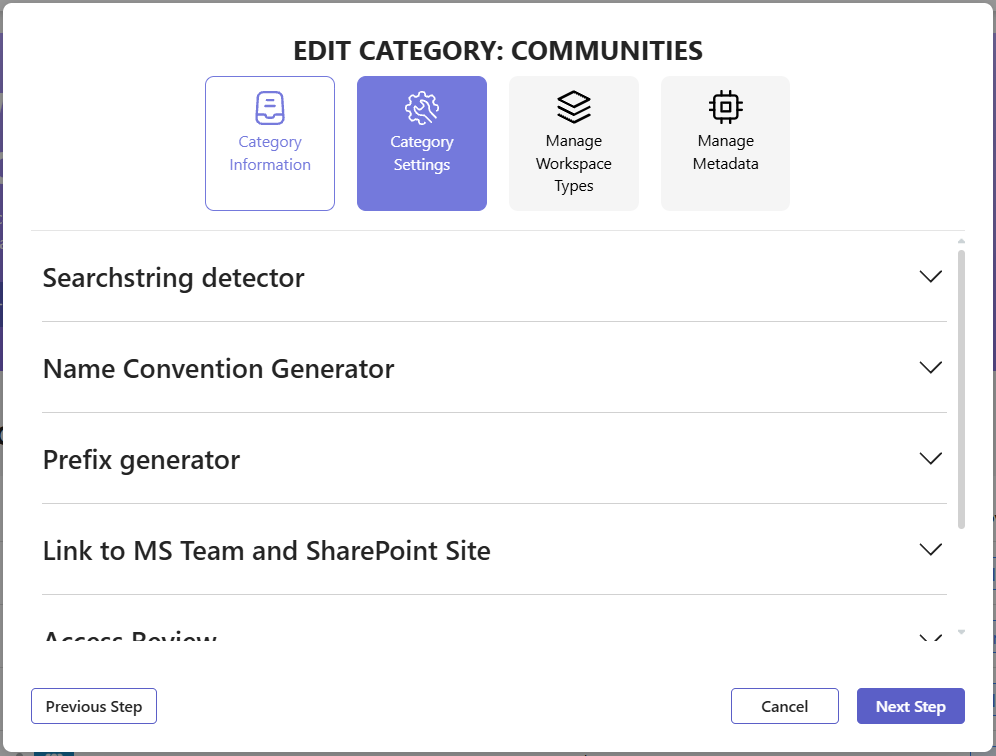
Searchstring Detector
The Searchstring detector lets you automatically import MS Teams workspaces created outside PortalTalk into a designated PortalTalk category\workspace type. This import uses a substring found in the team names\primary mail address to import one or more teams.
Examples
Searchstring: “AMS”
Imports teams like:
-
AMS project Great
-
Project Great - AMS
-
Project AMS Great
Configuration of the Searchstring Detector
-
Expand the Serachstring detector section.
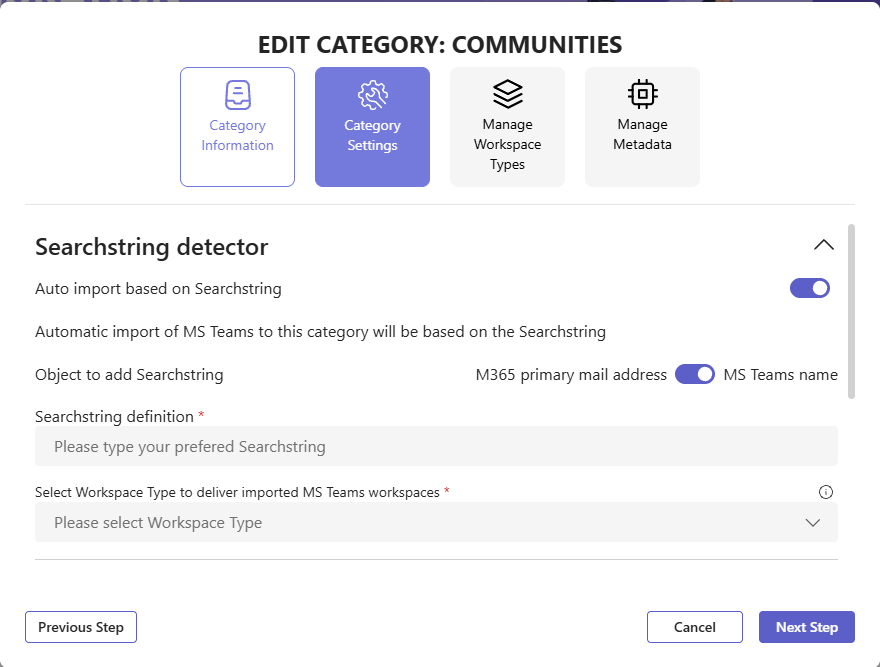
Configuration if the Searchstring
-
Auto import based on Searchstring - Activate this option if automated MS Teams import is applicable and should be based on a specific string being present in either the MS Teams name or the MS Team’s primary email address.
-
Object to add searchstring - Select within which object the prefix to be detected is located.
The prefix can be part of the MS Team name, or of the MS365 primary email address of the MS Team. -
Searchstring definition - Please define your string. If this string is part of a team workspace name of primary mail address “ team name or Primary mail address), it will be imported to this category
-
Select Workspace Type to deliver imported MS Teams workspaces - Select the Workspace Type under which the automatically imported MS Teams in PortalTalk, based on the defined prefix, should be registered.
PortalTalk checks every five minutes if new MS Teams with the defined prefix have been generated and imports them.
Name Convention Generator`
Your MS Teams and SharePoint can grow extensive over time, and many Azure resources may be in use. To better understand MS365 groups and SharePoint sites, we offer the PortalTalk Name Convention service for MS Teams categories.
With this service, you can set a name‑convention rule per MS Teams category for the MS365 group primary mail address and the connected SharePoint site URL. This improves insight, search, sorting, and reporting.
-
Create a name convention from specified text strings and a unique ID number.
-
Apply the configured convention to the MS365 group primary mail address and/or the SharePoint site URL.
-
Use different text compositions for the primary mail and the site URL.
-
The unique ID number is shared by both the primary mail address and the site URL, which simplifies managing them together
First time use of the service: do the feature consent
Before you start, you must grant consent for this service. We require this consent to change the primary mail address of the MS365 group.
Please perform these steps
-
Sign in as a Global Administrator to run the feature consent.
-
Go to Admin Center → Configuration → Feature Consent
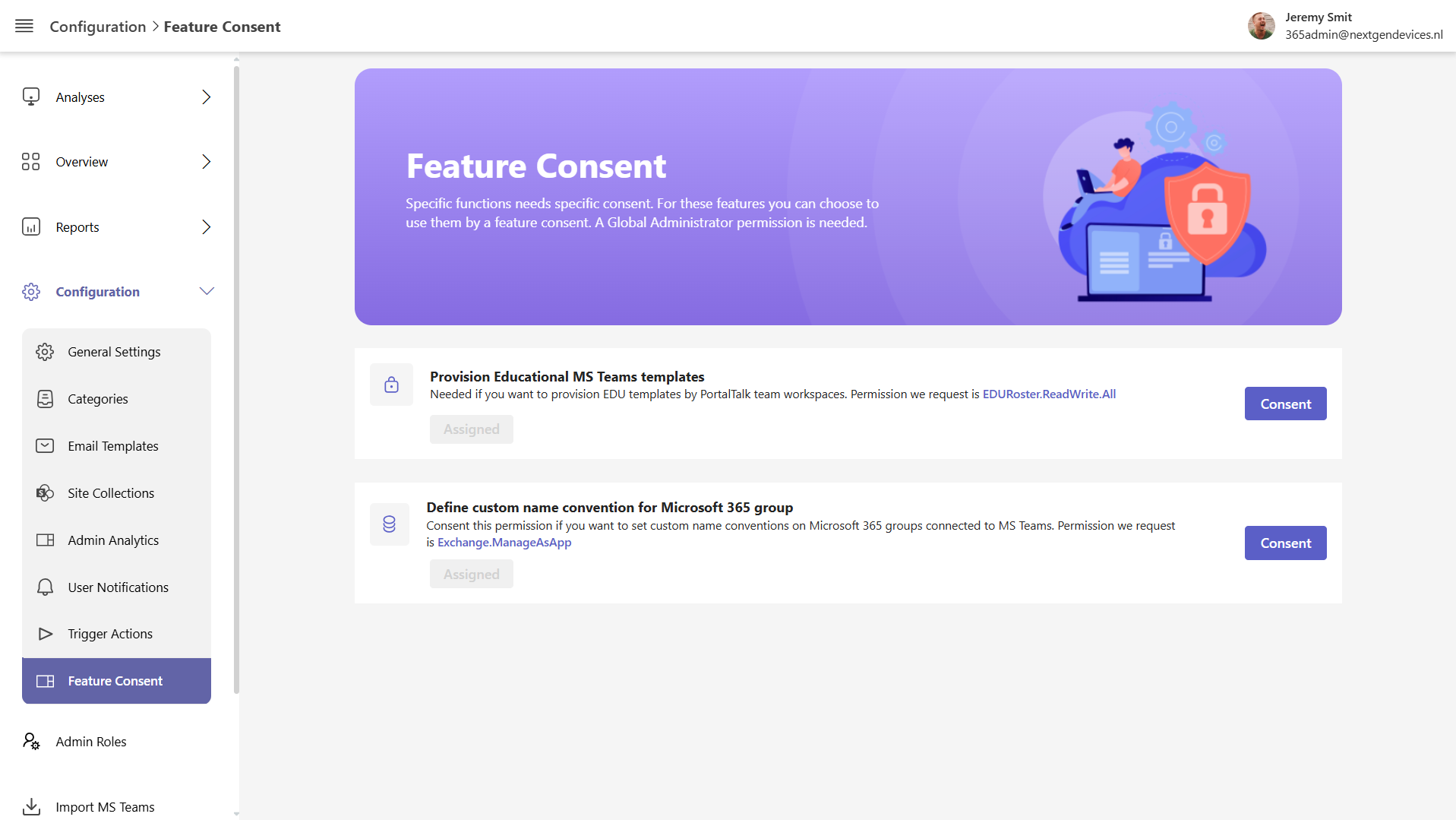
-
Two feature consents appear. Select 'Define custom name convention for Microsoft 365 groep'.
-
Click the 'Consent' button to start the procedure.
-
You will see the Permissions Request consent screen.
-
Accept the request to assign the permissions to PortalTalk
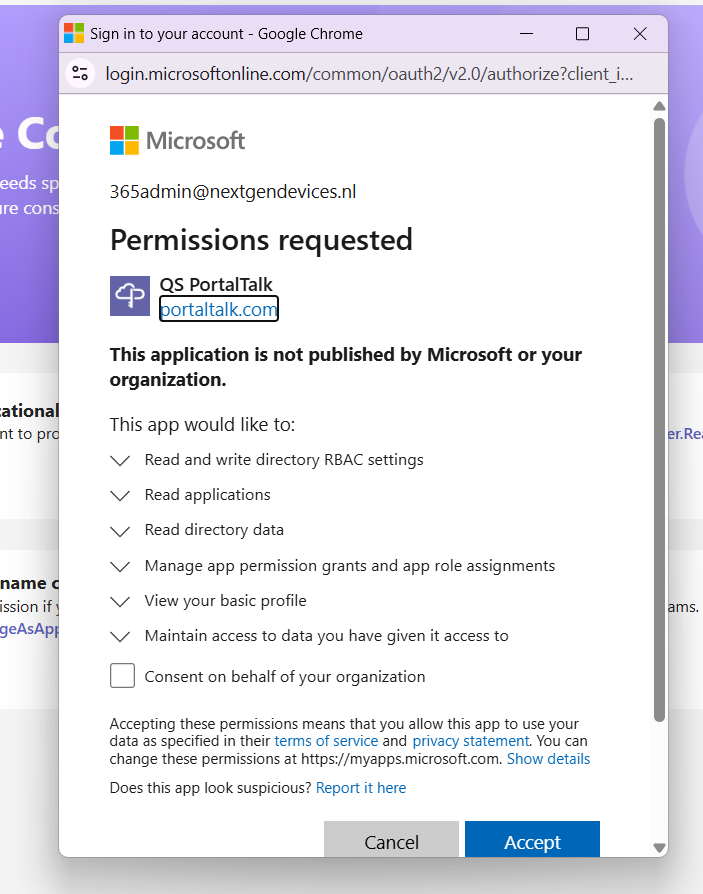
-
Your screen should look like this after consent
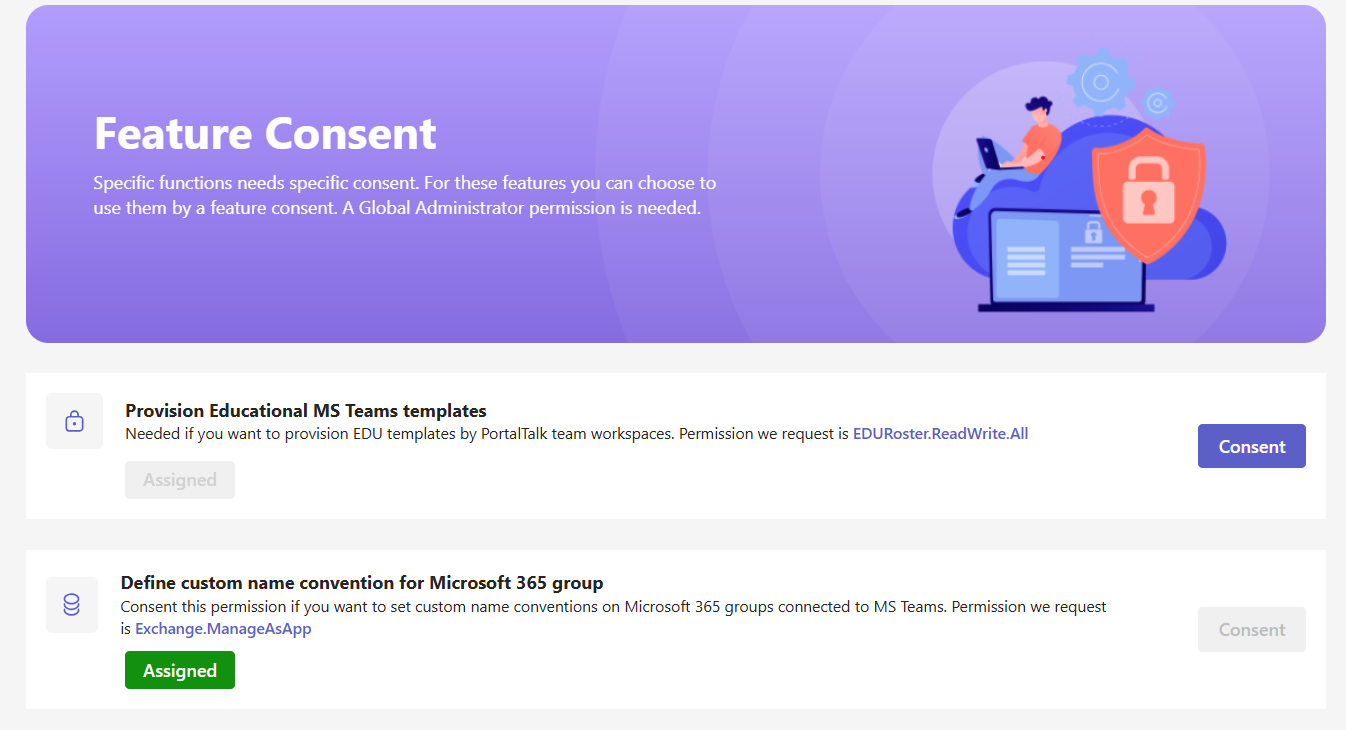
You can now configure the Name Conventions Generator to your requirements.
Configuration of the Name Convention Generator
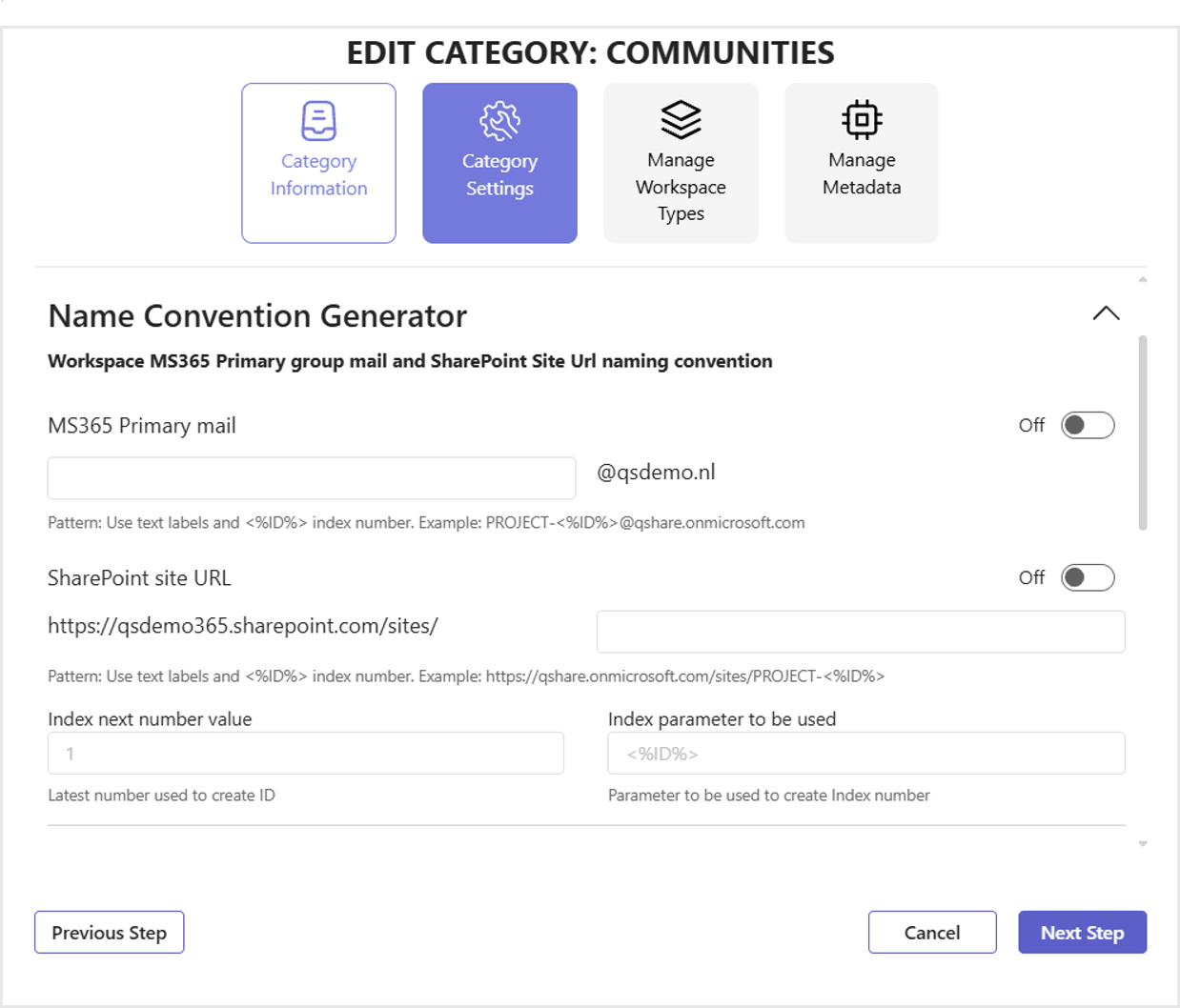
-
Name convention is disabled by default. You can enable it per section for MS Teams primary mail and SharePoint site URLs.
-
MS Teams team name and SharePoint site name use the creator's input. This service does not apply the configured name convention to those names.
-
For MS365 primary mail, the name convention is placed before the domain.
-
For SharePoint site URLs, the name convention can appear at the end of the URL.
-
Compose the name convention using one or more fixed text blocks.
-
To ensure unique primary mail addresses and site URLs, the system assigns an index number when creating an MS Teams workspace.
-
The index increments by 1 for each new assignment.
-
You may set a new base index number; it must be higher than the most recently used index.
Configuration examples
To give you a headstart and some ideas, here are som configuration
Examples
Searchstring: “AMS”
Imports teams like:
-
AMS project Great
-
Project Great - AMS
-
Project AMS Great
After configuration you are done.
How to test the Name Convention Generator
When you create a new MS Teams workspace in the configured MS Teams category, the Microsoft 365 group primary email address and SharePoint URL use the naming convention defined by the configuration parameters. Verify them in the Microsoft 365 Admin Center (Groups) and the SharePoint Admin Center (SharePoint site Url).
Prefix Generator
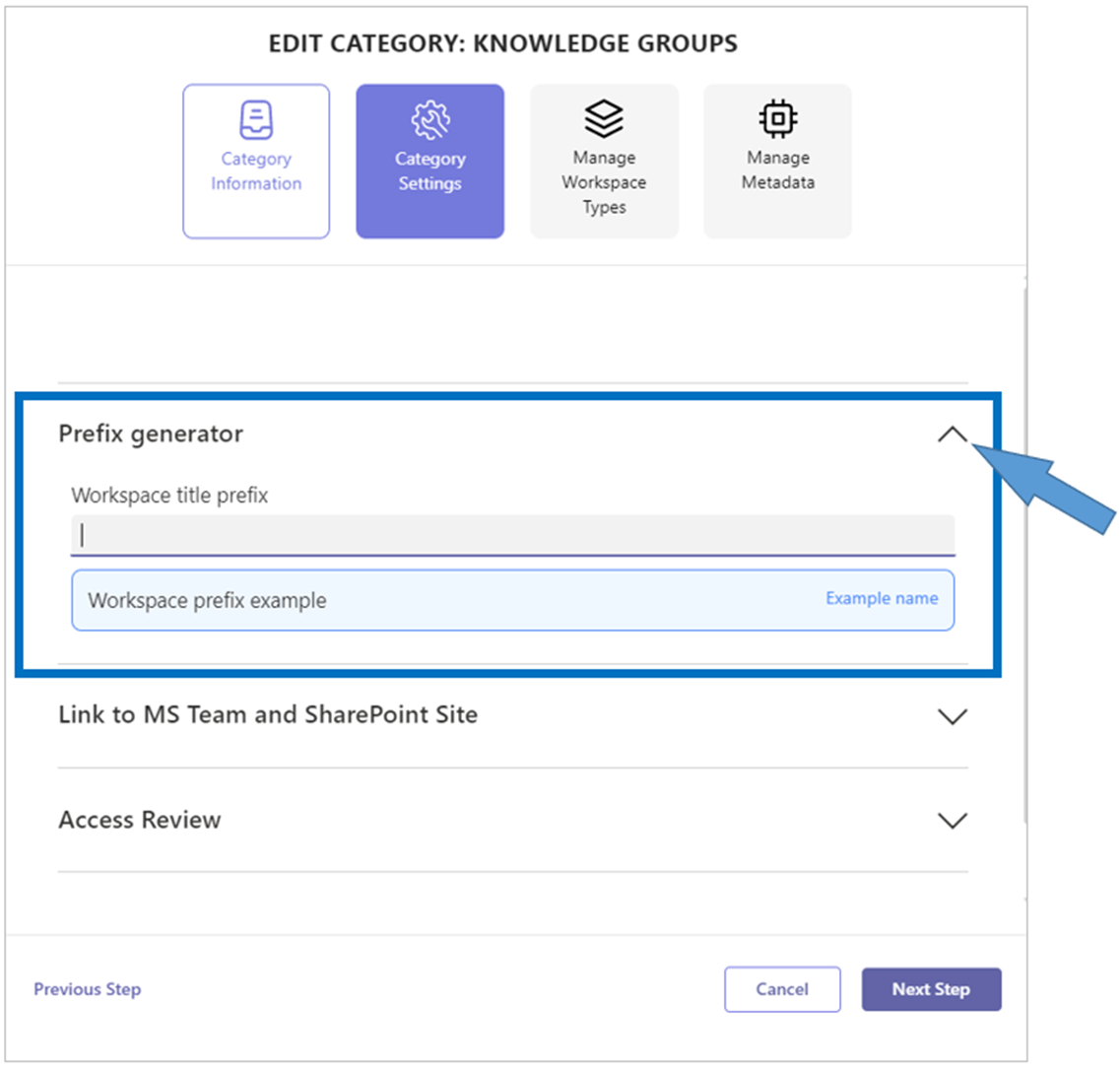
-
Expand the Prefix generator section.
-
Workspace title prefix - Enter the characters that are to precede the name of each workspace within this category.
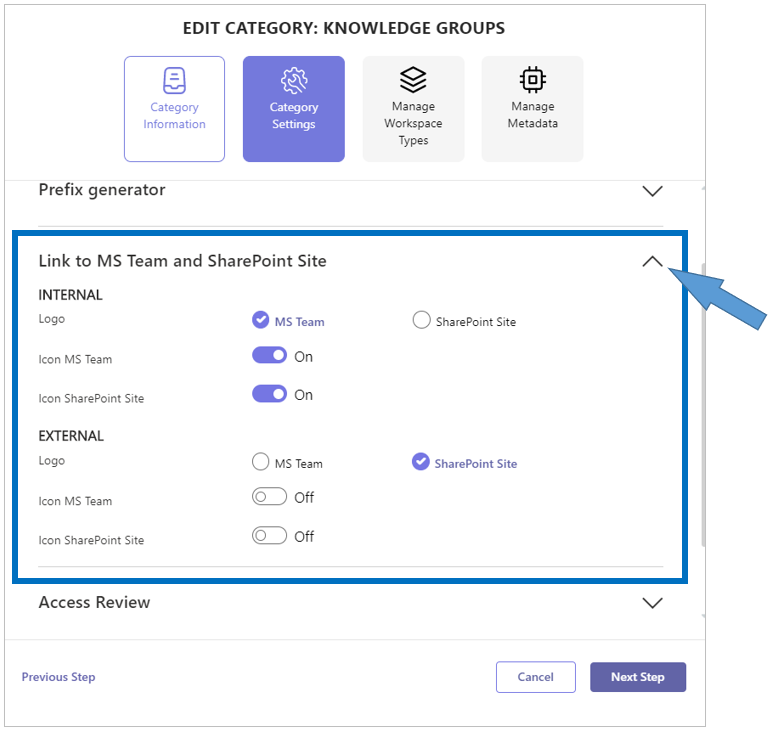
-
Expand the Link to MS Team and SharePoint Site section.
-
Logo Internal (MS Team / SharePoint site) - Indicate to where an internal user navigates when clicking the workspace-link or -board. This can be either to the MS Team or to the corresponding SharePoint site.
-
Logo External (MS Team / SharePoint site) - Indicate to where an external user navigates when clicking the workspace-link or -board. This can be either to the MS Team or to the corresponding SharePoint site.
-
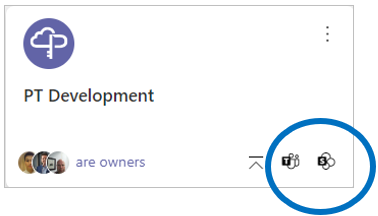
Icon MS Team (On/Off)- Indicate, for both internal and external users, whether the MS Team navigation link should be available on the workspace board (On) or not (Off).
-
Icon SharePoint Site (On/Off) - Indicate, for both internal and external users, whether the SharePoint site navigation link should be available on the workspace board (On) or not (Off).
-
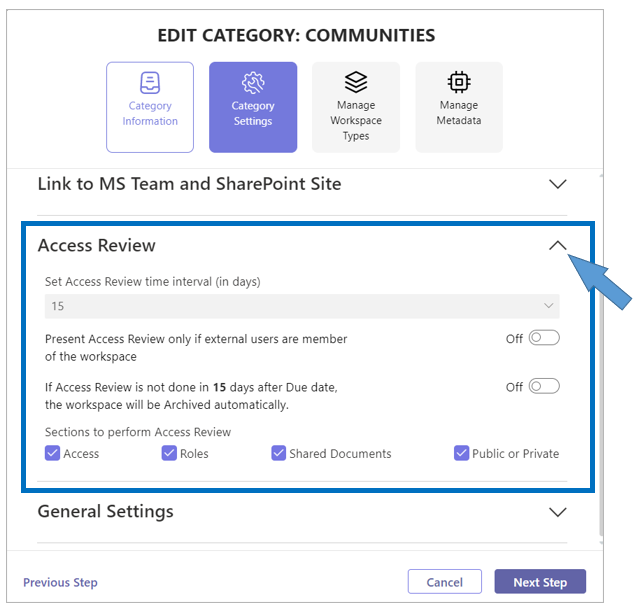
Expand the Access Review section.
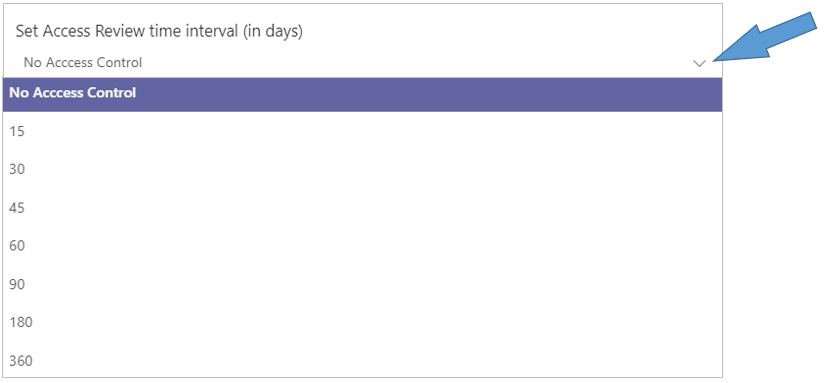
-
Set Access Review time interval (in days) - Select the appropriate time interval in between consecutive reviews.
-
Present Access Review only if external users are member of the workspace - (On/Off) - Specify whether the periodic access review should only be applied if the workspace team contains external users.
-
If Access Review is not done in [number] days after Due date, the workspace will be Archived automatically - (On/Off) - Specify whether a work space is to be automatically archived if a period of time equal to the access review time interval has passed after the access review due date, without an access review having been executed.
Activating this setting triggers a warning pop-up: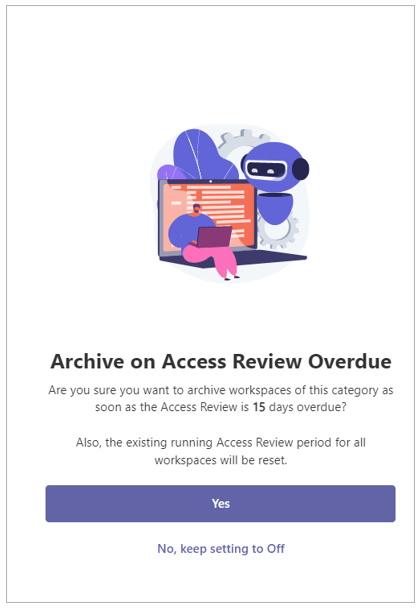
When a team workspace is automatically archived, PortalTalk notifies the team owner(s) via email and MS Team notification.
-
Sections to perform Access Review - Check the items that must be verified each periodic access review. Access review can be applied to team-membership, team-member permissions and shared site content.
-
Public or private - Check this item if the workspace’s owner, when performing the access review, must be alerted to the privacy status of the MS Team workspace.
-
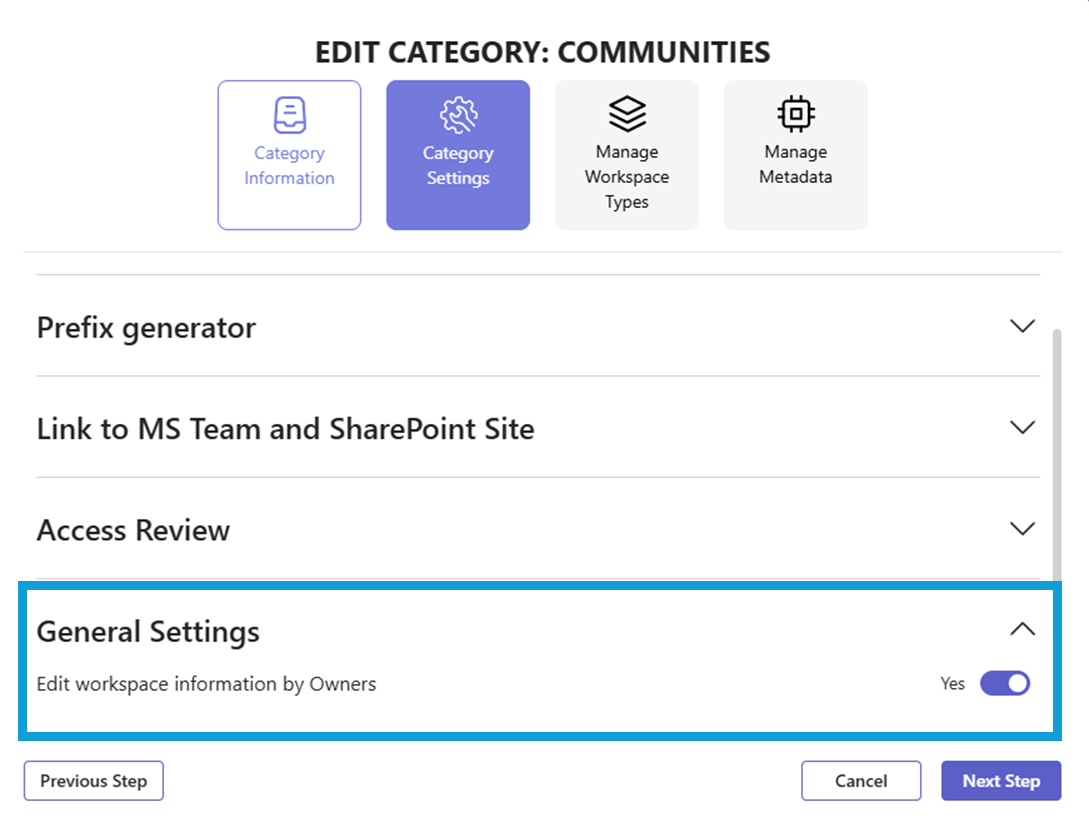
Expand the General Settings section.
-
Category and workspace type can be modified by the owner (Yes/No) - A team workspace owner may move, on the Workspace Edit screen, the workspace to another Category or Workspace Type. This action can be prevented at the category-level. Changing a MS Teams workspace's Category or Workspace Type, can change the workspace's 'Invite External Guest' setting accordingly, thus possibly compromising the company compliancy policies.
If you are looking for the Add read-role function in General Settings, read the following:
Starting with Portaltalk version 2.12 (release ), the read-role function is deprecated. You can no longer configure it for new Teams categories. Existing Category read-role settings remain functional.
This function was removed due to its significant impact on permission assignments in MS Teams workspaces and their connected SharePoint sites.
-
Click Next Step to save your settings and move from the Category Settings form to the Manage Workspace Types form.
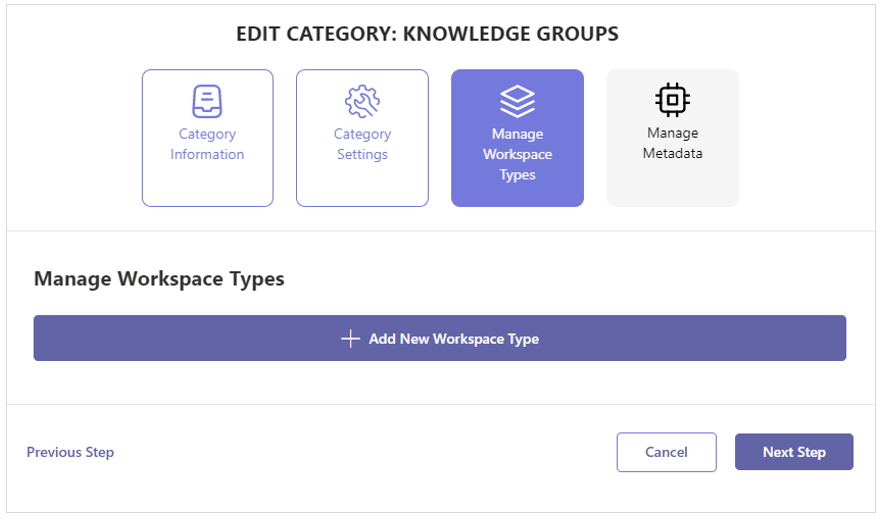
Continue the third step of the configuration process with the instruction Manage MS Team workspace types.