.png)
The Microsoft Teams Controlled Workspace Create MS Teams category is a major enhancement that enables organizations to tightly regulate who may request, approve, and participate in team workspaces. This feature is delivered through Controlled Members Create
MS Teams Controlled Members Create represent a special governance model where:
-
Only designated users are allowed to request a workspace.
-
Only approved members from a predefined limited group may be added to the workspace.
-
Approval must always be handled by specific owners—they confirm both the creation request and the membership.
-
The privacy of these controlled teams is always set to private and cannot be changed. Even not by the MS Teams UI itself.
-
One MS Teams workspaces are supported. SharePoint sites are not supported.
-
The Teams Controlled workspaces are only supported in the MS Teams and browser UI.
PortalTalk Site web part will not shown the specific category of these teams. -
This process ensures a closed loop of creation → approval → membership, ideal for educational or regulated environments.
Example scenario
A student requests a project workspace and proposes classmates as members. A teacher (the designated approver) must approve both the workspace creation and the listed members. Only after approval will the workspace be created and members added.
MS Teams Controlled Member Category
All category configuration actions are performed from the PortalTalk Admin Center. In the category list view, you can configure the workspace categories relevant to your organization.
A Controlled Member category introduces Workspace Controlled Member Services (WCMS), enabling restricted workspace creation, controlled membership, and designated approvers only. This ensures that users may request a workspace only if they belong to the allowed requester group, propose members only from a limited and approved population, and that approval is always handled by specific designated Owners.
Create a new MS Teams Controlled Member Category
Access the PortalTalk Admin Center and select the Configuration → Categories navigation option.
-
Click on Select Category Type
-
Choose a Category name
-
Assign a custom icon for this category
-
Find the workspace category of type Microsoft Team - Controlled Member for which you need to configure Controlled Member settings.
-
Select the Order of the Category to show up in the User App in MS Teams
-
Select a category color
-
Click ‘Next step’ to create the new category
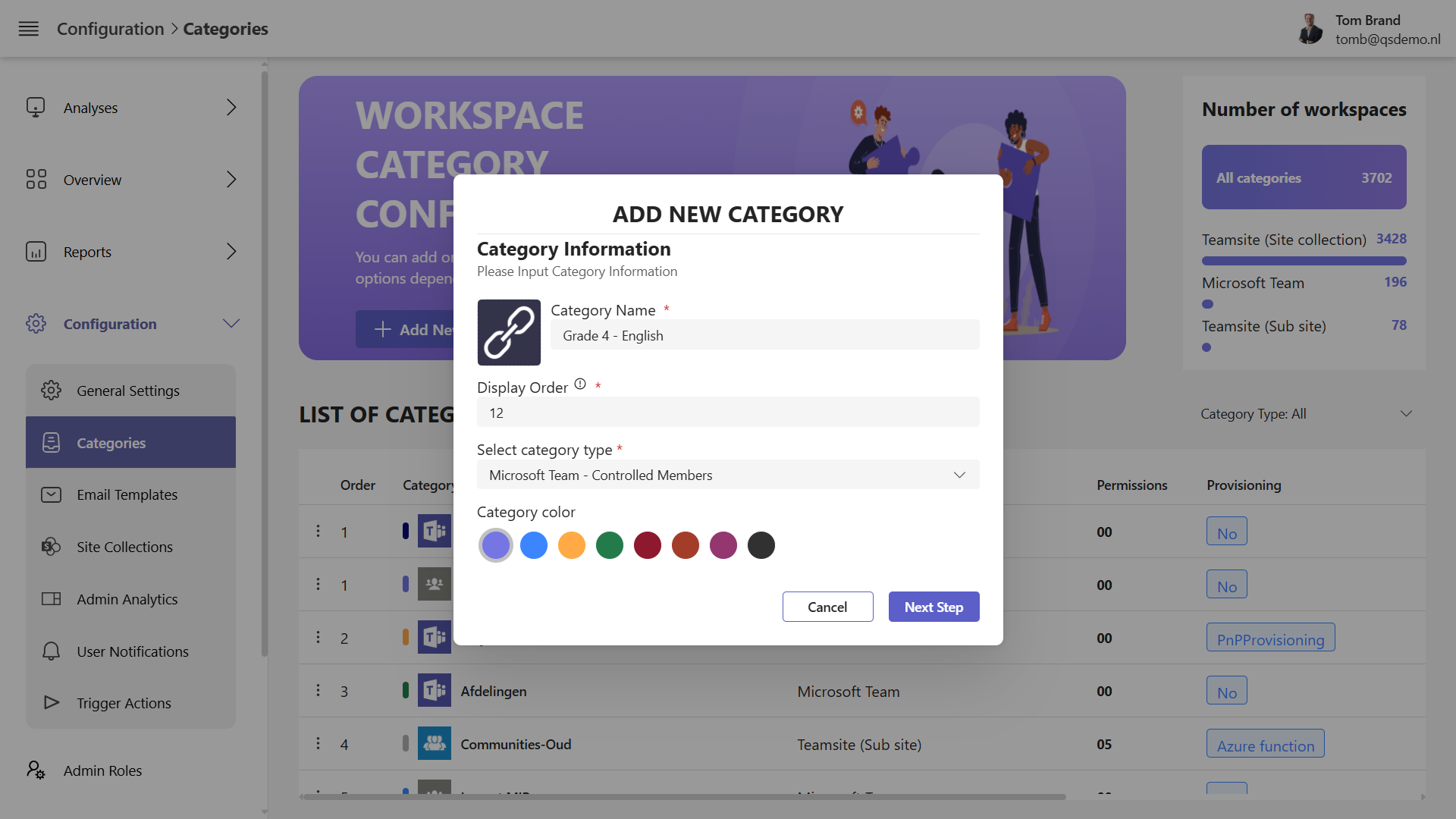
Configure the new Controlled Member category
The first screen offers the same settings as the standard MS Teams category. Please check this article for all details Category Settings MS Team
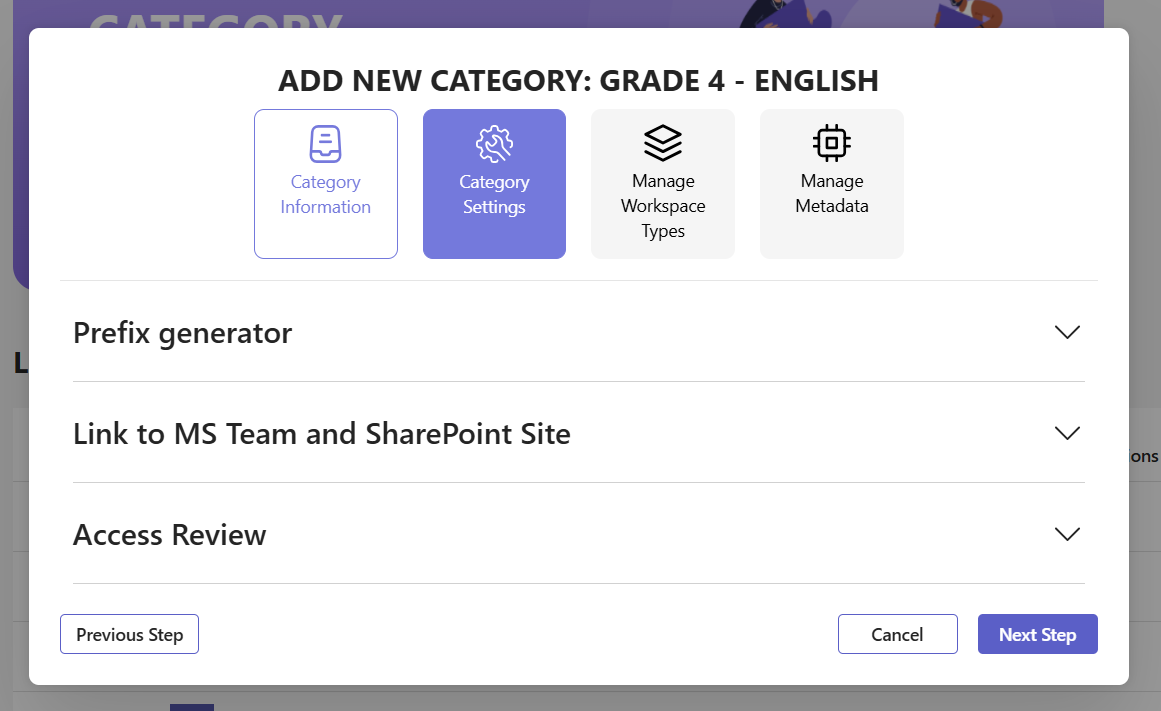
-
Click Next step to continue the configuration process, the Workspace Type. At least you should create one Workspace Type.
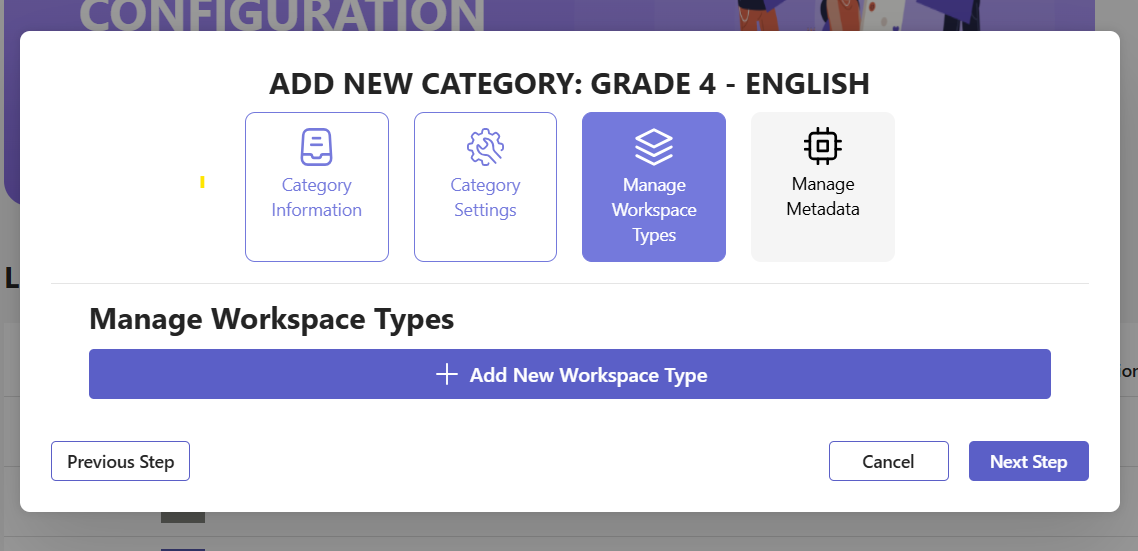
-
Click the ‘Add new Workspace Type’
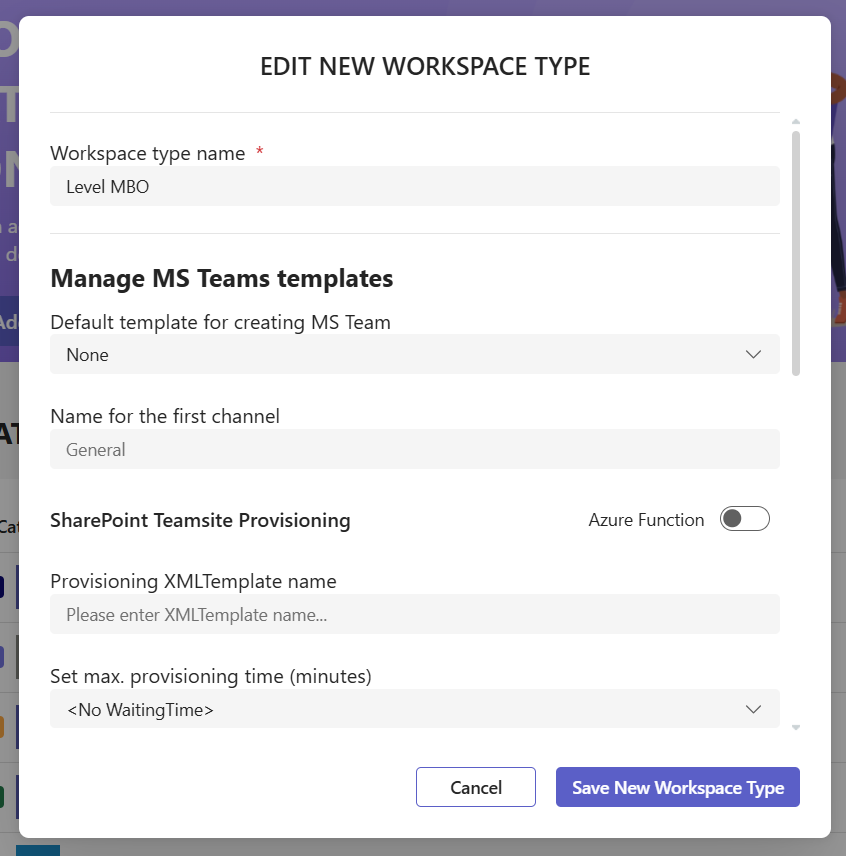
-
Please apply a Workspace Type name.
-
Apply provisioning settings to your needs Category Settings MS Team
-
All provisioning options are supported
-
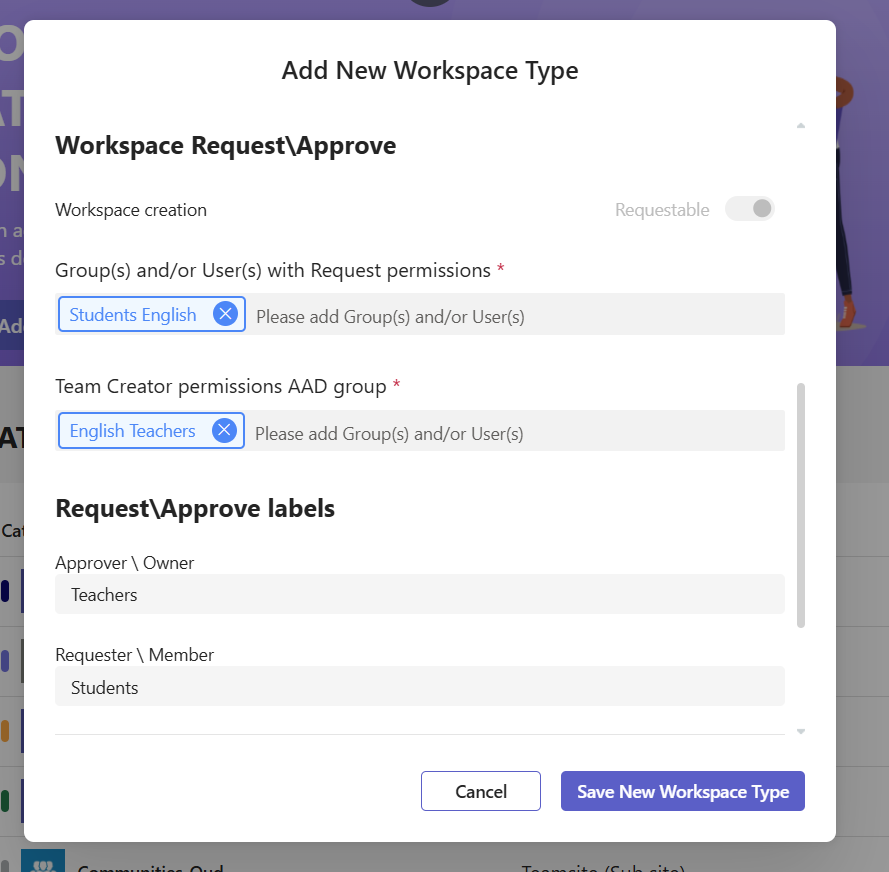
Scroll down to see the Controlled Workspace specific settings
-
First enter the Group and/or users who may request. In this school example, the Students
-
The Entra ID Security Group ‘Students English’ is connected holder as the English Students accounts
-
Team Creator and Approval Permission by design) group is connected holding the English Teachers
-
On the Request team workspace form, you can assign functional labels to your choice. In this example Teachers and Students will fit perfectly.
-
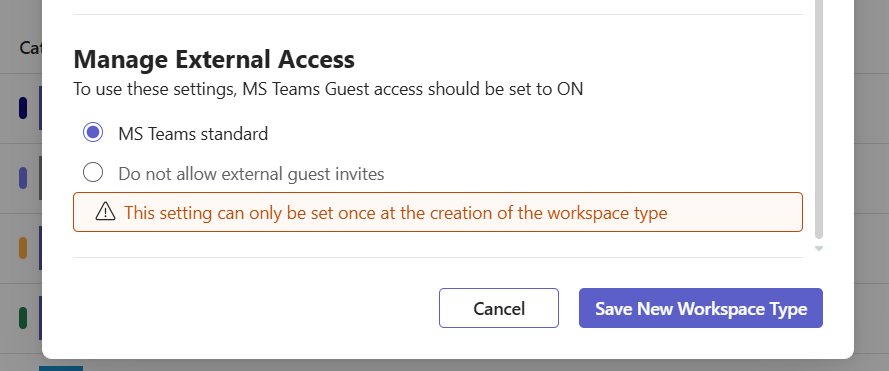
Additional configuration can be done, comparable to the normal MS Teams category. Please select the option you want to apply.
You can continue by saving this new Workspace Type.
If you want, you can create additional Workspace Types. Also the workspace Metadata option is supported, the same as the standard MS Teams category.
Please see this link for configuration Manage MS Teams Metadata
How to use Request & Approve a MS Teams Controlled Workspace
The process to request and approve a workspace is part of the Member and Owner manual. Please consult these. For your convenience, the information can be found here