.png)
PortalTalk Services
Introduction
Services in PortalTalk are automated processes designed to streamline and simplify the management of collaborative workspaces. They perform recurring or administrative tasks on your behalf, reducing manual effort and ensuring consistency across your environment.
More services will follow, expanding the platform's ability to support efficient, scalable collaboration.
Managed Members Service
With the introduction of version 2.9, PortalTalk launches its first service: Managed Members Service—an automated solution for adding and maintaining users in team workspaces. With this service, an MS Teams workspace can be linked to an Entra ID security group. The membership of the workspace team will then automatically reflect the membership of that security group. Any changes—additions or removals—in the Entra ID group will be mirrored in the corresponding MS Teams workspace, keeping team composition continuously up to date. This synchronization takes place once a day, at a time of your choice.
Users can be added as members by default. You may choose to add all users as owners for specific scenarios. The PortalTalk Default Owner account (General Settings → MS Teams → Default Owner or Manager Member MS Teams) will also be added as a default owner of the team, even if the user setting is set to owners.
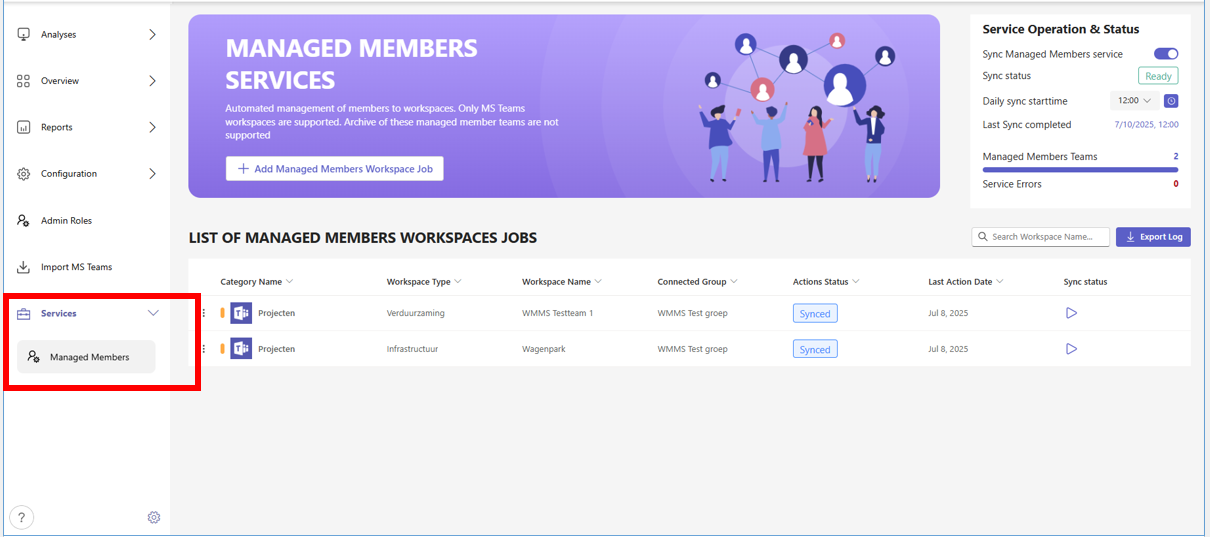
All Managed Members Workspace Job configuration actions are performed from the List of Managed Members Workspaces Jobs.
This view you can filter, sort and search to find specific Managed Members Workspace jobs.
If so required, consult the PortalTalk manual chapter Effectively find and extract from PortalTalk the data you are looking for.
Create a Managed Members Service Job
-
Access the PortalTalk Admin Center.
-
Select t the Services - Managed Members navigation option to access the List of Managed Members Workspaces Jobs.
-
In the header of the page, click the option + Add Managerd Members Workspace Job.
-
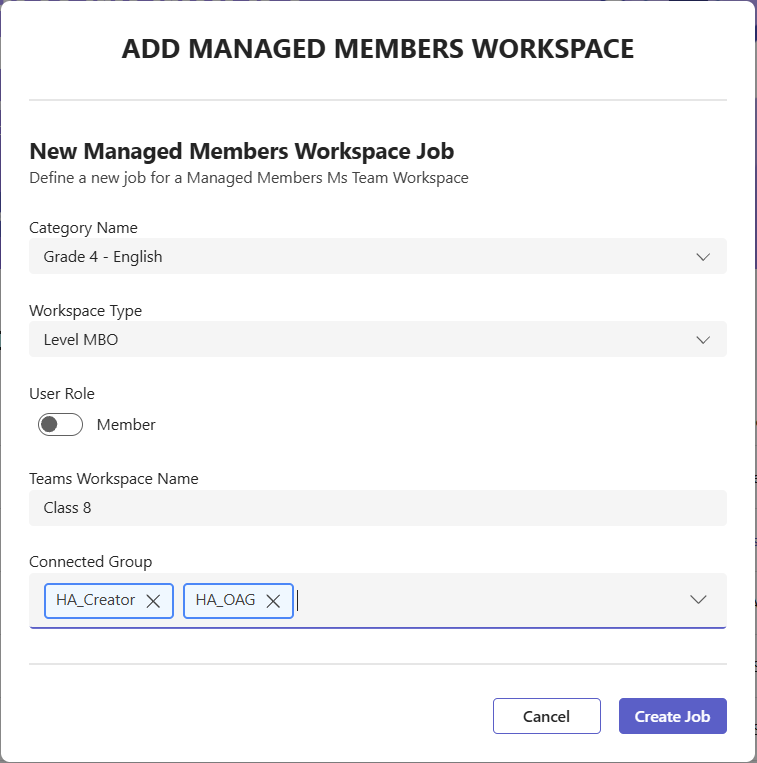
The Add Managed Members Workspace Job form is displayed:
-
Category Name - Enter the name for the new MS Team workspace category.
-
Workspace Type - Click the camera-icon to navigate to and upload an image to be applied as standard logo for the workspaces to be created within the category.
-
User Role - As default the users of the connected group will be added as Members to the created team. You can also decide the Users should be all added as Owners. If needed, set the switch to Owners to do.
Remark: If users are added as Owners, they retain Member permissions in this managed team. They cannot add team members or change member permissions. Adding users via the MS Teams UI will not add them; it can take up to 24 hours before users added through the UI are removed again. -
Teams Workspace Name - Enter the name of the MS Teams workspace to be created.
-
Connected group - Select the relevant Entra-ID security groups (Min. 1 - Max. 20) to add its members as team members to the MS Teams workspace.
-
Click Create Job.
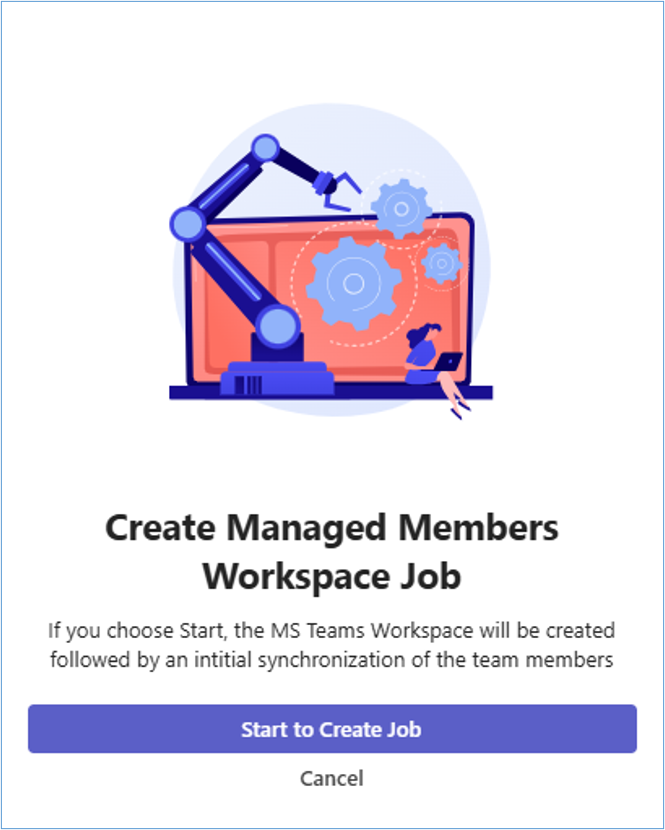
The Create Managed Members Workspace Job dialog is launched.
-
Click Start to Create Job.
The newly created job is added to the list of Managemed Members Workspaces Jobs.
The MS Teams workspace including its members is directly available.
Edit a Managed Members Workspace Job
-
Access the PortalTalk Admin Center.
-
Select t the Services - Managed Members navigation option to access the List of Managed Members Workspaces Jobs.
-
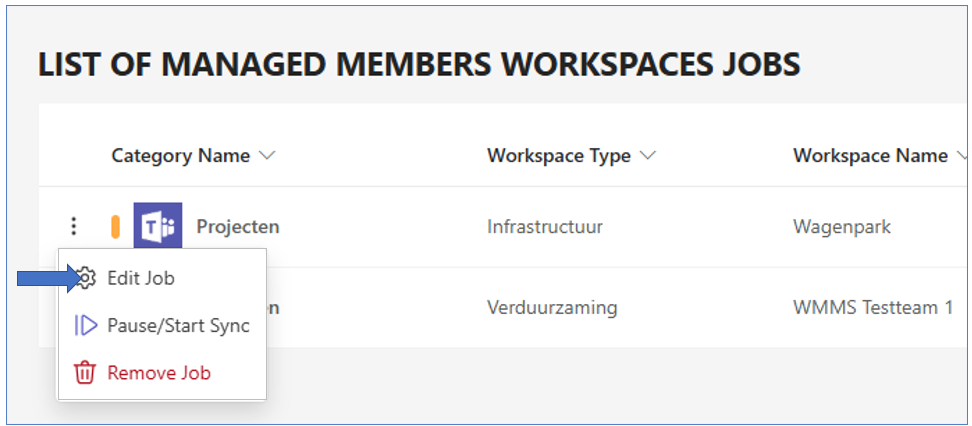
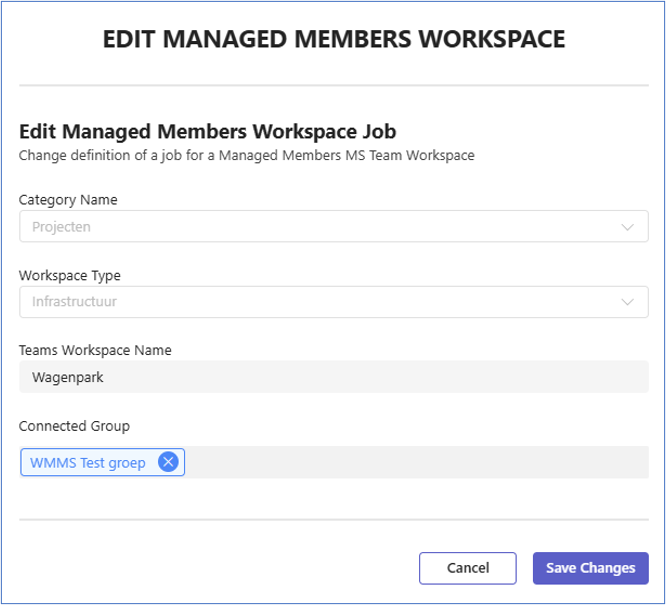
Click the Edit Job option for the relevant job.
-
In the Edit Managed Mebmers Workspace Job form, make the concerned changes.
-
Click Save Changes.
Start or Pause the sync for a Managed Members Workspace
-
Access the PortalTalk Admin Center.
-
Select t the Services - Managed Members navigation option to access the List of Managed Members Workspaces Jobs.
-
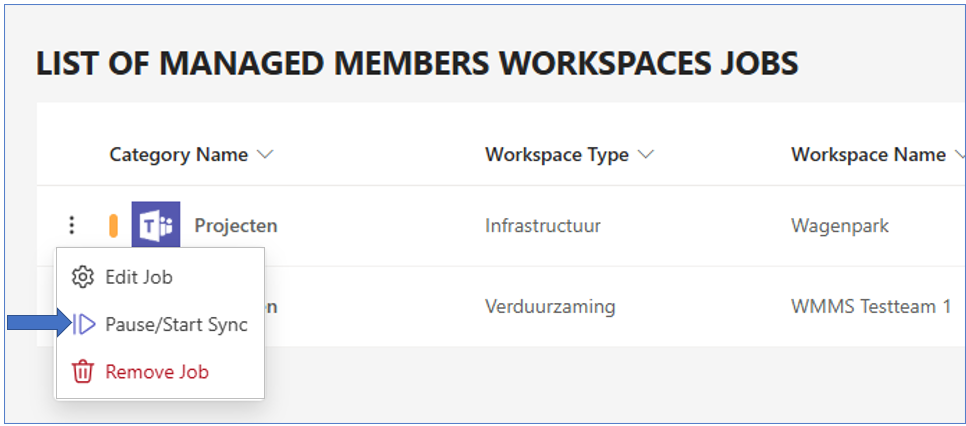
Click the Pause/Start Sync option for the relevant job.
Remove a Managed Members Workspace Job
-
Access the PortalTalk Admin Center.
-
Select t the Services - Managed Members navigation option to access the List of Managed Members Workspaces Jobs.
-
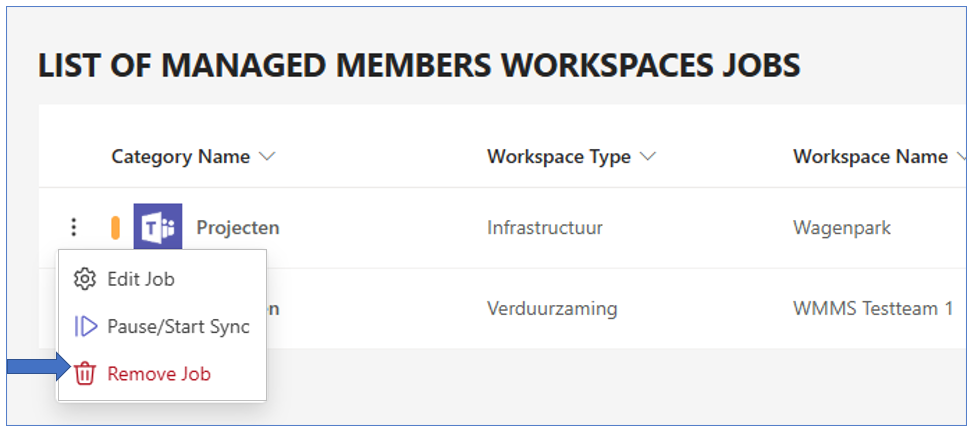
Click the Remove Job option for the relevant job.
-
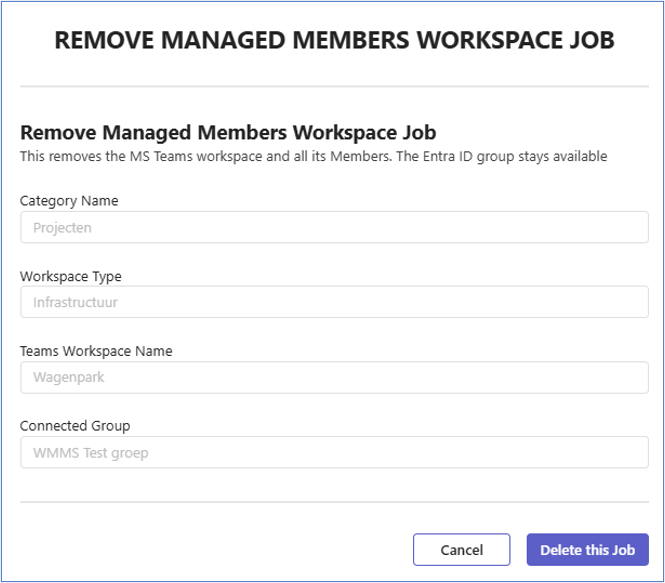
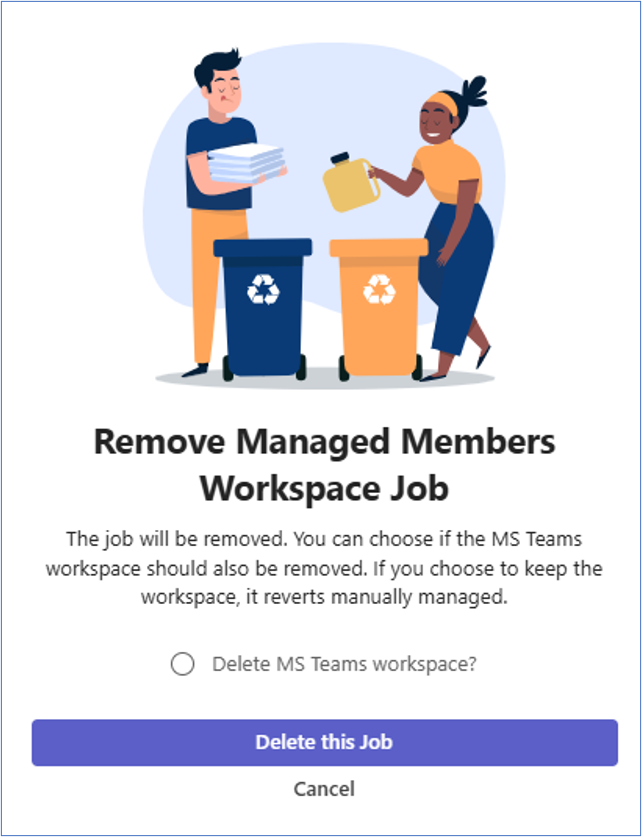
In the Remove Managed Members Workspace Job form. click Delete this Job.
-
Select the option Delete MS Teams workspace? if the MS Teams workspace is to be deleted as well.
Configure the job synchronization
-
Access the PortalTalk Admin Center.
-
Select t the Services - Managed Members navigation option to access the List of Managed Members Workspaces Jobs.
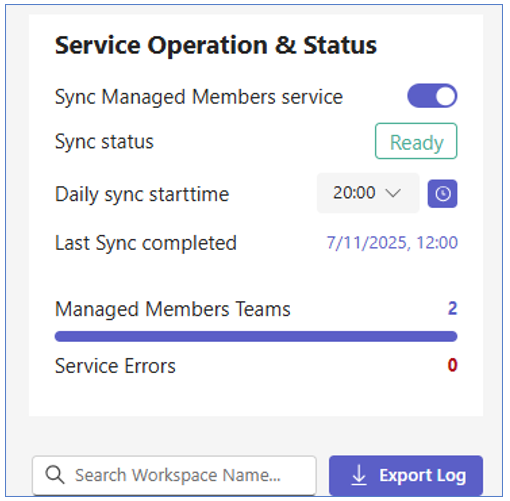
The Service Operation & Status window is displayed at the top right corner of the page,
-
Sync Managed Members service - Activate the sync service.
-
Daily sync starttime - Select the time the daily sync is to take place.
Export the Sync Log
-
Access the PortalTalk Admin Center.
-
Select t the Services - Managed Members navigation option to access the List of Managed Members Workspaces Jobs.
-
In the Service Operation & Status window, at the top right corner of the page, click Export Log.

The data of the Sync Log are exported.
You will find them as an Excel file in your local download folder.