.png)
Access to the company’s business applications for the PortalTalk users
In the PortalTalk app, users can have direct access to the company’s online business applications for which they have user permissions.
In the navigation panel of the PortalTalk User Application, the Applications navigation option provides access to a page displaying the tile-links to the company applications.
These application links are managed in the PortalTalk Admin Center.
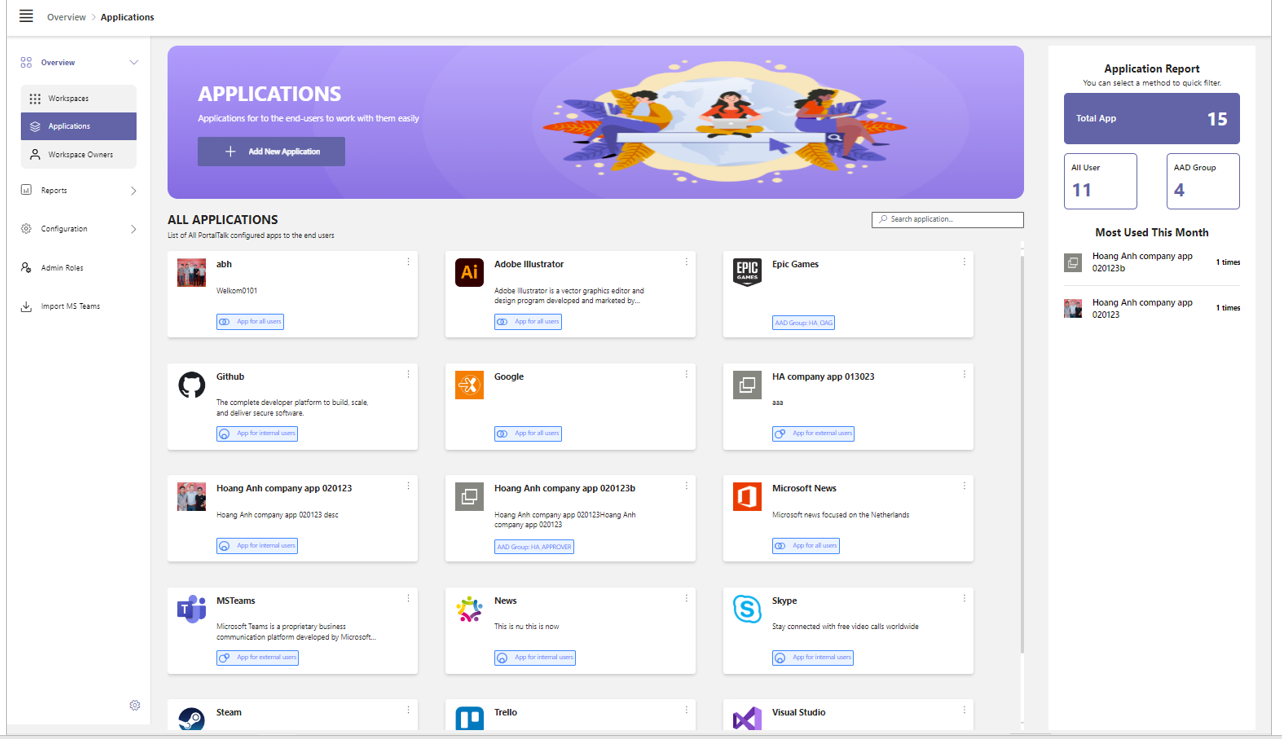
Dashboard and views of the business applications registered in PortalTalk
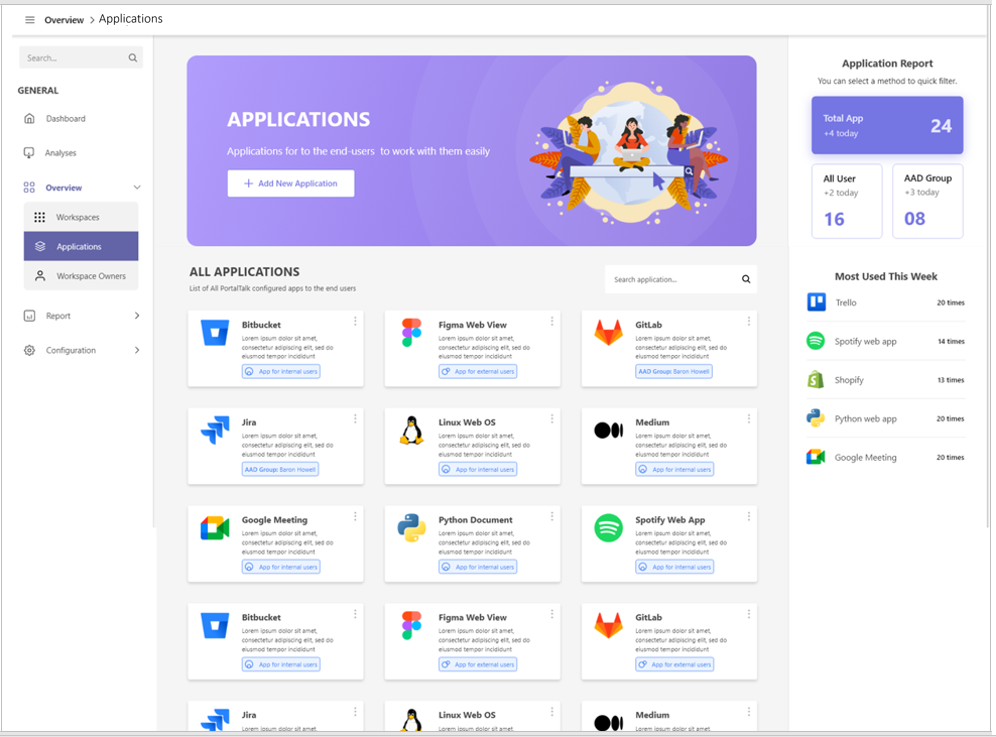
The applications overview consists of a dashboard with search functionality and several filtered views.
Access the Applications dashboard
-
Access the PortalTalk Admin Center.
-
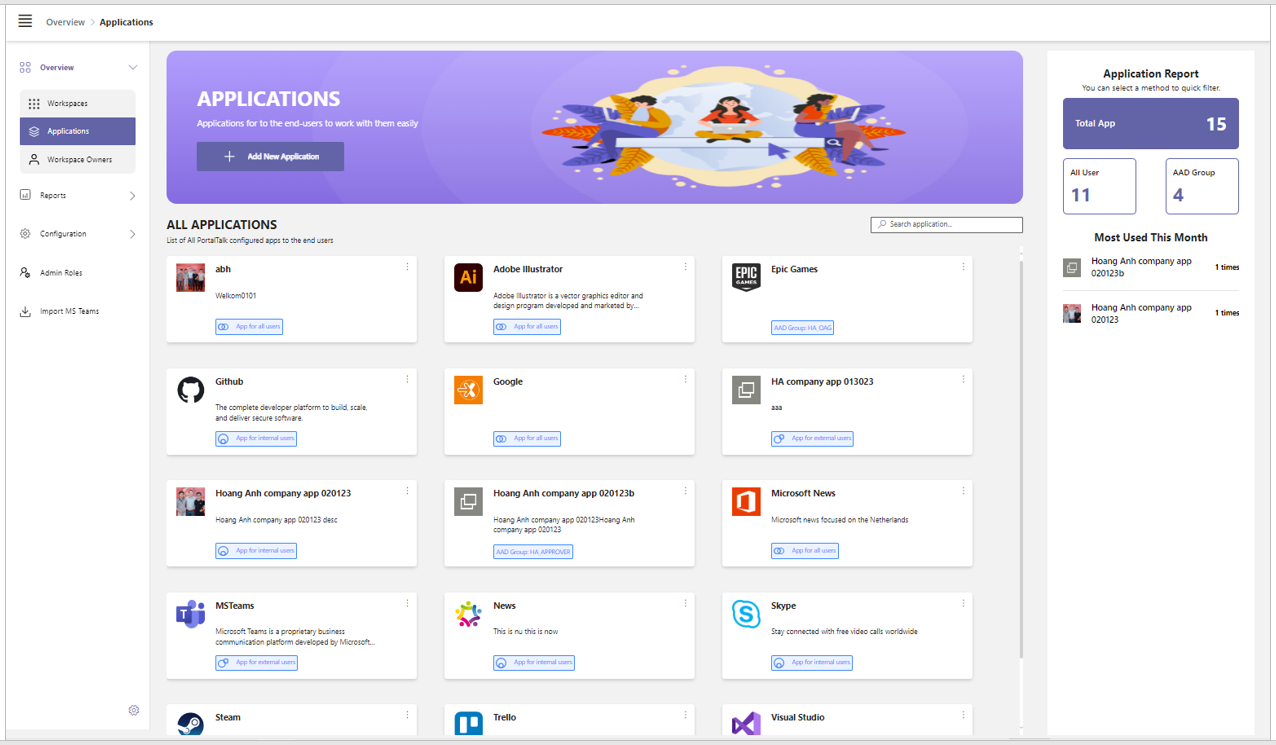
Select the Overview - Applications navigation option.
The Applications dashboard is displayed:
Manage access to online company applications for PortalTalk users
As PortalTalk administrator you create and manage the links in PortalTalk that provide the users access to the organization’s business applications.
The users can access a company application by clicking the application-link in PortalTalk.
A company application can be made available to either all users or to a user sub group - Internal users, External users, a specific AAD group.
This page describes the following actions:
Add a new application link
-
Access the PortalTalk Admin Center
-
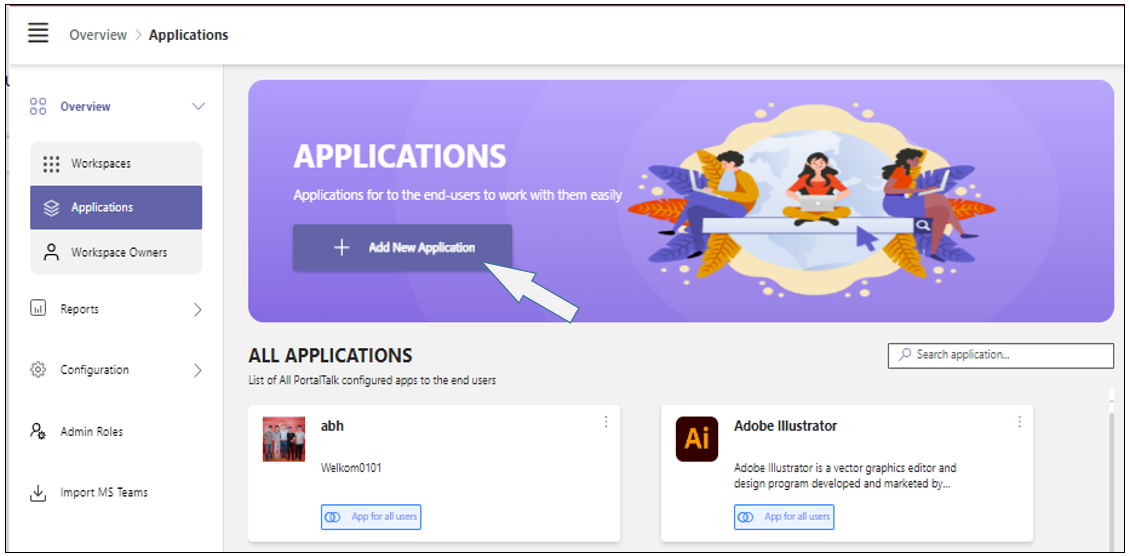
Select the menu option Overview - Applications to access the application dashboard.
-
In the header of the page, click the option + Add New Application,.
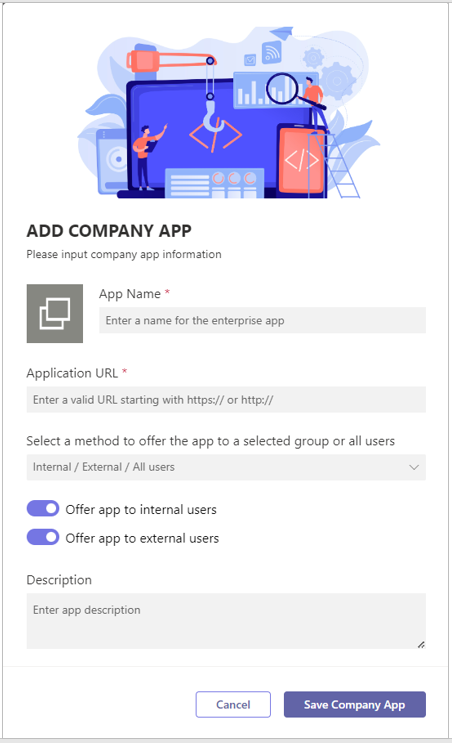
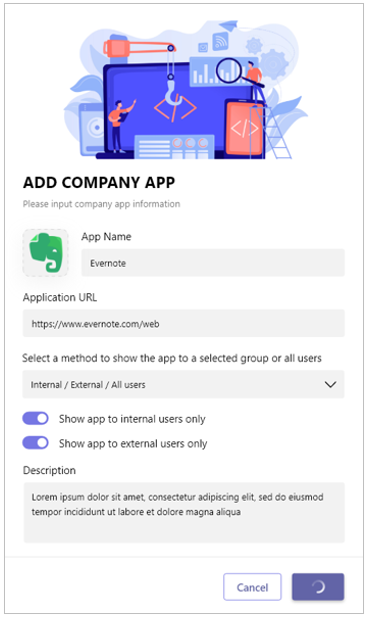
The Add Company App form is displayed:
-
App Name - Enter a name for the online application to be added.
-
Application URL - Enter the application's URL.
-
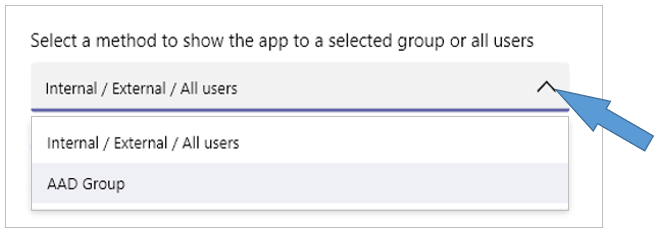
Select a method to show the app to a selected group or all users - Indicate whether the app is to be used by all users or by a user subgroup.
-
Internal / External / All users - When choosing this method, the next toggles become available.
Offer app to internal users - Indicate if the app tile-link must be visible to internal users only.
Offer app to external users - Indicate if the app tile-link must be visible to external users only. -
AAD group - When choosing this method, a selection field App will be available to members of this group will become available within which you can select the AAD group concerned.
-
Description - Enter a description for the app.
-
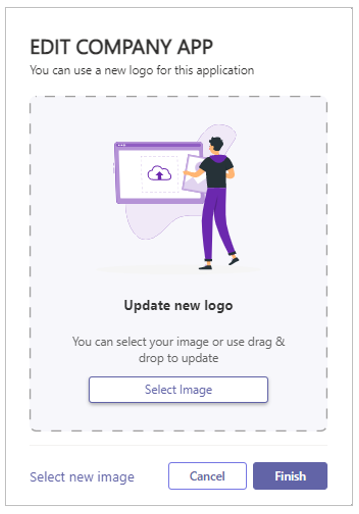
Logo Upload - Click the upload-icon directly left from the app-name field, to navigate to and upload an image to be displayed on the tile-link providing access to the application.
Or drag/drop an image to the indicated area.
-
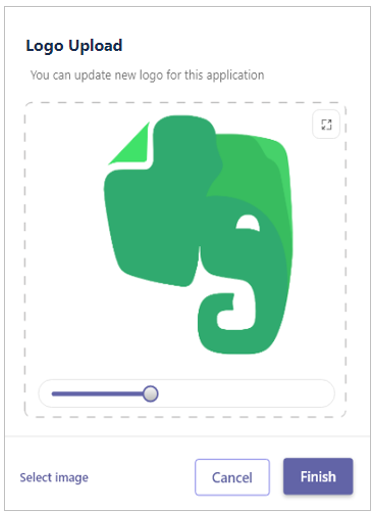
Logo image crop - If so required, adjust the image's size.
-
Click Finish to close the logo upload pane.
-
Click Save company app.
The Add Company App form is closed and the newly added application-link is now added in the list of company applications.
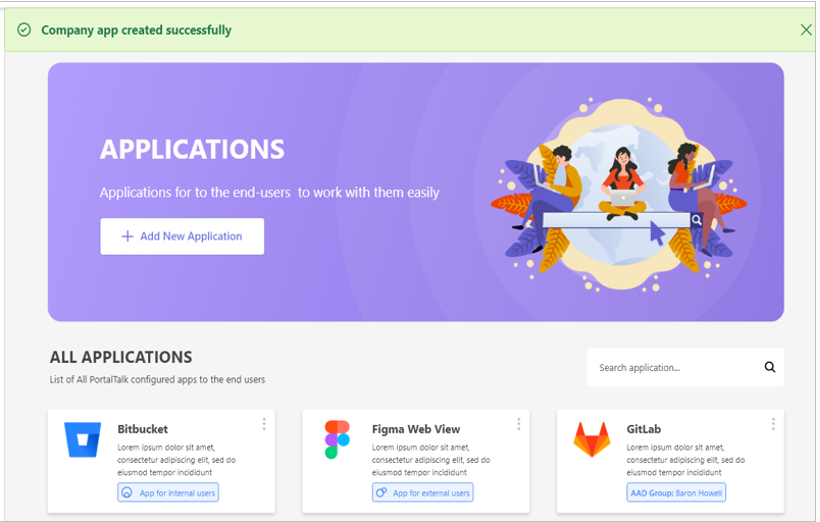
The addition of the new company app is briefly confirmed in the green status bar at the top of the page.
Edit an application link
-
Access the PortalTalk Admin Center
-
Select the menu option Overview - Applications to access the application dashboard.
-
Find the application link you need to edit, possibly by using the search functionality.
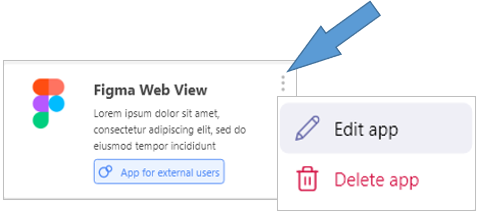
-
Click the application’s ellipsis menu button and select the option Edit app.
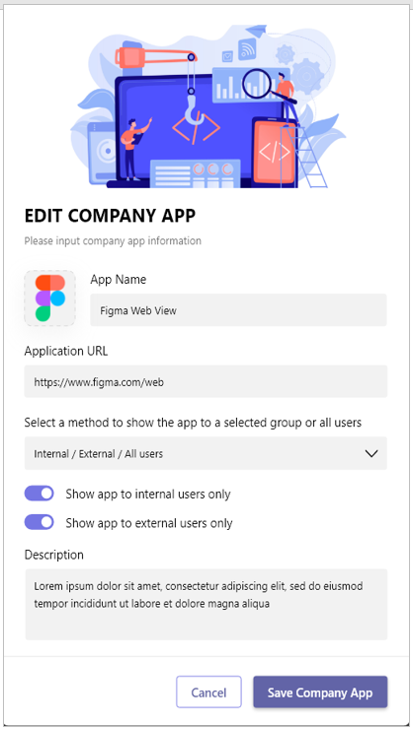
The Edit Company App form is displayed:
-
Make the desired changes in the app settings.
If necessary refer to the previous paragraph on creating a new company app link for an explanation of the various settings. -
Click Save Company App.
The application link settings are updated and the Edit Company App form is closed.
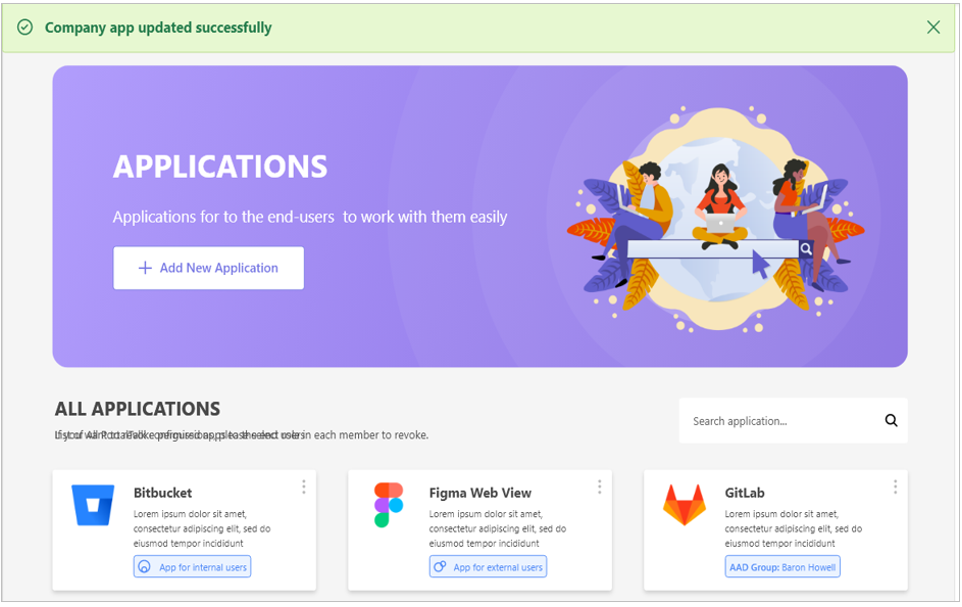
Your application update action is briefly confirmed in the green status bar at the top of the page.
Remove an application link
-
Access the PortalTalk Admin Center
-
Select the menu option Overview - Applications to access the application dashboard.
-
Find the application link you need to remove, possibly by using the search functionality.
-
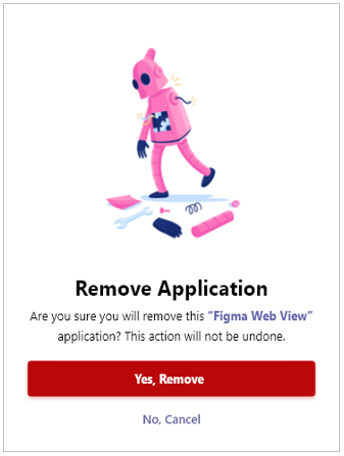
Click the application’s ellipsis menu button and select the option Delete app.
The Remove Application prompt is displayed:
-
Confirm your action.
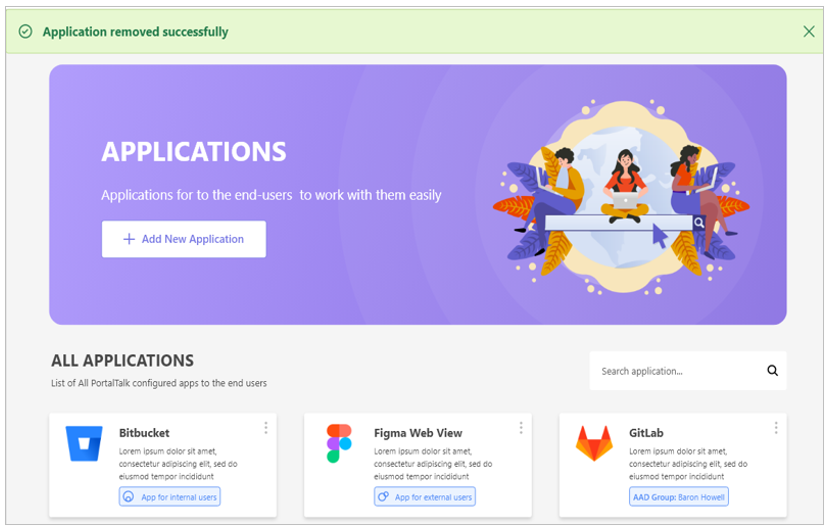
The removal of the application link is briefly confirmed in the green status bar at the top of the page.