.png)
Set or renew PortalTalk's access permissions to the tenant
In order to perform PortalTalk activities on an Microsoft 365 tenant, PortalTalk requires the relevant permissions from a Global Administrator
Granting this permission is accomplished by running the Consent PortalTalk function.
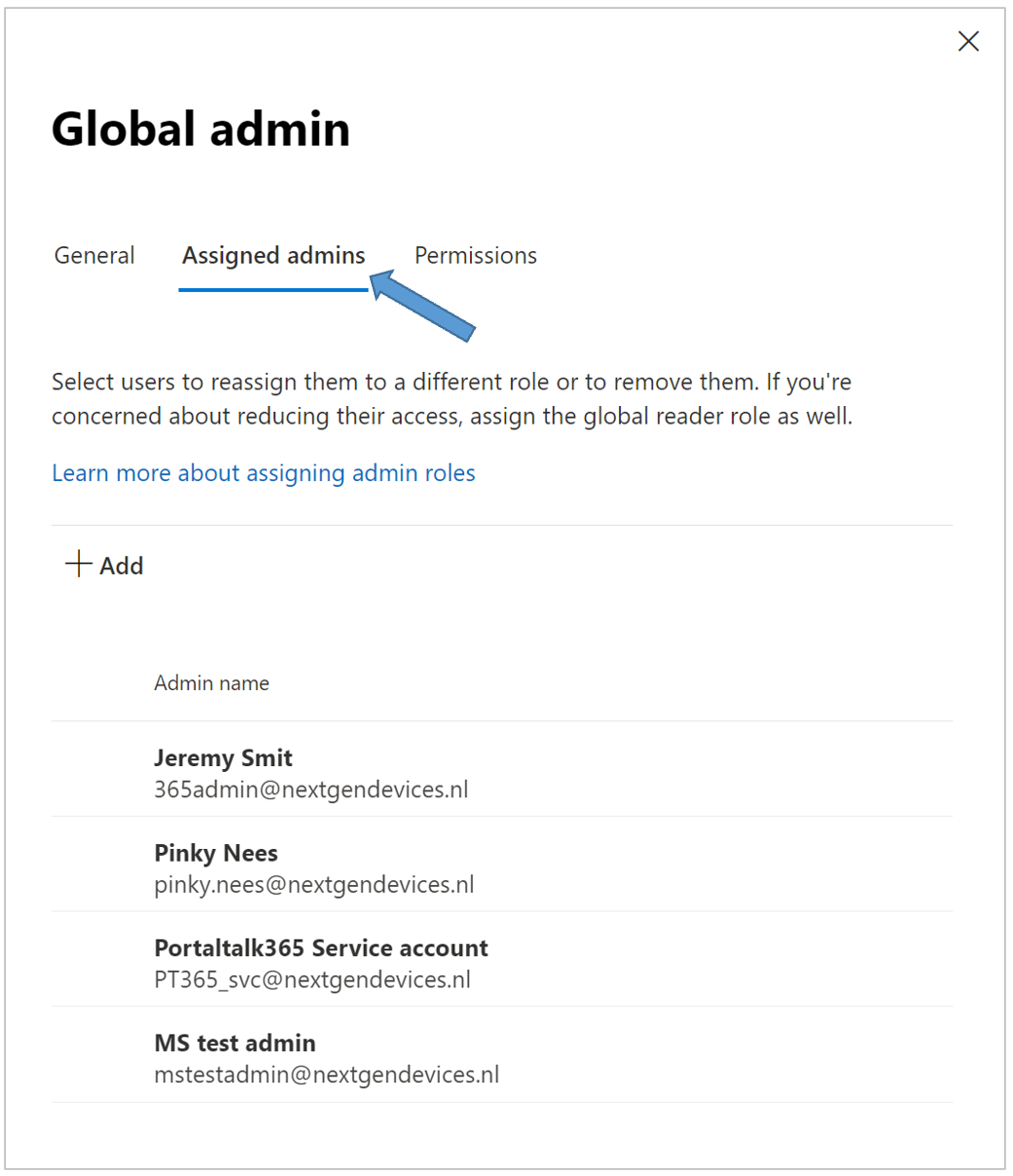
Only users with the Microsoft 365 tenant Global Administrator authorization can execute this function. (Who is an Microsoft 365 tenant Global Administrator in my organization?)
When rolling out a new PortalTalk version, it is regularly required that this consent is renewed in order to make new functionalities available to the PortalTalk users.
When new functionalities are added to PortalTalk, PortalTalk must also obtain the relevant permissions on the Microsoft 365 tenant to execute these new functionalities.
A yellow bar at the top of the PortalTalk Workplace screen indicates when a PortalTalk consent is required to make new functionalities available:
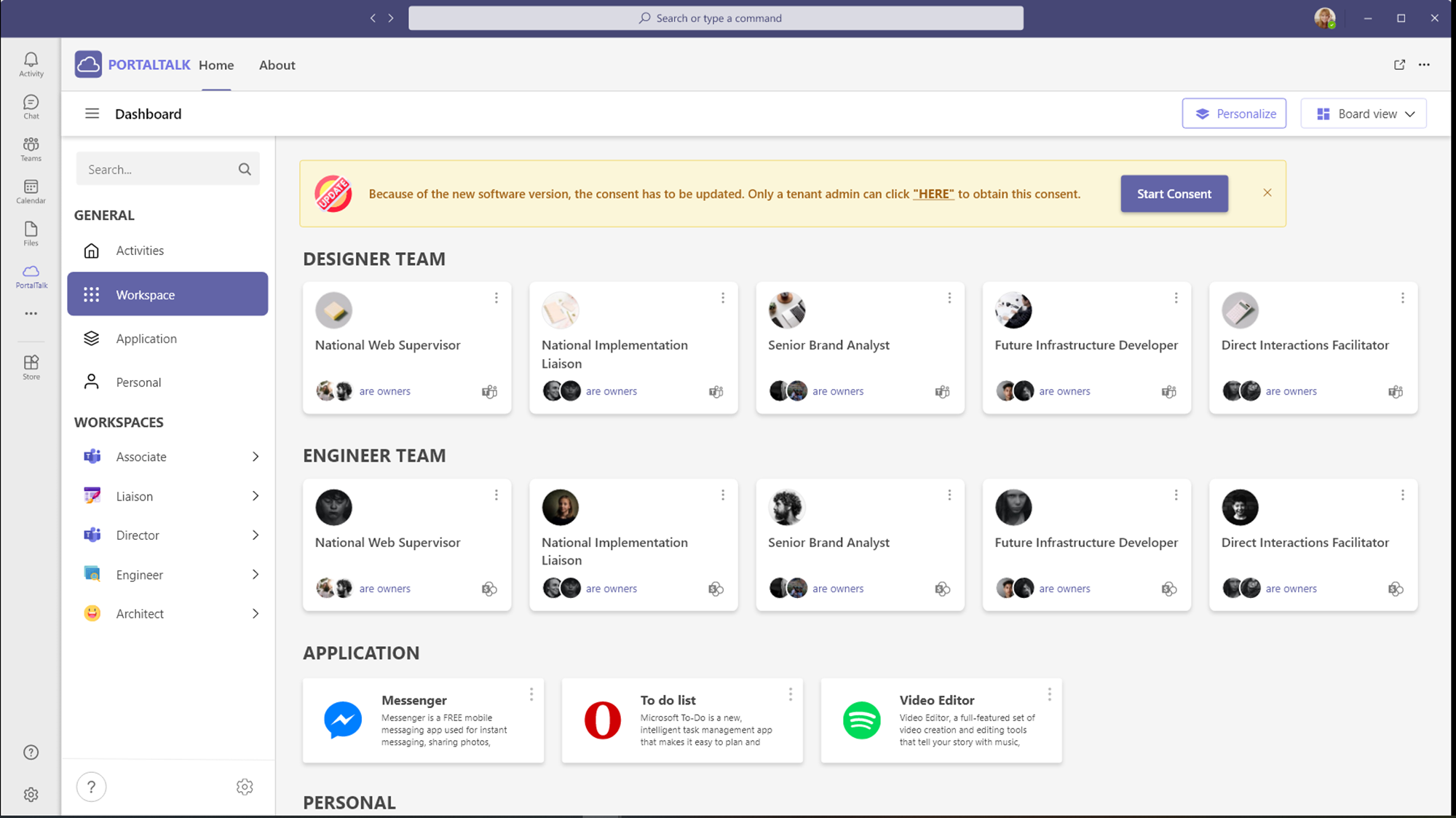
This notification is only visible to PortalTalk administrators and also to Microsoft 365 tenant Global Administrators.
Also, the PortalTalk Admin home page displays the date that the most recent consent was executed and offers the option of Re-consent,
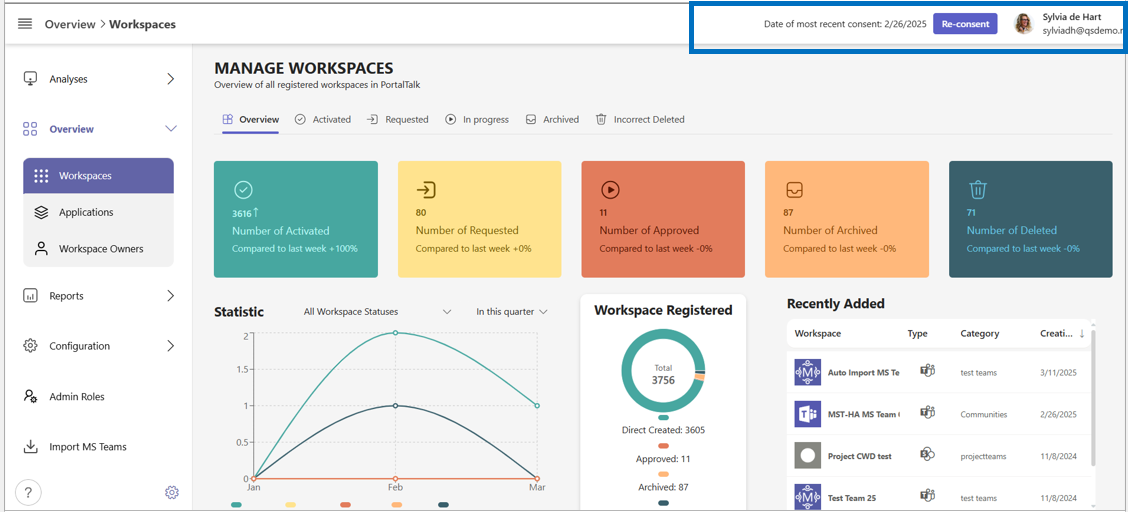
At the top right corner of the title bar, you will find the date of the most recent consent execution. Additionally, a button labeled 'Re-consent' allows you to re-execute the PortalTalk consent if needed.

This consent can always be executed, but as long as it is not executed following a new release, certain new functions simply remain unavailable to the PortalTalk users. It is advisable to always perform this consent as soon as possible after the new release.
Refer to the chapter Who is a Microsoft 365 tenant Global Administrator in my organization?, further down this page if you want to verify which of your colleagues can execute the Consent PortalTalk.
Execute the Consent PortalTalk
-
Click the ‘Re-consent’ button at the top right of the PortalTalk Admin start page.
-
Or navigate directly to the generic PortalTalk consent Url: https://YourTenantName.portaltalk.com/consent/start
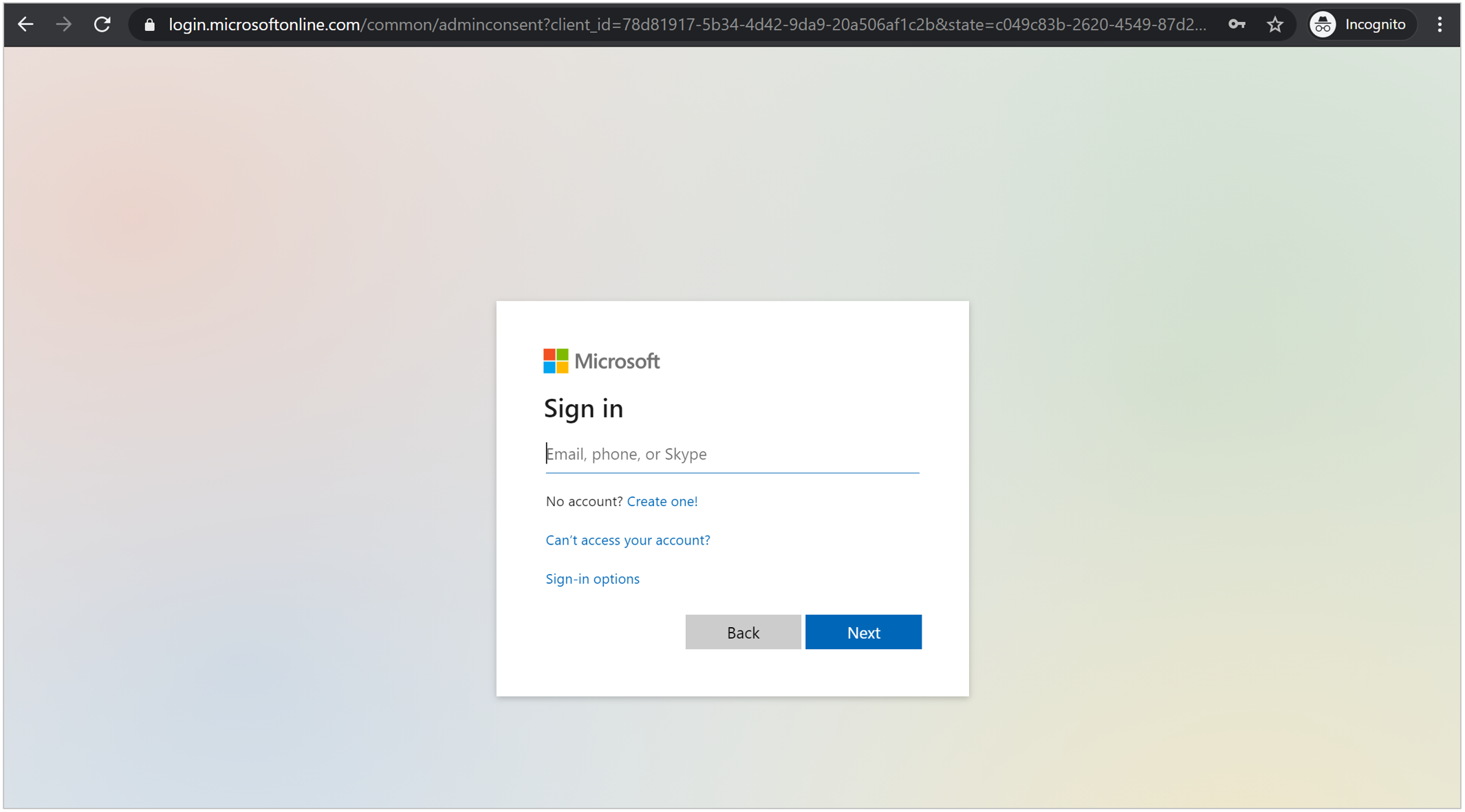
The Microsoft Online login window is offered:
-
Sign in with a Microsoft 365 Global Admin account.
A panel appears listing the features for which PortalTalk requires access permissions within the Microsoft 365 tenant.
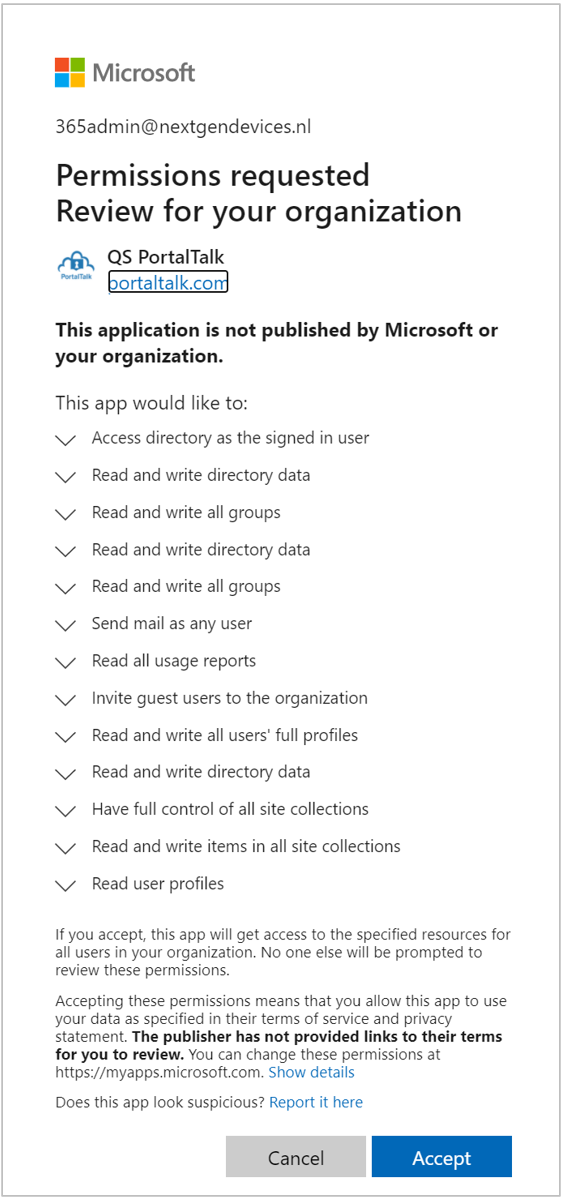
-
Click Accept to finish the process and exit the consent PortalTalk panel.
Who is a Microsoft 365 tenant Global Administrator in my organization?
-
Go to the Microsoft 365 Admin Center> Roles (https://admin.microsoft.com/AdminPortal):
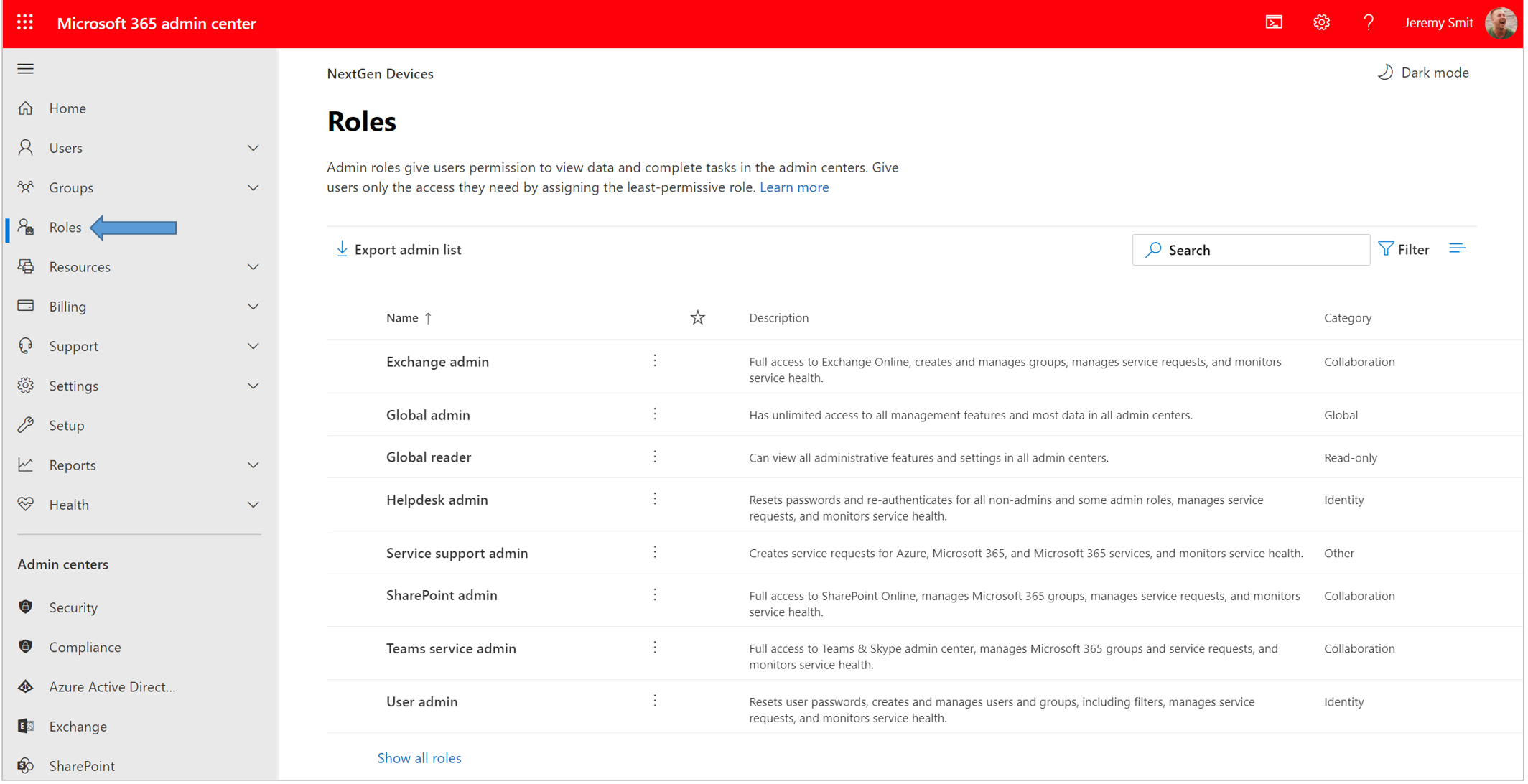
-
Click the ellipsis menu button for the Global Admin role:

-
Select the option Assign admins.
The Global Administrator panel is displayed on the right-hand side of your screen. The Assigned admins tab lists which users have the Microsoft Global Administrator authorization: