.png)
Managing the templates for automatically generated email messages
Regarding various events, PortalTalk can automatically send notification emails to the PortalTalk users involved in the event.
PortalTalk administrators can manage the templates for these email messages.
PortalTalk email templates
This chapter contains the specification of the various PortalTalk email templates.
Invitation email templates:
-
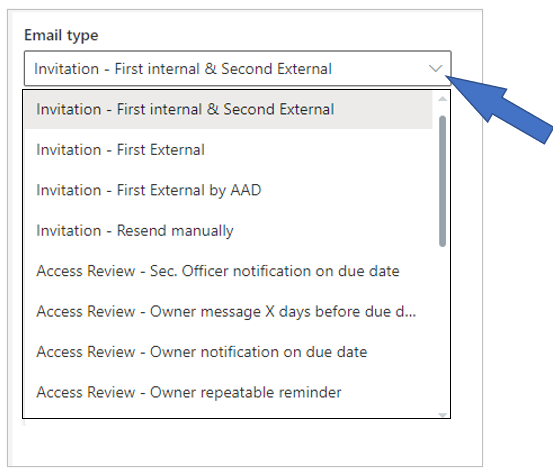
Invitation First internal & Second External - Mail to an internal user who has been added to a workspace team in PortalTalk . This is a notification that the user has access to the workspace. This email will not be sent to an external person when for the first time added to a workspace team in PortalTalk - it will be sent tot the external user on every subsequent occasion. The automatic generation of this invitation email must be activated in the general application settings of PortalTalk (refer to the chapter on )
-
Invitation First External - Mail to an external person who is invited to use PortalTalk for the first time. This concerns an external user with a live ID (Microsoft account) or Office account (Organization or School account).
-
Invitation First External by AAD - Mail to an external person who is invited to use PortalTalk for the first time. This concerns an external user for which a username with password has been created in the AAD. In addition to referring to the workspace to which the external user has access, the email also provides instructions on how to log in.
-
Invitation Resend manually - As long as an external user has not accessed a workspace to which they have been invited as a team member, the team owner has the option to resend the invitation.
Periodic Access Review email templates:
-
Access Review - Sec. Officer notification on due date – Notification email sent on dus date to all PortalTalk users with the Security Officer role, when the periodic access control for a workspace has not been executed on time.
-
Access Review - Owner message X days before due date– Email to workspace Owner(s) when the periodic access control for the relevant workspace has to be performed in the configured number of days of General Settings - Access Review.
-
Access Review - Owner notification on due data - Email is sent to the Owner(s) when the periodic access control for the relevant workspace is due on that day.
-
Access Review - Owner repeatable reminder – Email to workspace Owner(s) when the periodic access control for the relevant workspace has to be performed in the configured number of days. Check General Settings - Access Review to configure the number of days.
Membership email templates:
-
Membership - Workspace is approved - Email to the PortalTalk user when their membership request has been approved by the team owner of the respective workspace.
-
Membership - Workspace is denied - Email to the PortalTalk user when their membership request has been rejected by the team owner of the respective workspace.
-
Membership - Workspace submitted - Email to the team owner(s) when a PortalTalk user has submitted a membership request for their workspace.
Usage Permission email templates:
-
Permission - Workspace is approved - Email to the team member of a workspace when his permission request has been approved by the team owner.
-
Permission - Workspace submitted - Email to a workspace team owner to approve a team member's permission request.
-
Permission - Workspace is denied - Email to the team member of a workspace when his permission request has been rejected by the team owner.
Workspace request email templates:
-
Workspace request has been submitted - - Email requesting the creation a new workspace to the PortalTalk users with workspace creation permission within the relevant category.
-
Workspace request has been rejected - Email to the PortalTalk user when their request for a new workspace has been rejected.
-
Workspace request has been approved - Email to the PortalTalk user when their request for a new workspace has been approved.
Manage the email templates
-
Access the PortalTalk Admin Center.
-
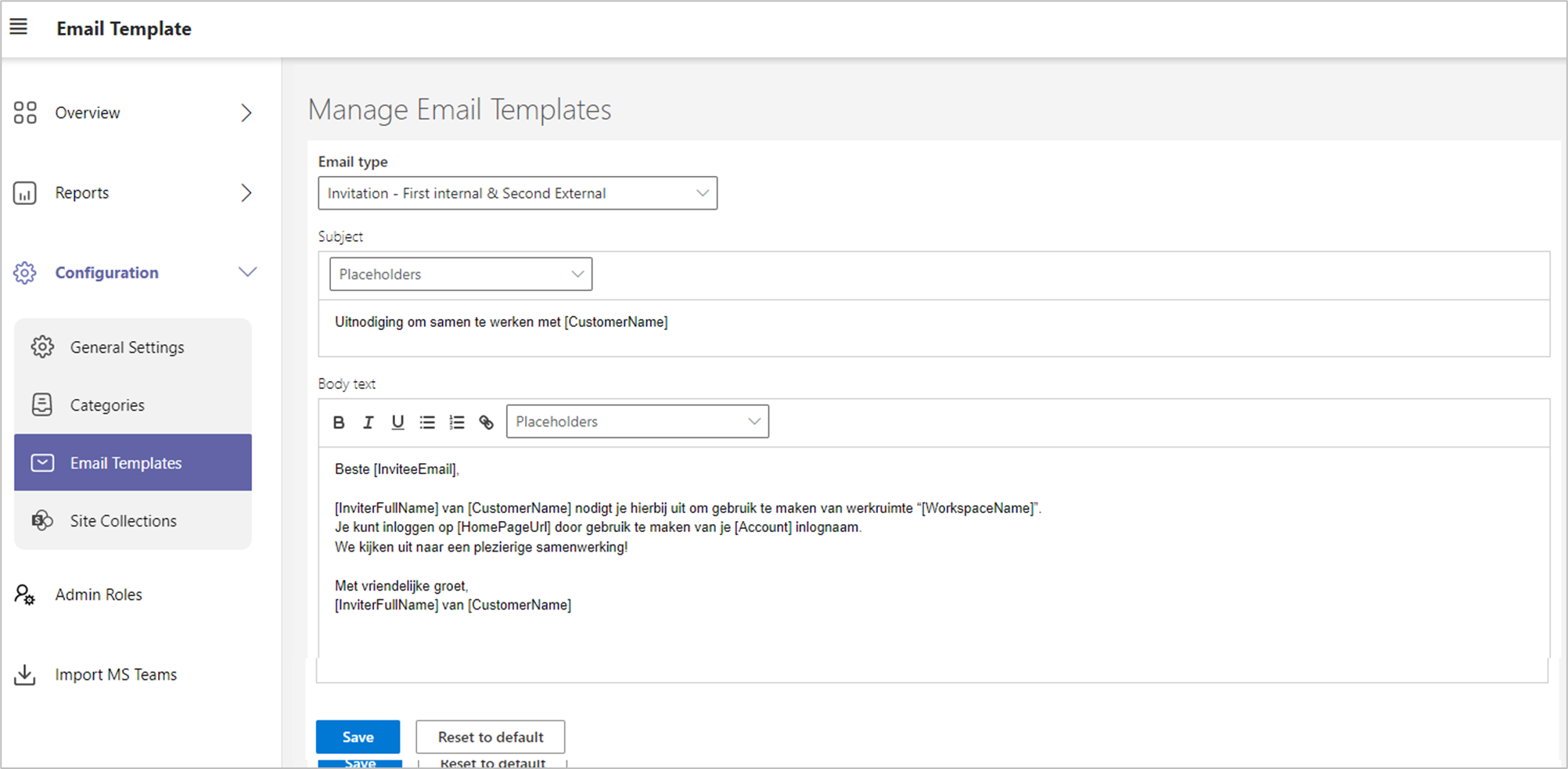
Select the Configuration - Email Templates navigation option to launch the Manage Email Templates page in a new web browser tab:
-
Email type - Select the email template you wish to manage.
In the Manager Email Templates page, the subject and the content of the selected template are now displayed.
-
Subject - Enter the email's subject text and use the Placeholders option to insert the variable fields into the text.
-
Body text - enter the email's content text and use the Placeholders option to insert the variable fields into the text.
-
Reset to default - If necessary, use this button to return to the default text of the email template.
-
Click Save.