.png)
PortalTalk administrators can manage the settings of the workspaces registered in PortalTalk.
They can also handle pending workspace creation requests and restore archived workspaces.
This page describes the following actions:
Edit the settings of a workspace
-
Access the PortalTalk Admin Center.
-
Select the Overview > Workspaces navigation option.
-
In the Manage Workspaces view, select the Activated tab to open the view of the activated workspaces.
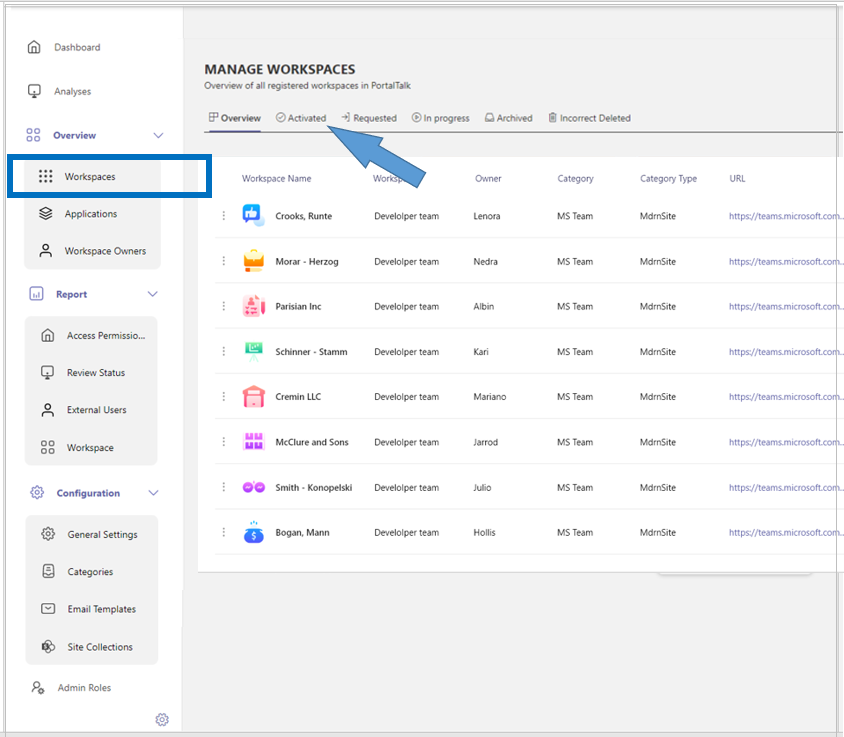
Find the workspace of which you need to edit the settings, possibly using the options for sorting, filtering and searching the view.
-
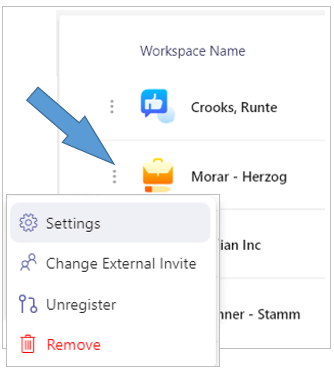
Click the ellipsis menu button for the workspace and select the option Settings.
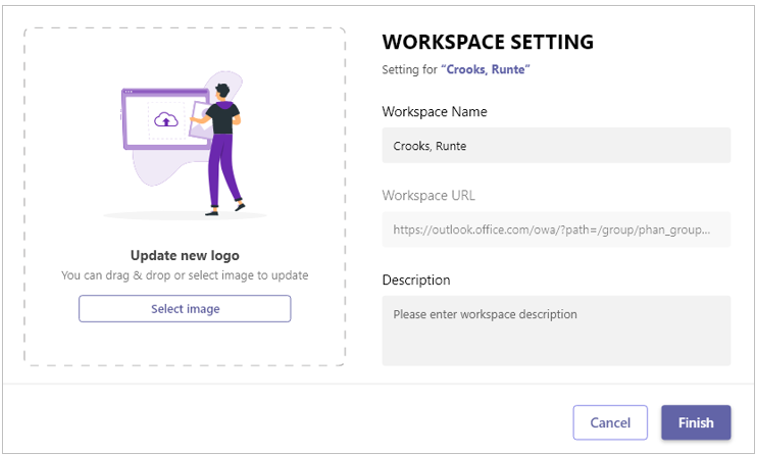
The Workspace Settings window is displayed:
-
Workspace Name - Edit the name of the workspace.
-
Description - Edit the workspace description.
-
Update new logo - Click the Select Image option to to obtain a file browser window within which you can navigate to and upload an image file.
-
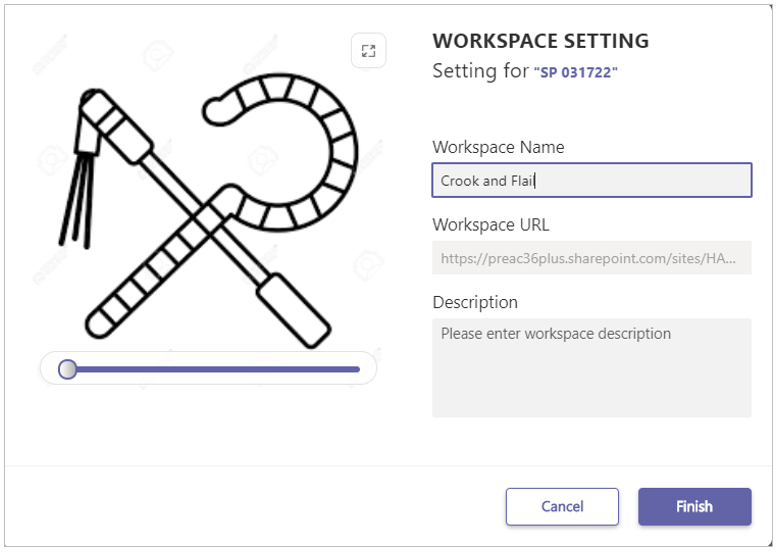
If so required, use the option to crop the image.
-
Click Finish.
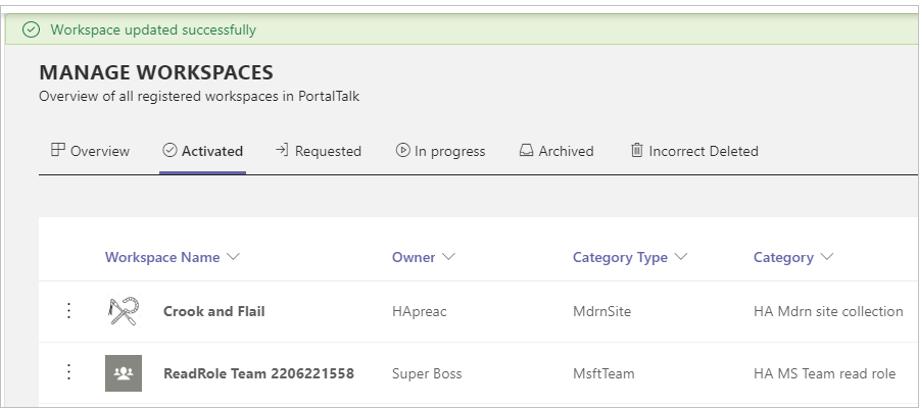
The change is briefly confirmed by the green status bar at the top of the view.
Remove a workspace
-
Access the PortalTalk Admin Center.
-
Select the Overview > Workspaces navigation option.
-
In the Manage Workspaces view, select the Activated tab to open the view of the activated workspaces.
Find the workspace of which you need to delete, possibly using the options for sorting, filtering and searching the view.
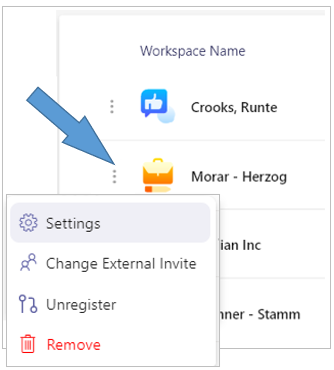
-
Click the ellipsis menu button for the workspace and select the option Remove.
The Remove Workspace prompt is displayed:
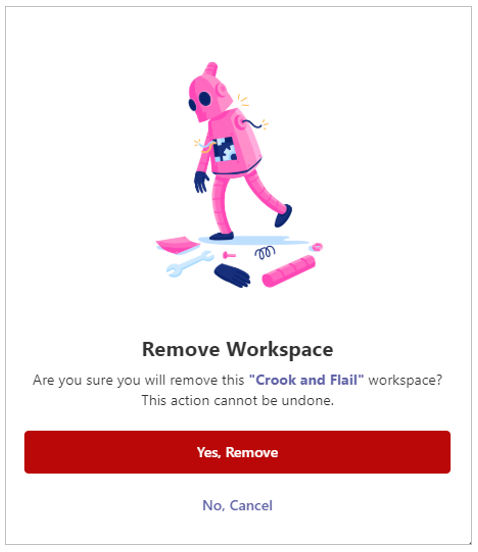
-
Confirm your action.
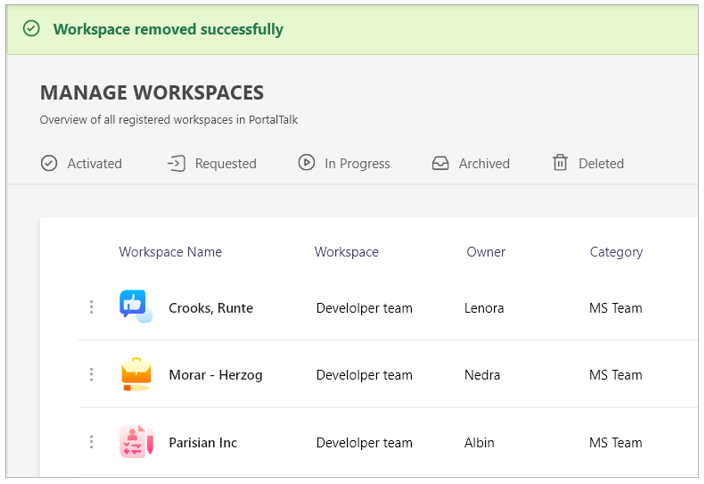
The workspace’s removal is briefly confirmed in the green status bar at the top of the view.
When a SharePoint site workspace is deleted in PortalTalk, the SharePoint groups of the SharePoint site are also deleted.
The AAD groups associated with the deleted site, however, are not deleted. The name of these AAD groups is changed and given a recognizable prefix, usually Deleted_.
A PortalTalk Admin can download a PowerShell script to remove these obsolete AAD groups for the no longer existing sites from the AAD.
Refer to the page on the AAD groups cleanup for the details.
Unregister a MS Teams workspace
The workspace option Unregister applies to MS Teams workspaces only.
This option allows you to dissociate the workspace from PortalTalk.
-
Access the PortalTalk Admin Center.
-
Select the Overview > Workspaces navigation option.
-
In the Manage Workspaces view, select the Activated tab to open the view of the activated workspaces.
Find the workspace you need to unregister, possibly using the options for sorting, filtering and searching the view.
-
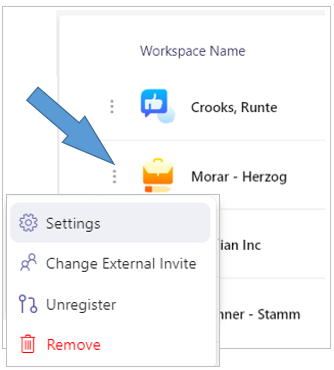
Click the ellipsis menu button for the workspace and select the option Unregister.
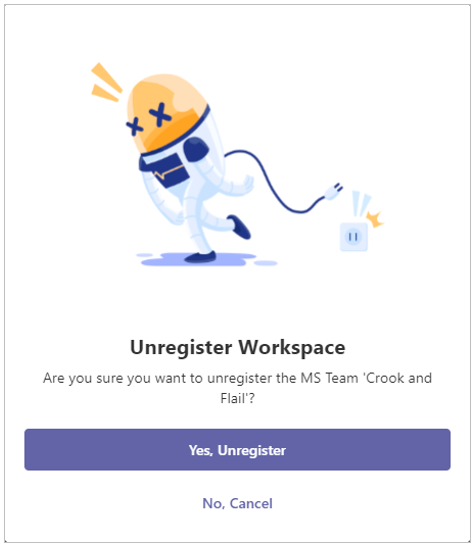
The Unregister Workspace prompt is displayed:
-
Confirm your action.
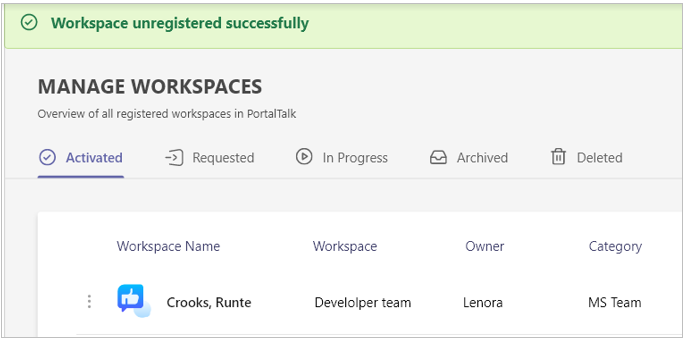
The unregistration of the workspace is briefly confirmed in the green status bar at the top of the view.
Handle the pending workspace creation requests
All rejected and still pending workspace requests are listed in the Requested workspaces view.
-
Access the PortalTalk Admin Center.
-
Select the Overview > Workspaces navigation option.
-
In the Manage Workspaces view, select the Requested tab to open the view of the requested and rejected workspaces.
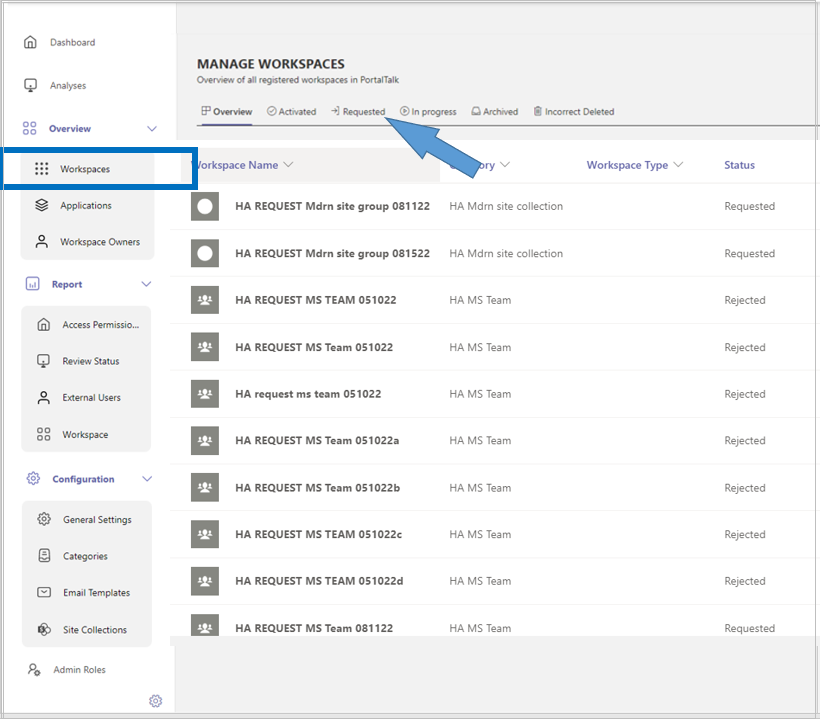
Find the requested workspace you need to process, possibly using the options for sorting, filtering and searching the view.
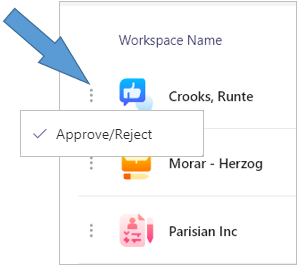
Click the workspace’s ellipsis button and select the option Approve/Reject.
-
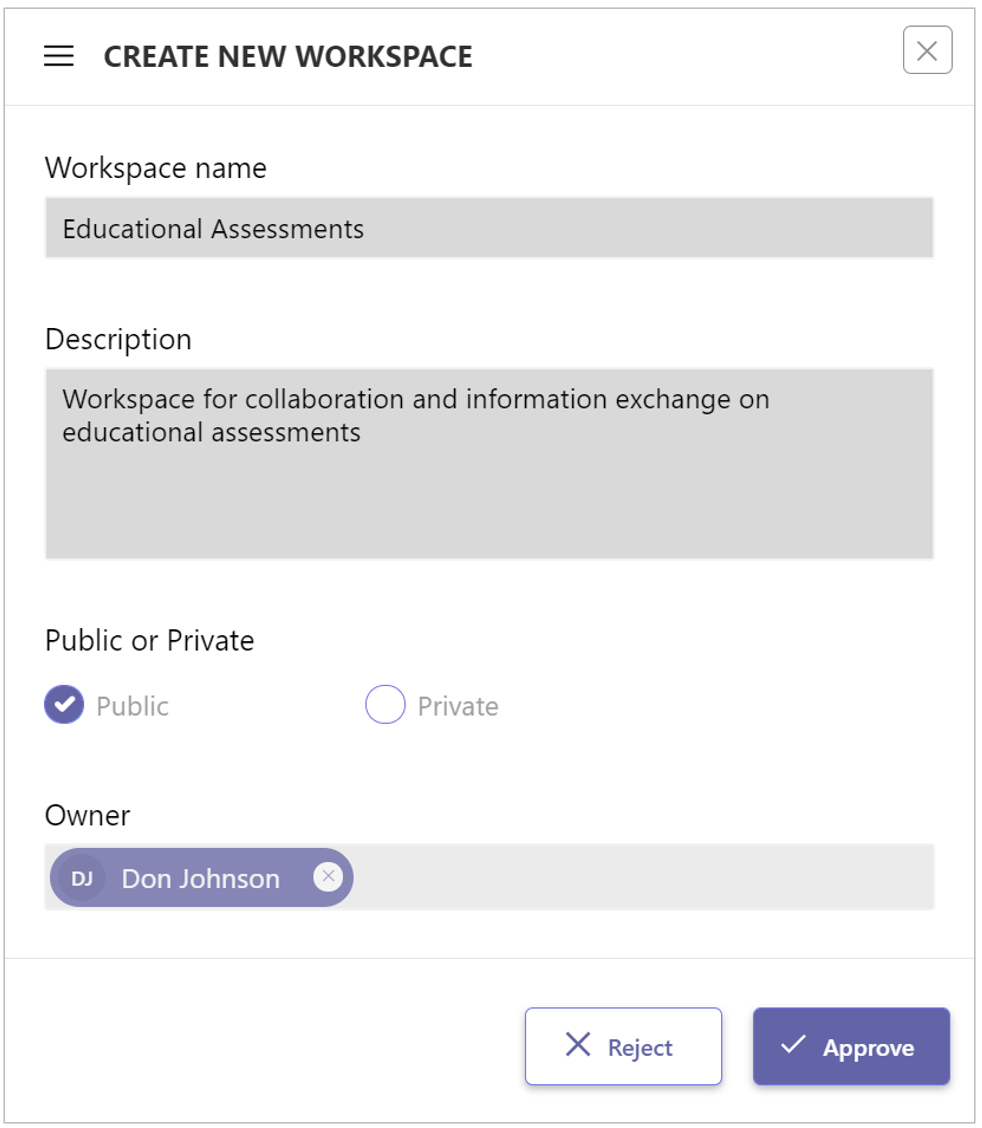
The Create New Workspace panel is displayed:
-
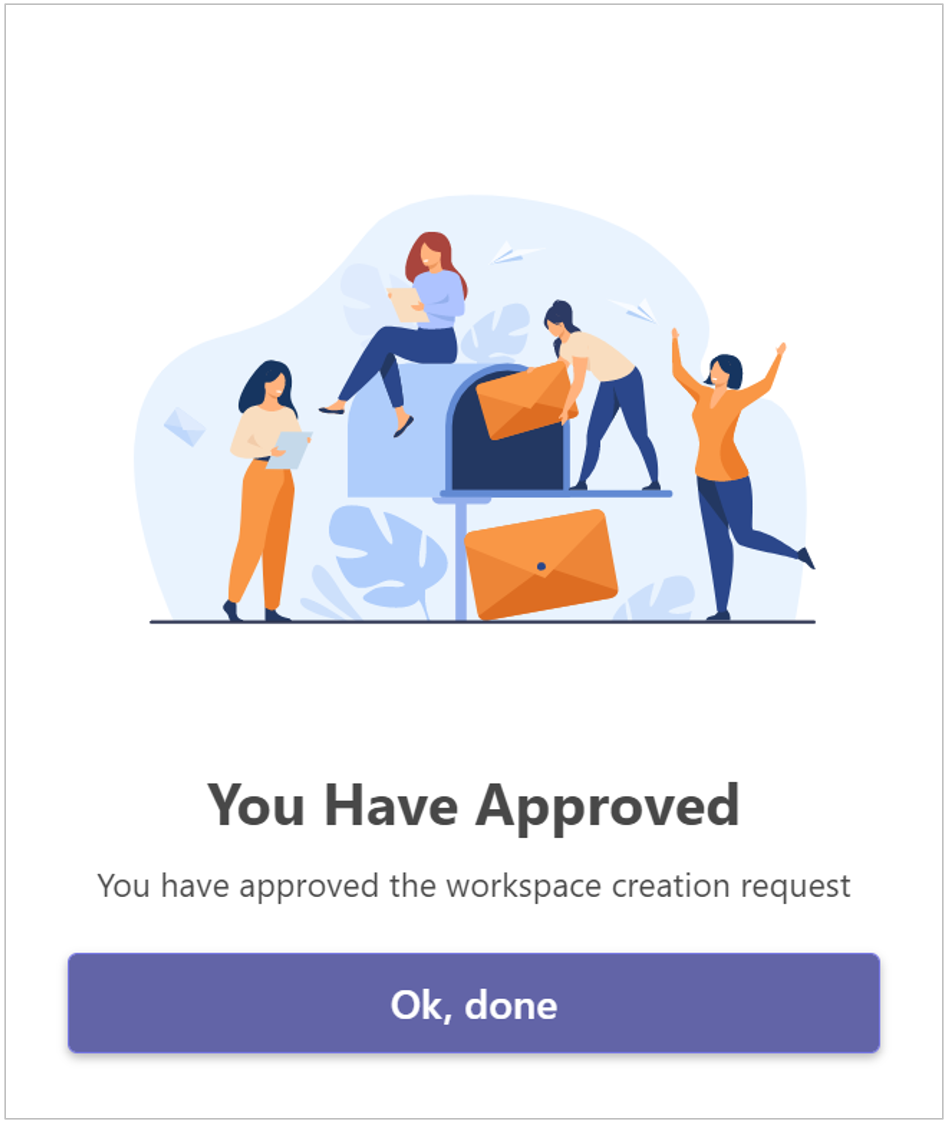
Click Approve to create the requested workspace.
-
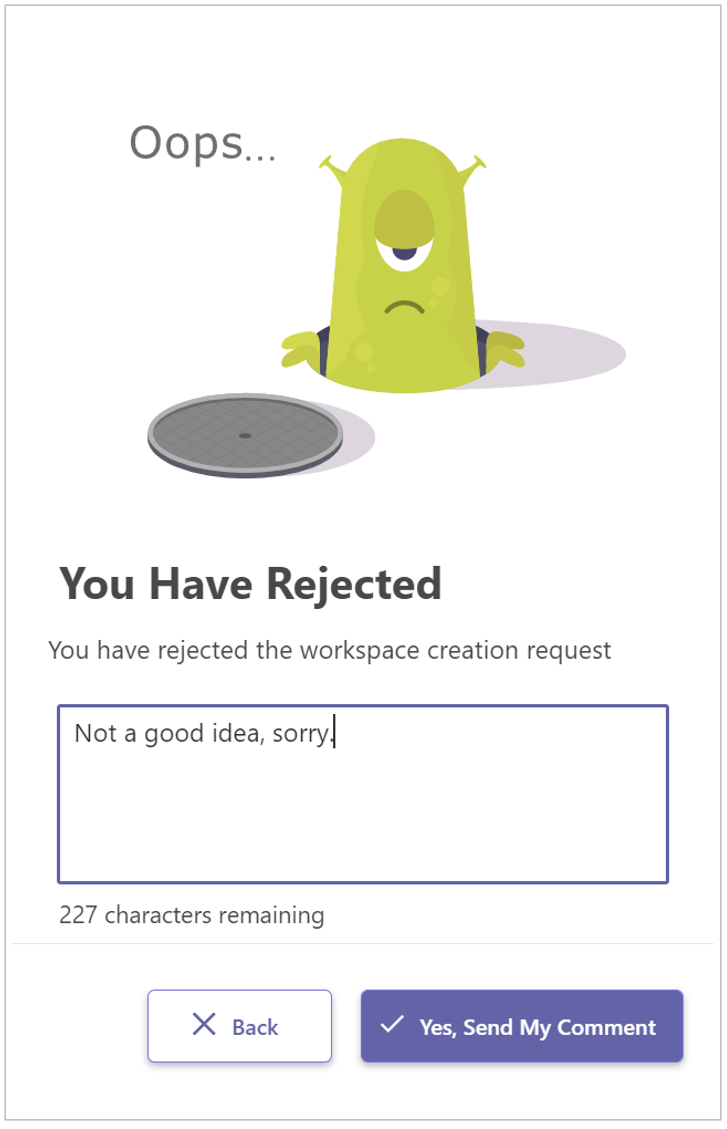
Or click Reject to reject the workspace request.
Restore an archived workspace
A workspace can be archived by the workspace owner.
All archived workspaces are listed in the Archived workspaces view.
Restoring an archived workspace can be done by a PortalTalk administrator only.
-
Access the PortalTalk Admin Center.
-
Select the Overview > Workspaces navigation option.
-
In the Manage Workspaces view, select the Archived tab to open the view of the archived workspaces.
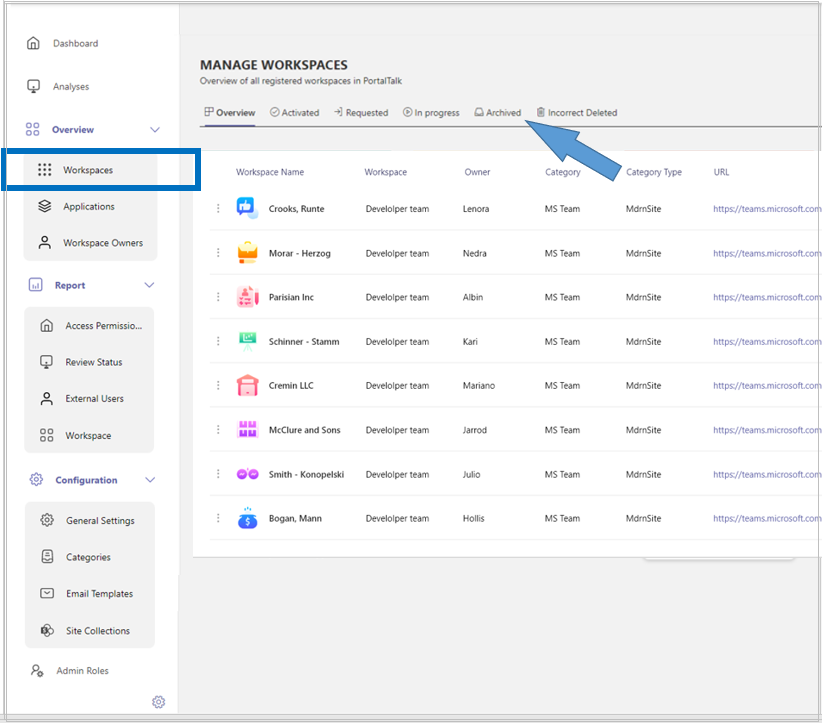
Find the archived workspace you need to restore, possibly using the options for sorting, filtering and searching the view.
-
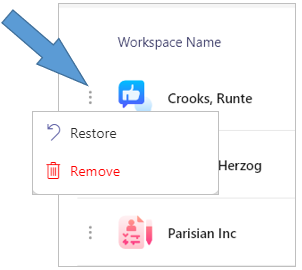
Click the workspace’s ellipsis button and select the option Restore.
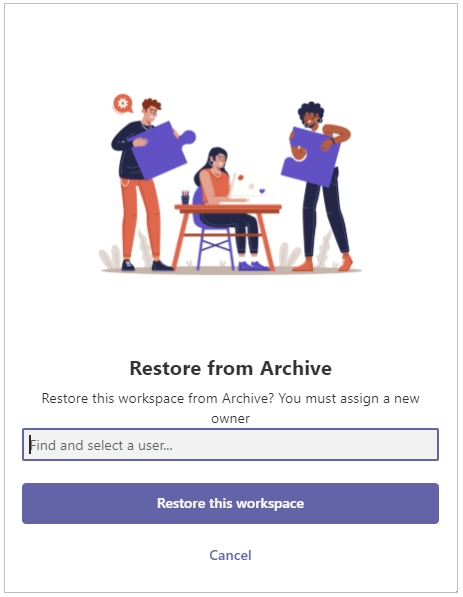
The Restore from Archive panel is displayed:
-
Select a user as owner for the restored workspace.
-
Click Restore this workspace.
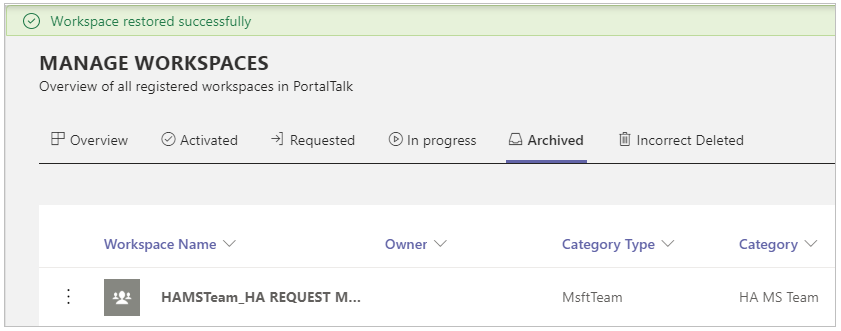
The workspace’s restoration is briefly confirmed in the green status bar at the top of the view.