.png)
Use this instruction only if your are already using the PortalTalk MS Teams app V2.
To perform the update to PortalTalk V2.1, the following administrative roles are required:
-
Global Admin in Microsoft 365, to do the PortalTalk App Consent
-
MS Teams Admin, to update the PortalTalk MS Teams app
-
PortalTalk Admin in PortalTalk, to make changes to the PortalTalk configuration (optional)
Steps to perform:
-
Update PortalTalk’s permissions within your Microsoft 365 tenant. This is also referred as the consent.
-
Updating the Portaltalk MS Teams V2 app
If the above actions are not executed, the PortalTalk V2 release not all of the new functions can be used. Although, the old MS Teams V2 app will still be working correctly,
Execute the PortalTalk consent
The reason why we ask you to update of PortalTalk's consent is:
-
The new PortalTalk activity function needs permissison to send activities to the MS Teams Activity app. This will require an extra MS Graph MS Teams permission,
-
Old AAD API calls are removed, so these permissions are also removed from the consent. The actions used by this old API are now superceded by the Graph API AAD permissions.
Execution
-
Make sure you're signed in to Microsoft 365 as a Global Admin
-
Navigate to the PortalTalk web UI via PortalTalk
-
At the top of the screen is a notification that the consent needs to be updated ('Because of a new software version, the consent has to be updated.')
-
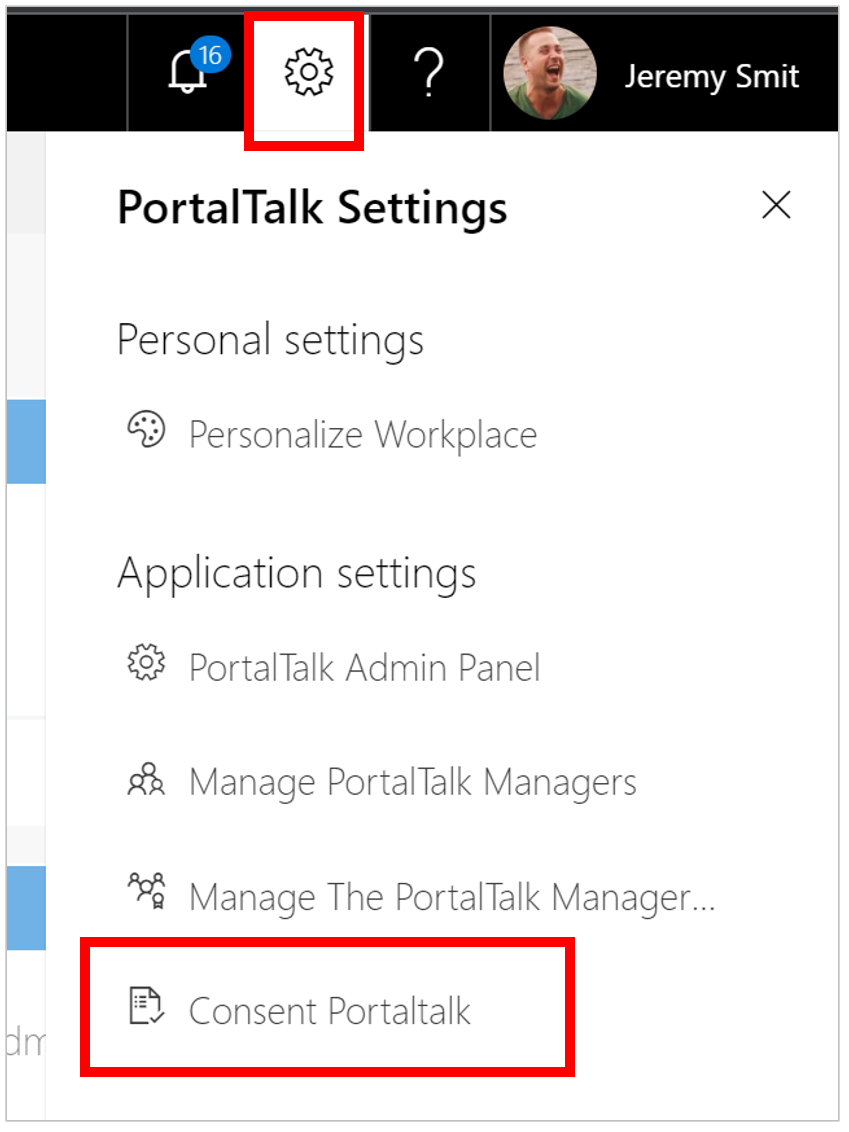
Click on the settings menu at the top right of the page and select 'Consent PortalTalk'.
-
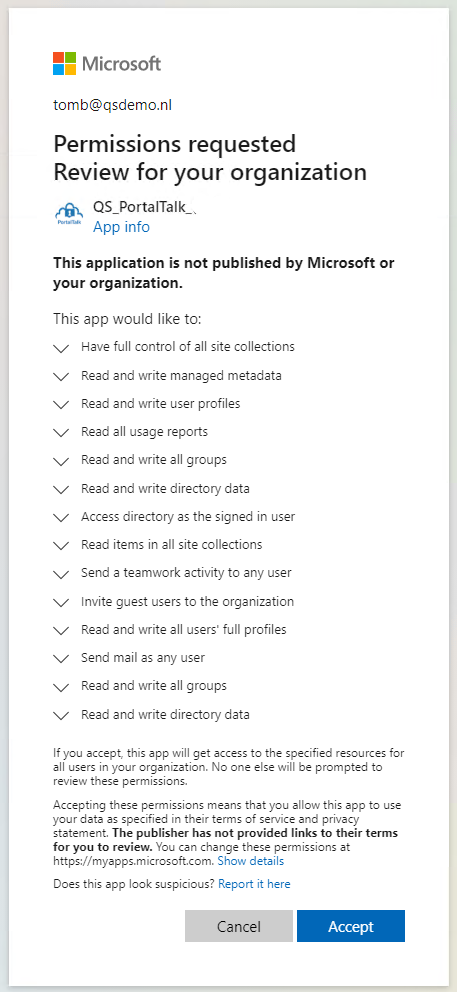
You will be prompted to log in again. NOTE: this must be done with the account having the Global Admin role.
-
The screen below is displayed. Click on 'Accept' and the additional consent will be added.
-
The required consent is hereby granted and ready for PortalTalk Release 2.1
Update PortalTalk MS Teams V2 app to the new 2.1 version
This step will introduce the new PortalTalk MS Tams app functions to the end-users.
Only perform this step if your current version of the MS Teams app is V2
Delete the PortalTalk 1.1 app, if it still exist
-
Before you start to upgrade to PortalTalk MS Teams V2.1, you must check if PortalTalk MS Teams V1.x apps still exist in your MS Teams App store
-
Go to Microsoft 365 Admin center en start the MS Teams Admin Center
-
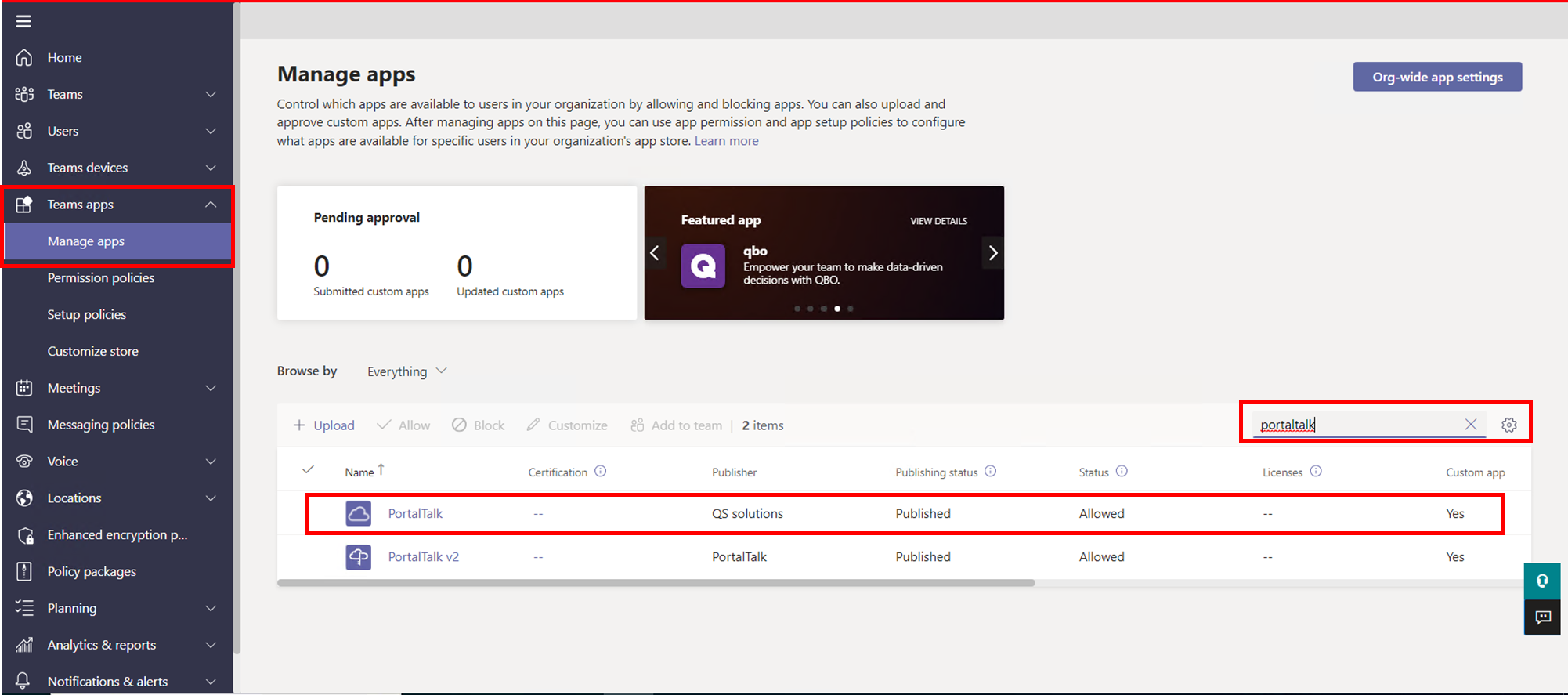
At the main left menu choose: Teams Apps → Manage Apps
Click to enlarge -
At the search-box, search for ‘PortalTalk’
-
If the listed app ‘PortalTalk’ is shown, you have to delete this.
-
Please leave ‘PortalTalk V2’ app in your local app store. Don’t delete that one!
-
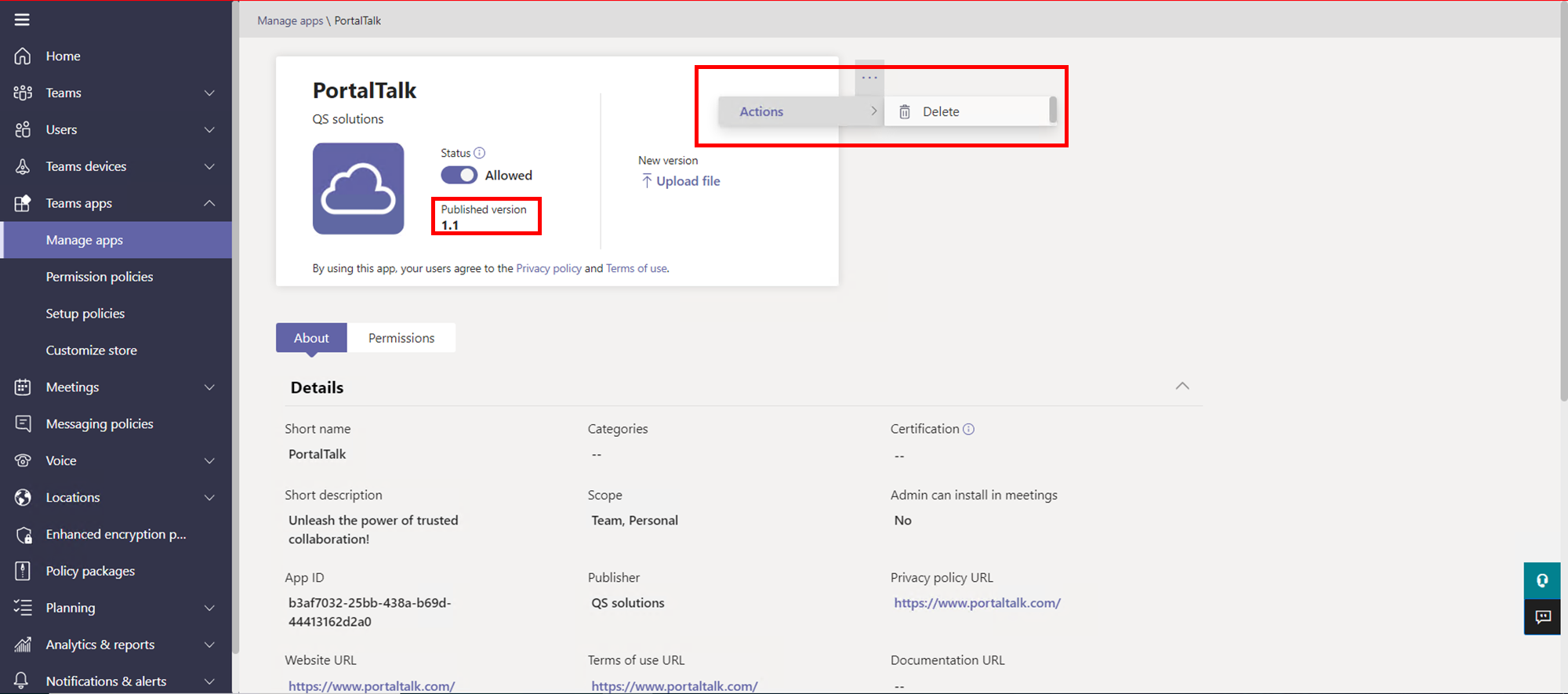
Click on the ‘PortalTalk’ app, this screen will be opened
Click to enlarge -
Check if the version is 1.1
-
If so, you can continue to delete it
-
Go to the … menu on top, select action → Delete
-
You can confirm the delete of the ‘PortalTalk 1.1.’ app
-
Wait for a minimal 1 hour to start updating the current PortalTalk MS Teams app V2 to V2.1. It will cost MS Teams app platform some time to process changes.
Update you current PortalTalk MS Teams app V2 to V2.1
-
Start downloading the new MS Teams PortalTalk V2.1 app. You can find it on this page ‘Downloads for PortalTalk’
-
Open the Microsoft Teams admin center
-
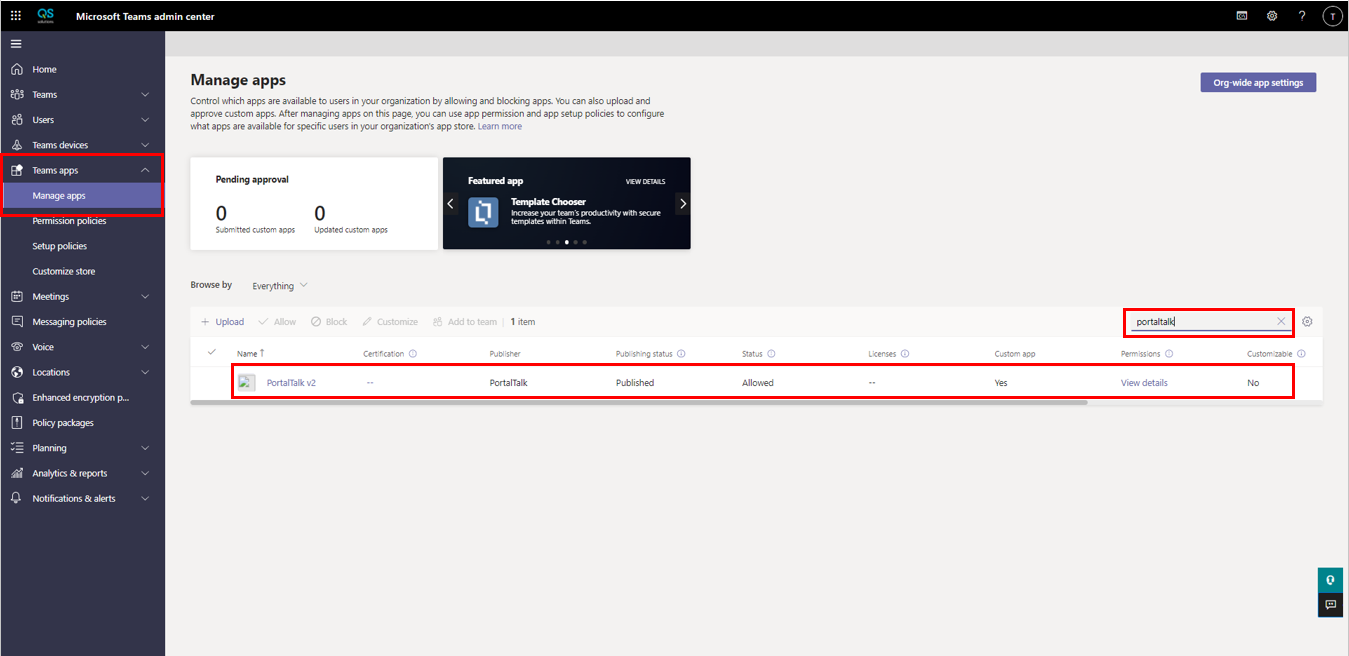
At the main left menu choose: Teams Apps → Manage Apps
Click to enlarge -
At the search-box, search for ‘PortalTalk'
-
There should only be one app listed. If more than one is listed, you have to start the procedure ' Delete the PortalTalk 1.1 app, if it still exist' at the top of this page
-
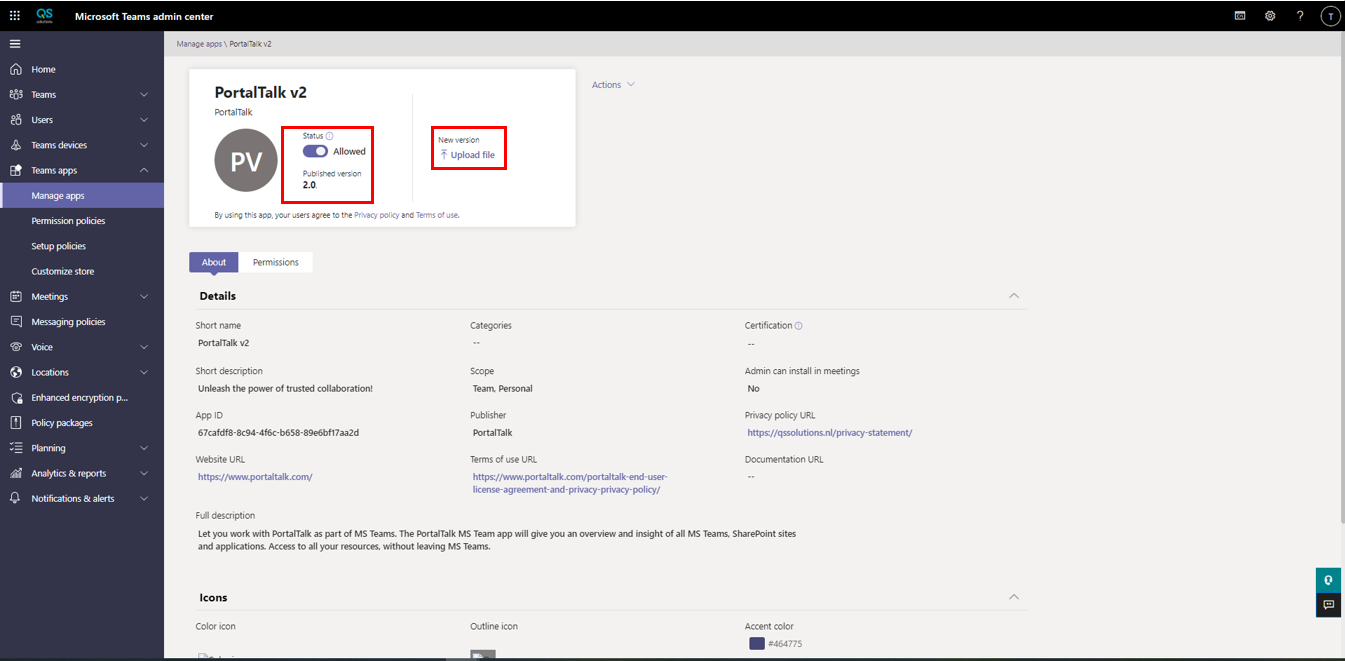
Click on the app name and it will be opened
Click to enlarge -
Check if the version of the existing app is 2.0
-
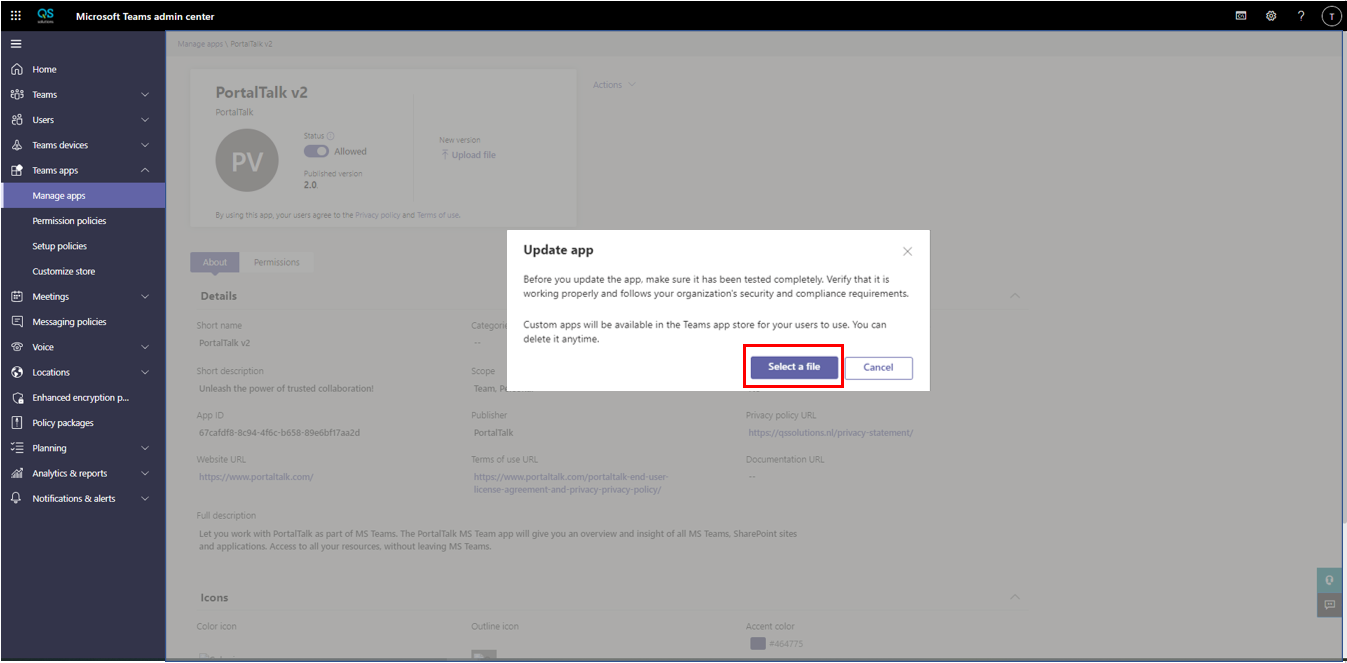
Click on ‘Upload file’
Click to enlarge -
A dialog to upload a file is selected. Select your downloaded PortalTalk MS Teams V2.zip file and click ‘OK’
-
The app will be uploaded and updated now
-
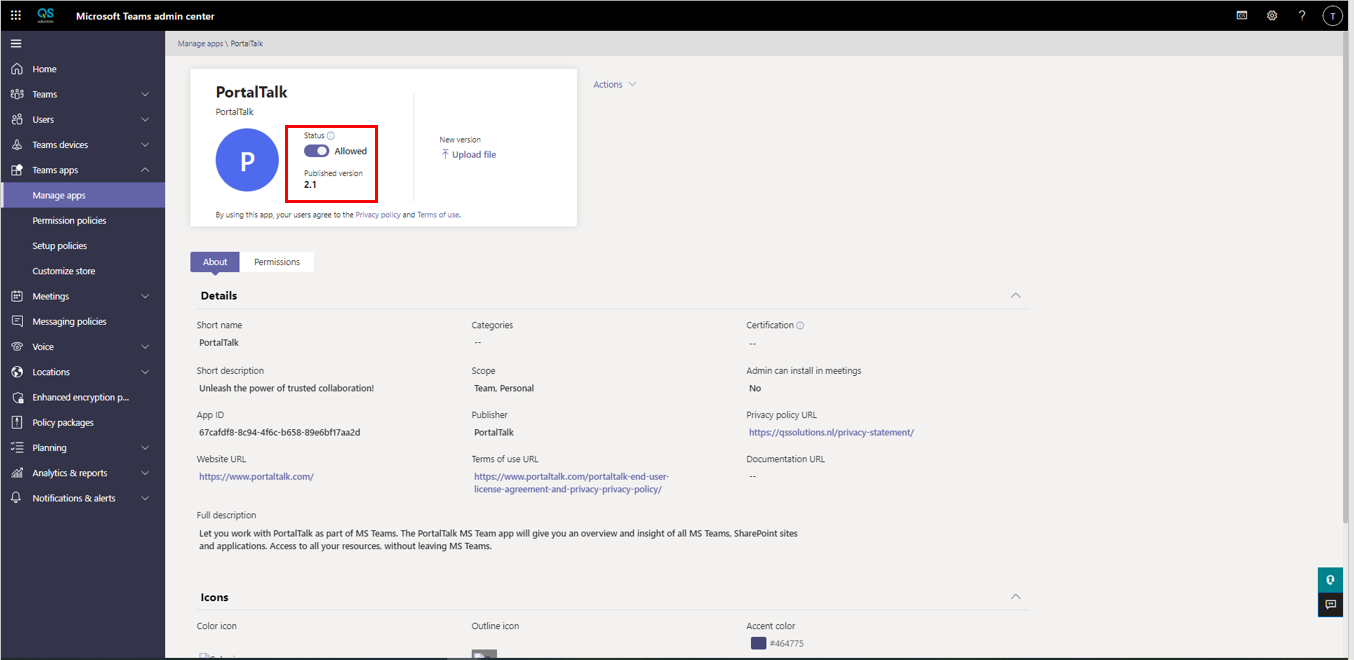
As soon as completed, the app should show version 2.1 now
Click to enlarge -
And your done. It could take up to 24 hours before the app update is visible to the end users. All the new functions of the 2.1 release can be used as soon as the update is active.
-
You can speed up this process by log-off/login your MS Teams app. The update should be available in a short moment. This is only working for one user and one MS Teams app at the time.