
Managed Members Service
With the introduction of version 2.9, PortalTalk launches its first service: Managed Members Service—an automated solution for adding and maintaining users in team workspaces. With this service, an MS Teams workspace can be linked to an Entra ID security group. The membership of the workspace team will then automatically reflect the membership of that security group. Any changes—additions or removals—in the Entra ID group will be mirrored in the corresponding MS Teams workspace, keeping team composition continuously up to date. This synchronization takes place once a day, at a time of your choice.
Users can be added as members by default. You may choose to add all users as owners for specific scenarios. The PortalTalk Default Owner account (General Settings → MS Teams → Default Owner or Manager Member MS Teams) will also be added as a default owner of the team, even if the user setting is set to owners.
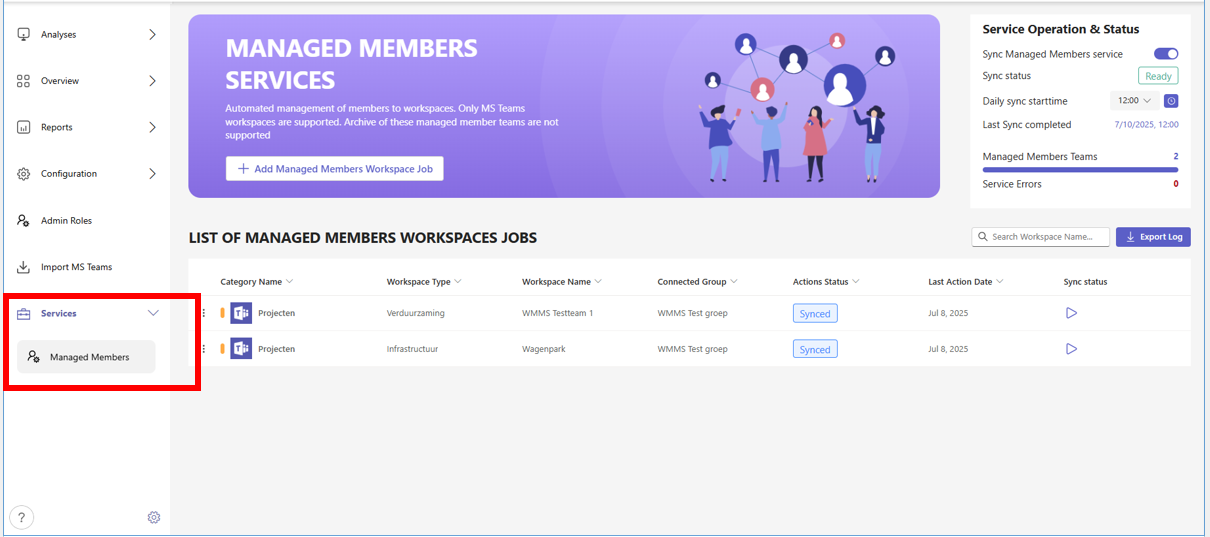
All Managed Members Workspace Job configuration actions are performed from the List of Managed Members Workspaces Jobs.
This view you can filter, sort and search to find specific Managed Members Workspace jobs.
If so required, consult the PortalTalk manual chapter Effectively find and extract from PortalTalk the data you are looking for.
Create a Managed Members Service Job
-
Access the PortalTalk Admin Center.
-
Select t the Services - Managed Members navigation option to access the List of Managed Members Workspaces Jobs.
-
In the header of the page, click the option + Add Managerd Members Workspace Job.
-
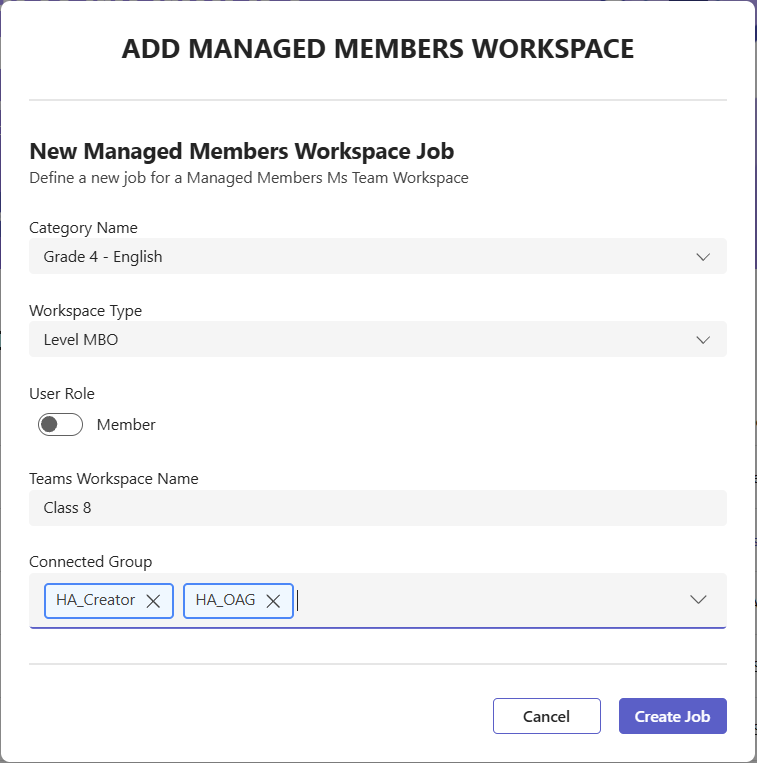
The Add Managed Members Workspace Job form is displayed:
-
Category Name - Enter the name for the new MS Team workspace category.
-
Workspace Type - Click the camera-icon to navigate to and upload an image to be applied as standard logo for the workspaces to be created within the category.
-
User Role - As default the users of the connected group will be added as Members to the created team. You can also decide the Users should be all added as Owners. If needed, set the switch to Owners to do.
Remark: If users are added as Owners, they retain Member permissions in this managed team. They cannot add team members or change member permissions. Adding users via the MS Teams UI will not add them; it can take up to 24 hours before users added through the UI are removed again.
-
Teams Workspace Name - Enter the name of the MS Teams workspace to be created.
-
Connected group - Select the relevant Entra-ID security groups (Min. 1 - Max. 20) to add its members as team members to the MS Teams workspace.
-
Click Create Job.
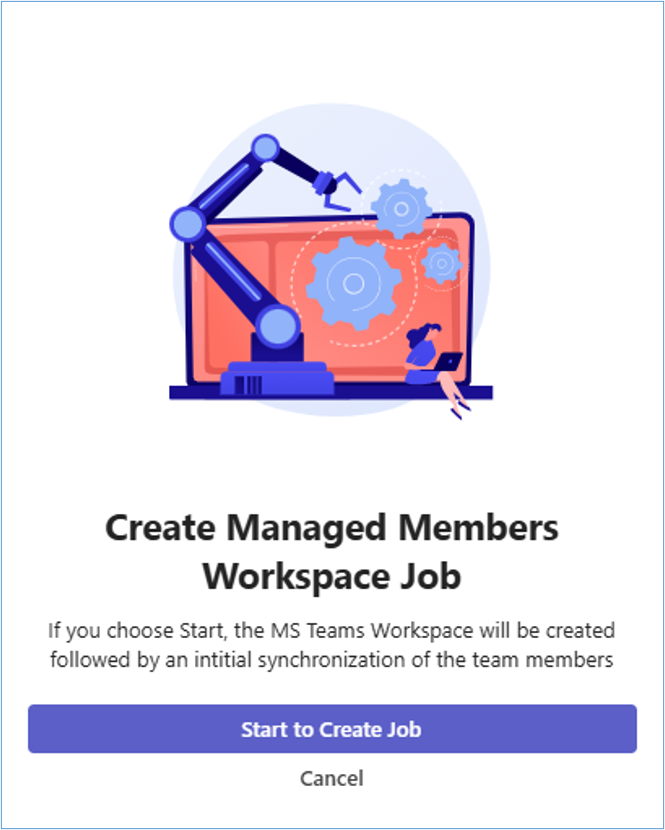
The Create Managed Members Workspace Job dialog is launched.
-
Click Start to Create Job.
The newly created job is added to the list of Managemed Members Workspaces Jobs.
The MS Teams workspace including its members is directly available.
Connect an existing MS Teams workspace to the Managed Members Service
Next to creating a brand-new managed workspace, the Managed Members Service can take over an MS Teams workspace that already exists in Microsoft 365 but is not yet registered in PortalTalk. The team is imported into PortalTalk and connected to the service in one action: from that moment its membership is driven by the connected Entra ID security groups, exactly like a workspace created with + Add Managed Members Workspace Job.
Use this function when a team already exists and should not be recreated from scratch just to obtain automated, Entra ID-driven membership management.
Remark: this is not the same function as Import MS Teams. Import MS Teams registers existing teams in PortalTalk and leaves their current owners and members in place. Connecting an existing team to the Managed Members Service registers the team and replaces its membership with the members of the connected Entra ID groups. A team that has already been imported with Import MS Teams can no longer be connected through this function.
Before you start
Connecting an existing team changes the team itself. Review the following points before you connect:
-
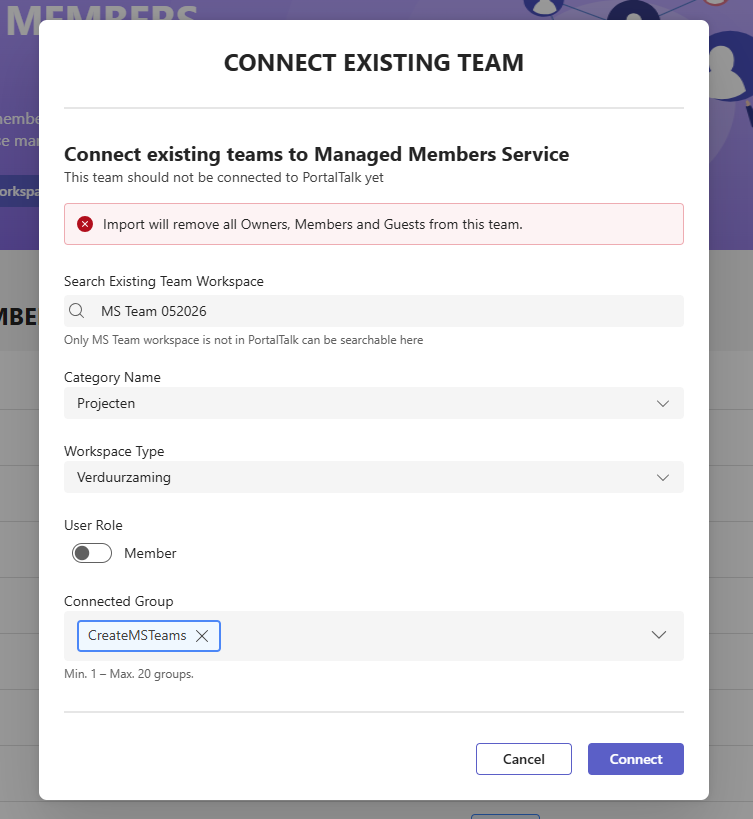
All current Owners, Members and Guests are removed from the team. After the connect, the team contains the users of the connected Entra ID security group(s) and the PortalTalk Default Owner account only. The form shows this as a red warning bar at the top.
-
The team becomes private. A public team is set to private, because in a managed workspace who belongs to the team is determined by the connected groups alone. The form warns you when the team you selected is public.
-
The team must not be known to PortalTalk yet. Only MS Teams workspaces that are not registered in PortalTalk are offered for selection.
-
Provisioning is not executed. As with the Import MS Teams function, the provisioning configured on the target workspace type is not run on a connected team. The team keeps its existing SharePoint site and content.
Connect the team
-
Access the PortalTalk Admin Center.
-
Select the Services - Managed Members navigation option to access the List of Managed Members Workspaces Jobs.
-
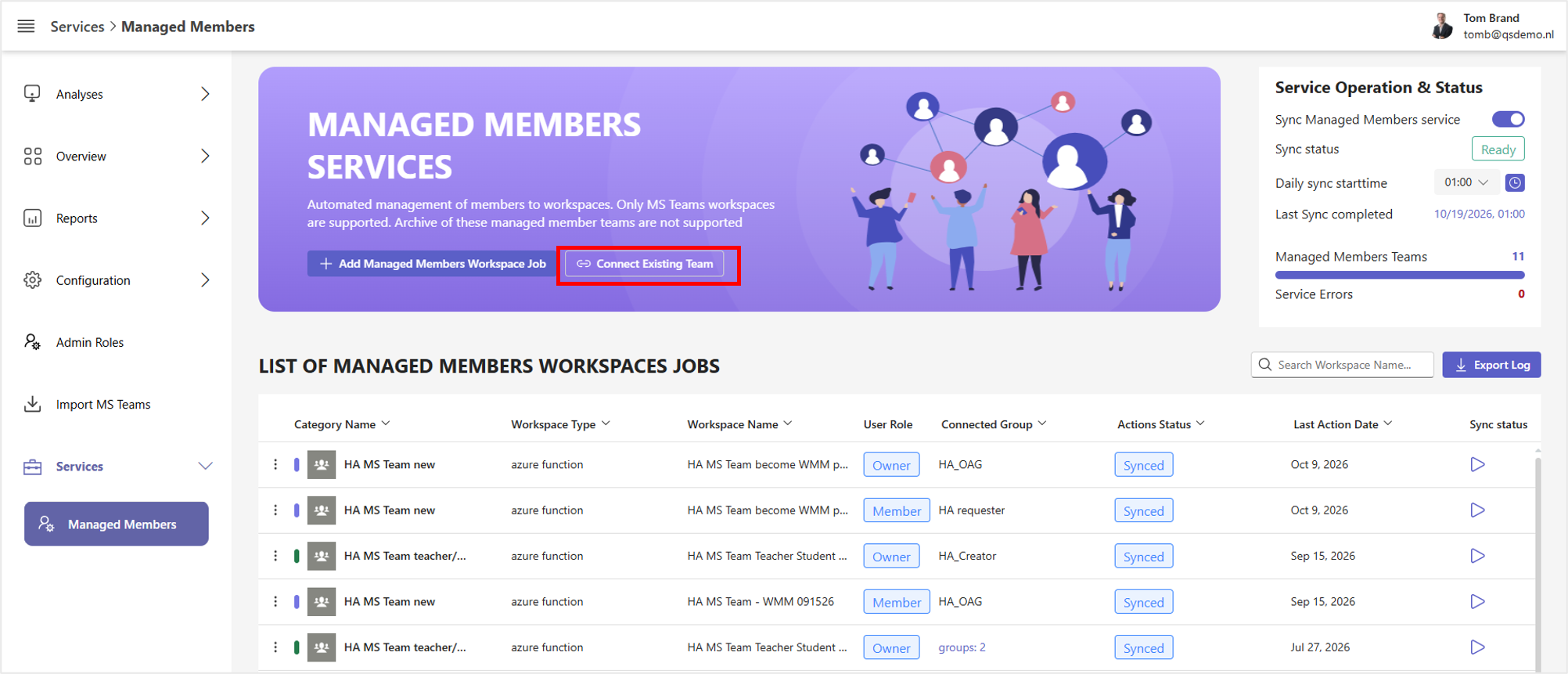
In the header of the page, click the option Connect Existing Team.
-
The Connect Existing Team form is displayed, with the red warning bar on the import consequences at the top.
-
Search Existing Team Workspace - Use the search box to find the MS Teams workspace to connect. The list shows the MS Teams workspaces in your tenant that are not registered in PortalTalk, in alphabetical order; use the search box or scroll to find the team. Select the team.
-
Category Name - Select the category the team is to be registered in. Only categories of the type MS Teams workspace that have at least one suitable workspace type for the selected team are offered.
-
Workspace Type - Select the workspace type within the category. Workspace types that do not match the selected team are shown greyed-out and cannot be selected — see Why a workspace type is greyed-out below.
-
User Role - As default the users of the connected group are added as Members to the team. You can also decide the users should all be added as Owners. If needed, set the switch to Owners to do so. Remark: if users are added as Owners, they retain Member permissions in this managed team. They cannot add team members or change member permissions. Adding users via the MS Teams UI will not add them; it can take up to 24 hours before users added through the UI are removed again.
-
Connected group - Select the relevant Entra ID security groups (Min. 1 - Max. 20) whose members are to become the team's members.
-
Click Connect.
The team is imported into PortalTalk and connected to the Managed Members Service. The new job is added to the List of Managed Members Workspaces Jobs and the workspace, with its new membership, is directly available.
After the connect
-
The team's membership is replaced by the users of the connected Entra ID security group(s), in the role selected under User Role. The PortalTalk Default Owner account (General Settings → MS Teams → Default Owner or Managed Member MS Teams) is added as owner of the team as well, even if the User Role setting is set to Owners.
-
Guest users of a connected Entra ID group are always added as members, never as owners.
-
A user who is a member of a connected group but is not yet known to PortalTalk is not added immediately. The user is added by the first daily synchronization after PortalTalk has synchronized the user.
-
The connected job takes part in the daily synchronization at the time configured in the Service Operation & Status window, and can be edited, paused, started, exported and removed like any other Managed Members Workspace Job.
-
The import and the membership changes are recorded in the Sync Log. Use Export Log in the Service Operation & Status window to download them as an Excel file.
Why a team is not in the search list
The search only lists MS Teams workspaces that PortalTalk does not know yet. A team is not offered when:
-
The team is already registered in PortalTalk — either created in PortalTalk, or imported earlier with the Import MS Teams function. Such a team cannot be connected to the Managed Members Service.
-
The team is already connected to a Managed Members Workspace Job.
-
No suitable category and workspace type is configured for the team. A team is only selectable if at least one MS Teams workspace category has a workspace type that matches it.
Why a workspace type is greyed-out
The rules are the same as for the Import MS Teams function:
-
External invite setting - You cannot connect a team to a workspace type whose External Invite setting differs from the setting of the team itself. These workspace types are shown greyed-out.
-
MS Teams template - A team created with an EDU template (Class, PLC, Staff) can only be connected to a category and workspace type configured with the same EDU template.
-
Disabled workspace type - A workspace type that is not enabled cannot be connected to.
Remark: if the team contains external (guest) users and the selected workspace type does not allow external users, the connect is refused with a message stating that the team contains external users. Choose a workspace type that allows external users, or remove the guests from the team first.
Notes for administrators
-
A team can be connected to the Managed Members Service only once. To change which Entra ID groups drive its membership, use the Edit Job option on the job in the List of Managed Members Workspaces Jobs.
-
The removal of the team's original owners takes place immediately after the new owners have been added, so that the team is never without an owner. In a large team this can take a short moment to complete.
-
Make sure the connected Entra ID security group(s) contain the users that should keep access to the team before you connect it — the original members are removed in the same action.
-
Removing the job afterwards does not restore the original team membership. In the Remove Managed Members Workspace Job form you can choose to delete the MS Teams workspace as well; if you do not, the workspace remains in PortalTalk with the membership the service last applied.
Edit a Managed Members Workspace Job
-
Access the PortalTalk Admin Center.
-
Select t the Services - Managed Members navigation option to access the List of Managed Members Workspaces Jobs.
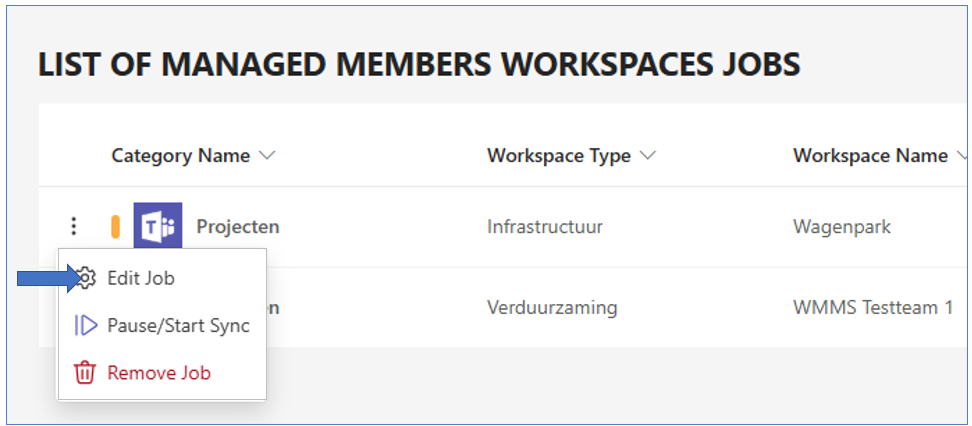
Note: Both Created and imported teams to the services can be edited the same way.
-
Click the Edit Job option for the relevant job.
-
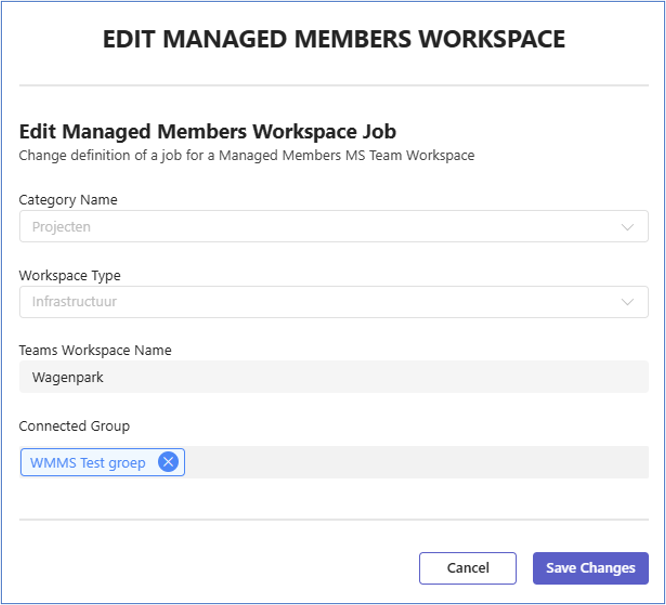
In the Edit Managed Mebmers Workspace Job form, make the concerned changes.
-
Click Save Changes.
Start or Pause the sync for a Managed Members Workspace
-
Access the PortalTalk Admin Center.
-
Select t the Services - Managed Members navigation option to access the List of Managed Members Workspaces Jobs.
-
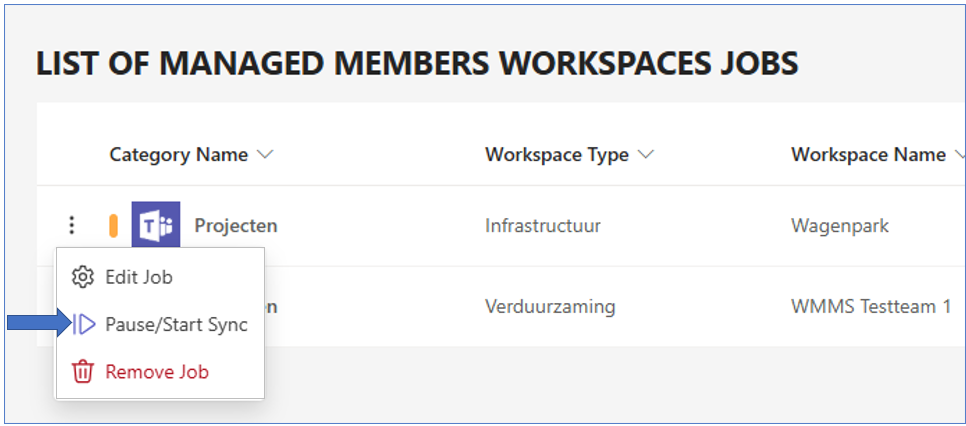
Click the Pause/Start Sync option for the relevant job.
Remove a Managed Members Workspace Job
-
Access the PortalTalk Admin Center.
-
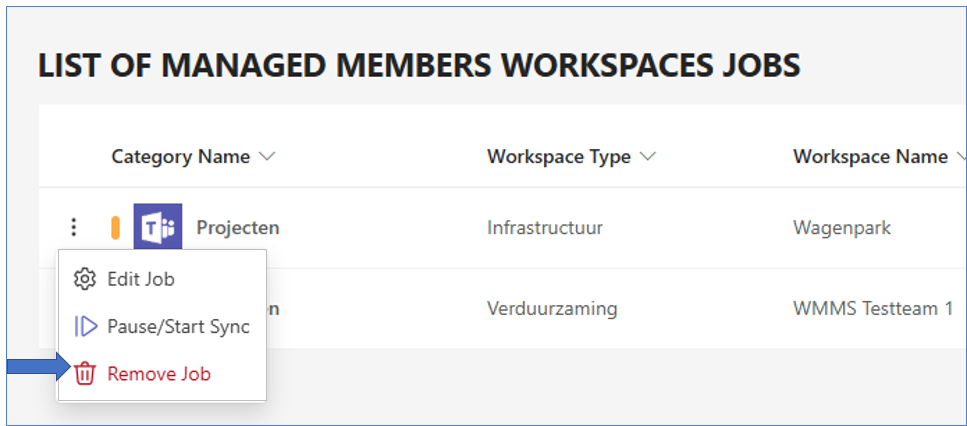
Select t the Services - Managed Members navigation option to access the List of Managed Members Workspaces Jobs.
-
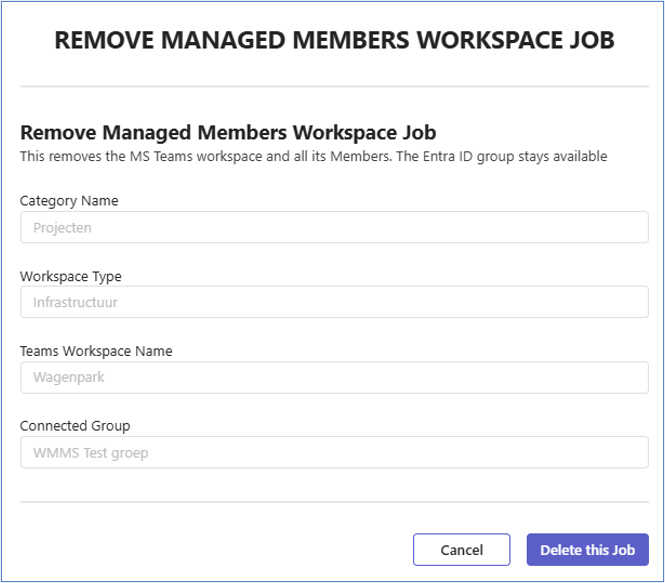
Click the Remove Job option for the relevant job.
-
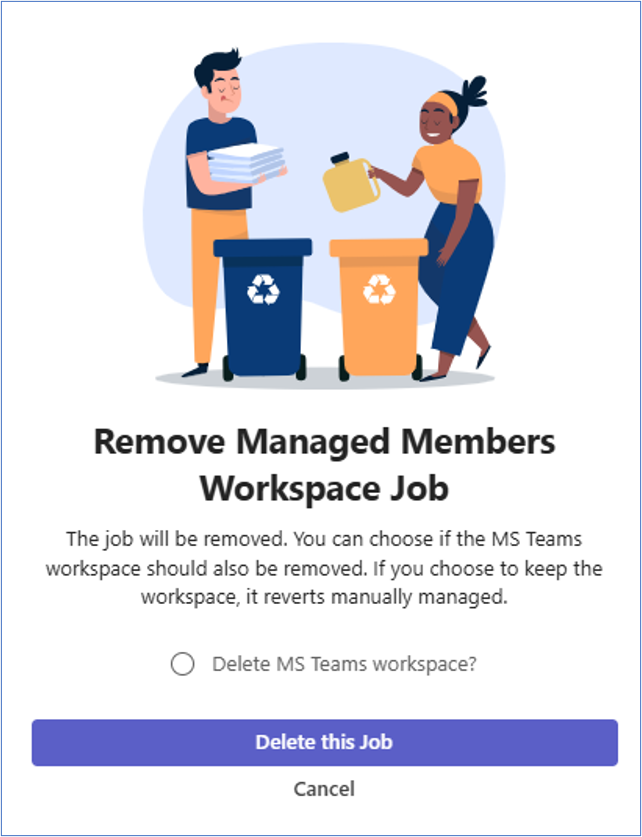
In the Remove Managed Members Workspace Job form. click Delete this Job.
-
Select the option Delete MS Teams workspace? if the MS Teams workspace is to be deleted as well.
Configure the job synchronization
-
Access the PortalTalk Admin Center.
-
Select t the Services - Managed Members navigation option to access the List of Managed Members Workspaces Jobs.
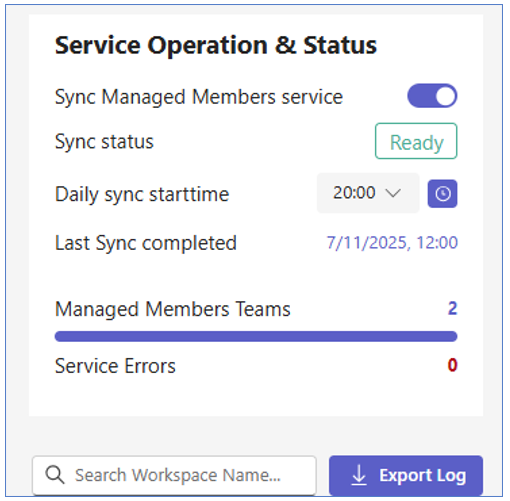
The Service Operation & Status window is displayed at the top right corner of the page,
-
Sync Managed Members service - Activate the sync service.
-
Daily sync starttime - Select the time the daily sync is to take place.
Export the Sync Log
-
Access the PortalTalk Admin Center.
-
Select t the Services - Managed Members navigation option to access the List of Managed Members Workspaces Jobs.
-
In the Service Operation & Status window, at the top right corner of the page, click Export Log.

The data of the Sync Log are exported.
You will find them as an Excel file in your local download folder.