.png)
Overview of the Periodic Access Reviews
In order to be able to monitor the compliance and timeliness of the periodic access review of the various workspaces, PortalTalk offers the possibility to consult an overview.
The overview displays all workspaces with their owners.
For each workspace it is stated on which date the last access review was carried out, on which date the next review is planned and whether and by what number of days this deadline is exceeded.
The applied time interval for periodic access review for a workspace can deviate from the value set for the relevant category. In the Access Review Status report, you can reset the access review time interval for the workspaces to the time interval set in the category. After changing the access review time interval for a category, you can adjust all existing workspaces accordingly.
In the report you can filter on a specific owner and/or on a specific workspace and save the resulting overview.
You can export the resulting view to MS Excel for further analysis, editing or sharing
If so required, refer to the chapter on using the PortalTalk Admin Reports for a detailed explanation.
-
Access the PortalTalk Admin Center.
-
Select the navigation option Report ➖ Access Review to open the Access Review Status page in a new web browser tab:
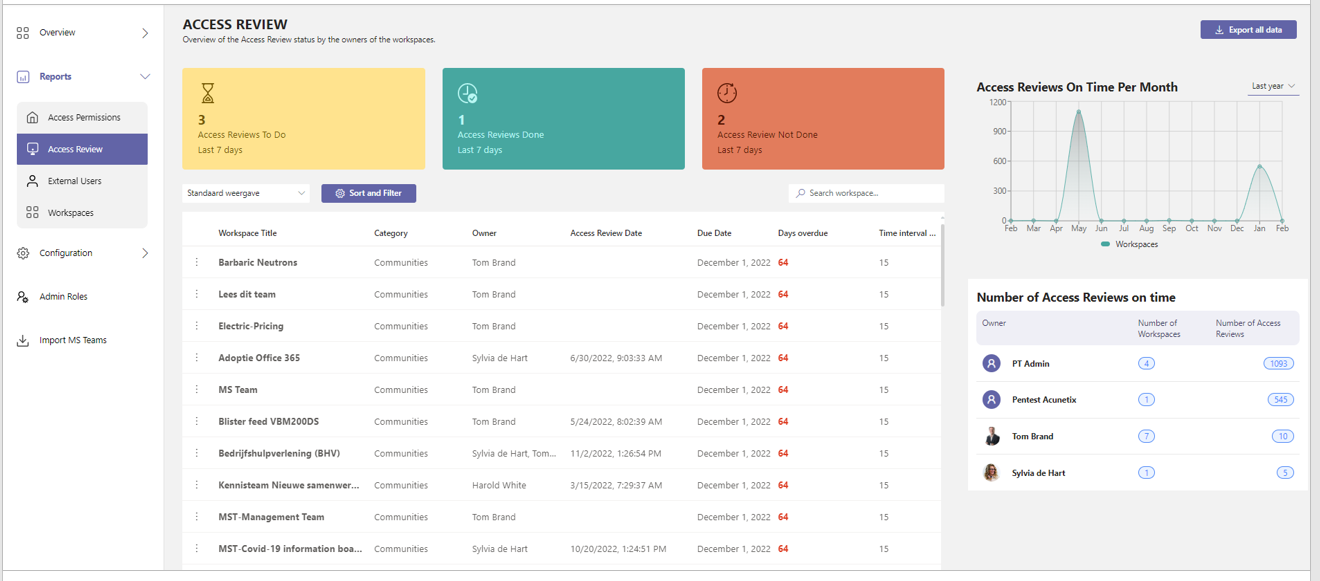
Per workspace, two dates are displayed. The date of the most recently executed access review and the deadline date for the next access review.
If the deadline date is exceeded, the number of overdue days is displayed as well.
For each workspace, a separate line is displayed with the following fields:
-
Workspace Title = The workspace's name
-
Category = The workspace’s category
-
Owners = The names of the team owners who are to execute the workspace’s access review.
-
Access Review Date = The date of the most recently executed access review.
-
Due Date = The deadline date for the next access review.
-
Days overdue = If the deadline date is exceeded, the number of overdue days is displayed here.
-
Days Time Interval = Time interval between Access Reviews in number of days.
You can tailor the content of this report to your information need, by sorting and using (a combination of) the various filters.
If so required, refer to the chapter on using the PortalTalk Admin Reports for a detailed explanation.
Statistics
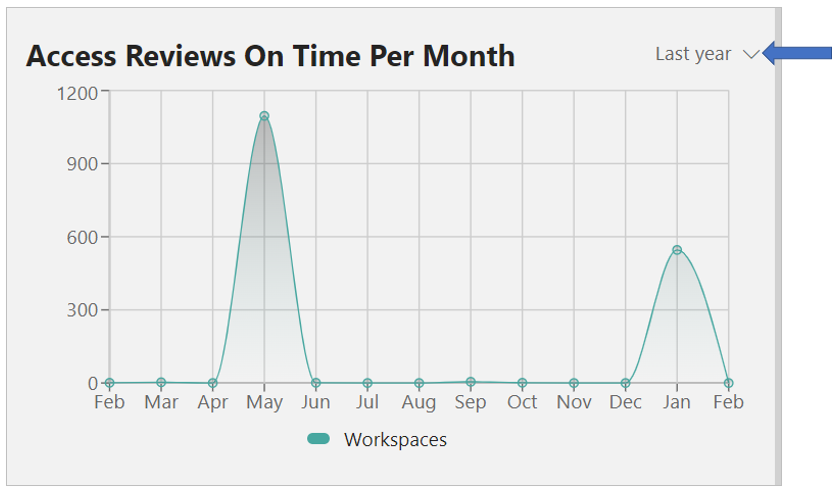
The Access Reviews On Time Per Month graph displays, per month, the volume of access reviews executed on time, over a selected time interval.
Reset review deadline date
In case of major access review overdue periods, for example due to a workspace owner having left the organization and not having been replaced promptly, the access review deadline date of workspaces can be moved forward.
This prevents a newly appointed workspace owner from being confronted with an activity feed being crammed with prompts for overdue access reviews.
The next access review deadline date is carried forward the default number of interval-days from to date.
If you wish to see how many days are concerned, you can display the column Days Time Interval. Refer to the chapter on using the PortalTalk Admin Reports for a an explanation on how to display and hide columns.
-
Select the workspaces for which you wish to reset the deadline date.
-
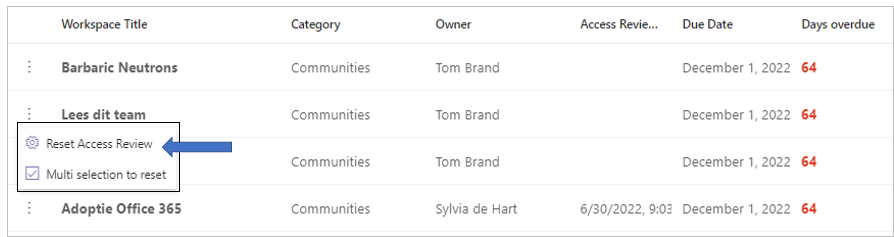
Click the ellipsis menu button for one of the workspaces and select the option Reset Access Review.
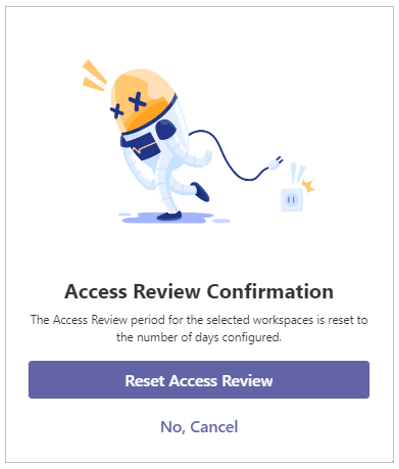
The Access Review Confirmation panel is displayed:
-
Click Reset Access Review..