.png)
Manage external users
To keep an overview of which external users have access to which workspaces, PortalTalk provides the Manage External Users report.
In the report, you can search for a specific external user and then verify to which workspaces they have access.
You can sort and filter the report on various report dimensions and you can save the resulting overview.You can export the resulting view to MS Excel for further analysis, editing or sharing
If so required, refer to the chapter on using the PortalTalk Admin Reports for a detailed explanation.
In the Manage External Users report you have the option to block and activate external PortalTalk users.
When you block an external user, they no longer have access to the workspaces of which they are a team member.
Conversely, a blocked external user will regain access to the workspaces of which they are a team member as soon as you activate the user.
-
Access the PortalTalk Admin Center.
-
Select the navigation option Report ➖ External Users to access the Manage External Users report.
All external PortalTalk users are listed in the Manage External Users report:
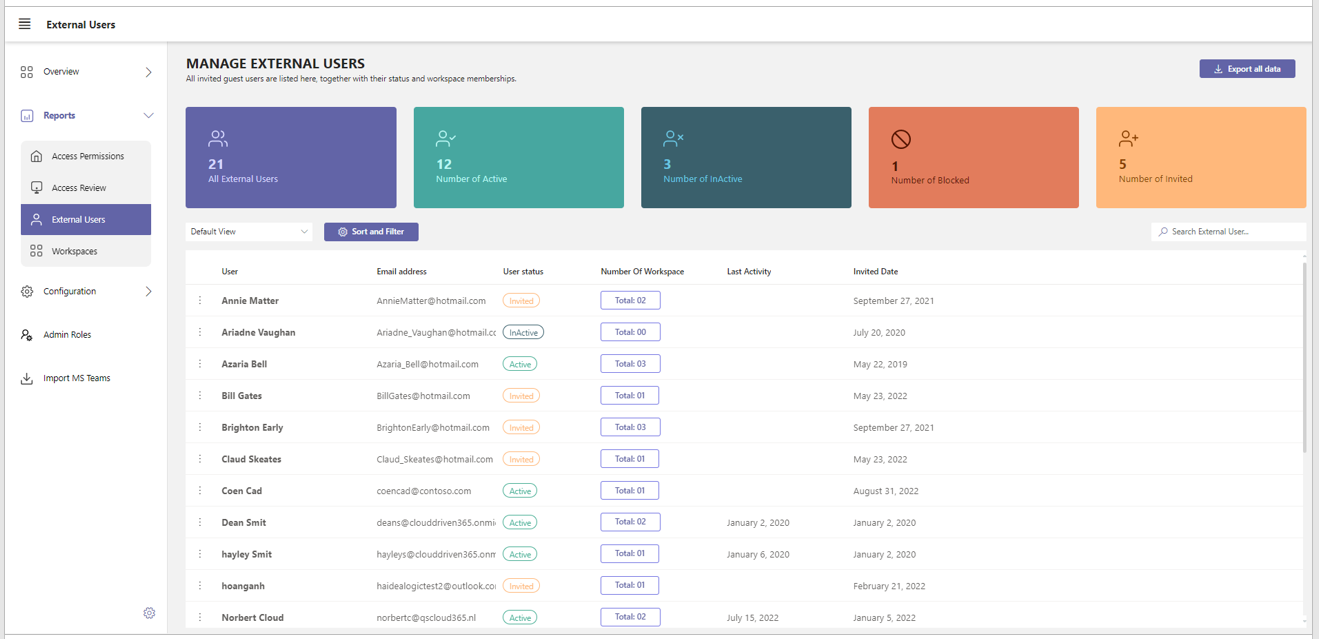
User - the user name.
Email address - the external user’s email address.
User status - the various statuses are Invited, Active, InActive, Withdrawn and Blocked.
Number of workspaces - the number in this column indicates the number of workspace teams the remote user belongs to.
Click on this number to view a list of the workspaces concerned.
Last activity - this column displays the most recent date that the external user has logged in to PortalTalk .
Invited Date - date that the external user was first invited.
Of which workspaces is the external user a team member
For each external user, in the Number of workspaces column, a number indicates the number of workspaces within which the external user is a team member.
-
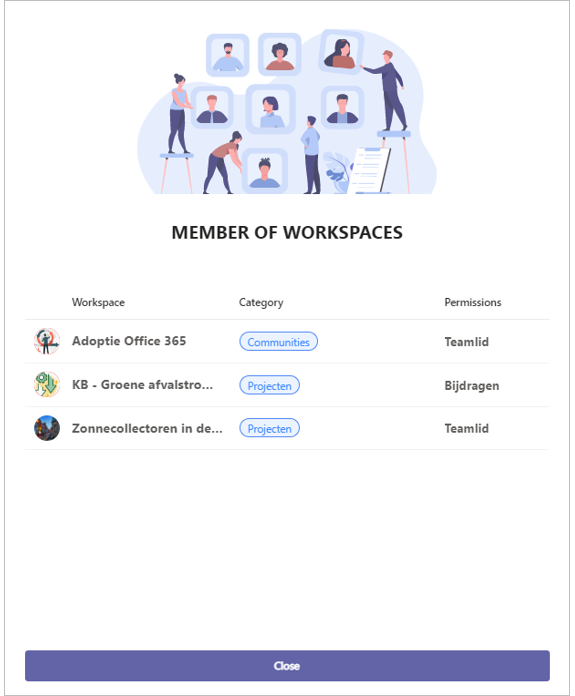
Click this number.
The Member of workspaces panel is displayed, listing the workspaces of which the external user is a team member:
External user status
PortalTalk provides detailed information of the external user status. Even more detailed than the Active Directory.
The table below lists and explains the different possible statuses of an external user:
Invited External user is added to a workspace but has not as yet accepted the invitation
Active External user is enabled and is assigned to one or more workspaces. Could also be invited to new workspaces
InActive External user is removed from the one or last remaining workspace, mostly through an access review action. In AAD, the user gets the status Blocked
Blocked External User is disabled in the Azure Active directory by an AAD administrator. A workspace owner
cannot set an external member to or reset from this status.
Can be handled by the PortalTalk admin or in the Azure Active directory
Withdrawn External user was still in the Invited status but already blocked by the AAD administrator
As PortalTalk admin you can control the external user status and set one or multiple blocked users back to Active status. Of course, this can be also done by the Azure AD administrator.
-
Select one or several external users.
-
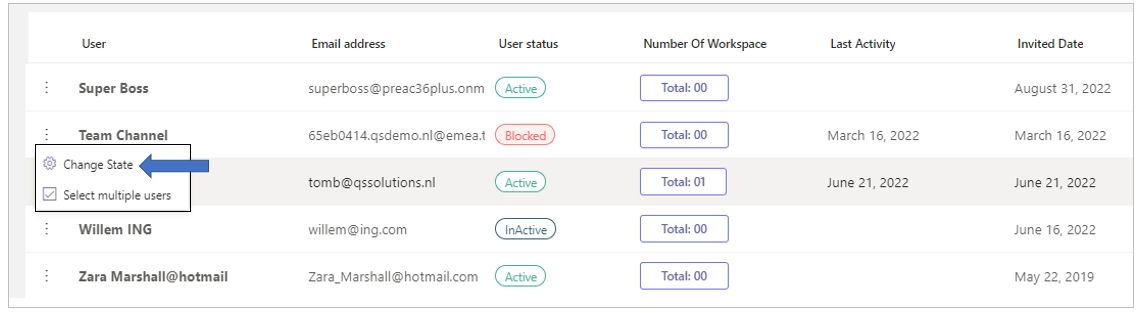
Click the ellipsis menu button of one of the users and select the option Change State.
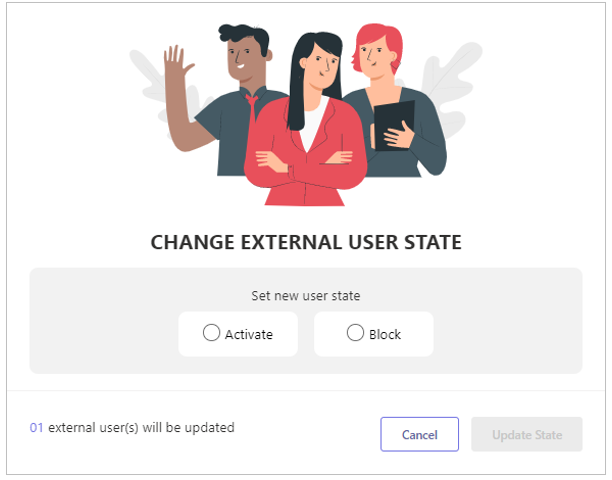
The Change External User State panel is displayed:
-
Click the option Activate or Block to instantly grant or deny the selected external users access to the workspaces of which they are team members.
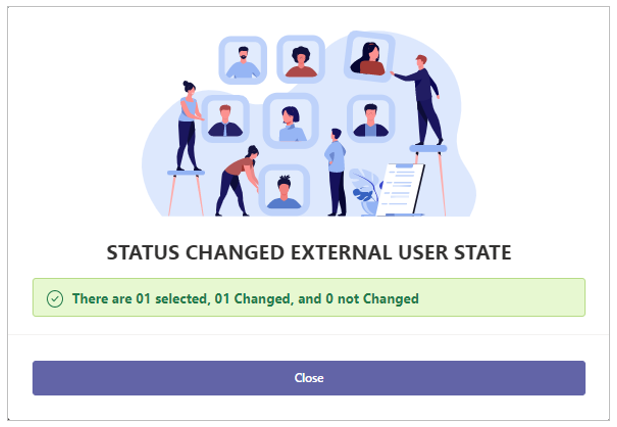
-
Click Close to exit the Change External User State panel.