.png)
Setting the Workspace Analytics
-
Switch on the setting Workspace Analytics.
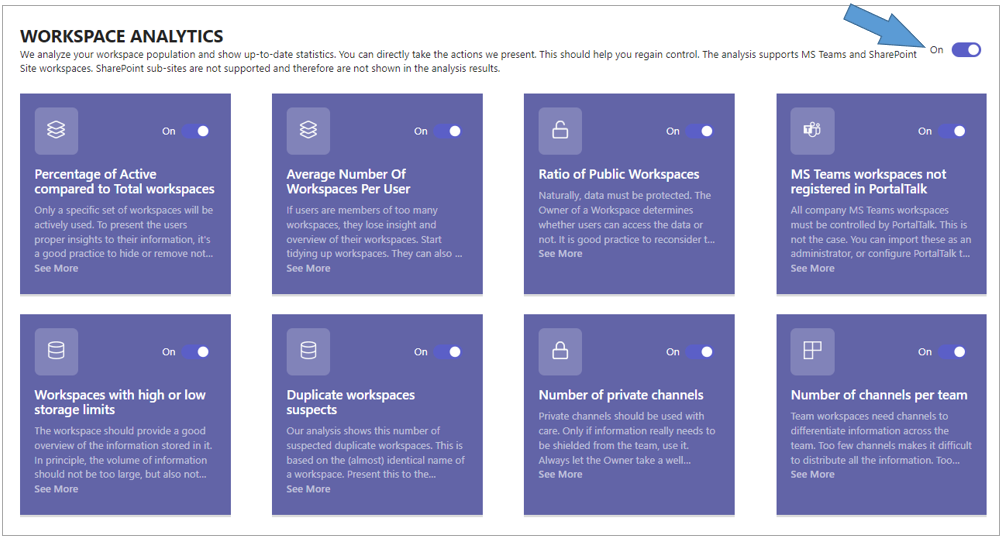
The configuration settings for the different Workspace Analytics KPIs become available as rectangular boards, one board per KPI.
After the Workspace Analytics setting has been activated, the following Workspaces KPIs can be activated and configured.
Percentage of Active compared to Total workspaces
For an explanation of the user experience of this KPI board, you can consult the concerned paragraph in this manual.
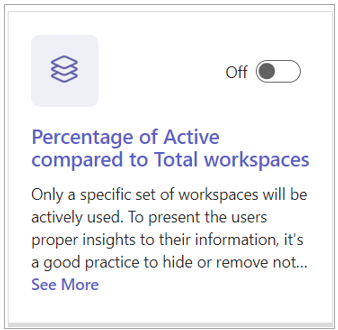
In PortalTalk, a workspace is deemed inactive after a specified number of consecutive days of inactivity. This specific period of inactivity is configured in the PortalTalk General Settings and can be 30, 60, 90 or 180 days.
Typically, only a limited number of workspaces are actively in use. To provide users with effective and targeted insight into their work information, it is a good practice to hide or delete no longer used workspaces. The best action you can take is to archive inactive workspaces to visually excluding them from the daily workload of workspaces.
-
Click the board to view the current configuration settings.
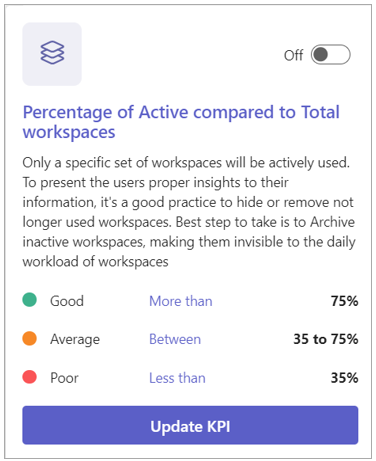
The preset KPI settings indictate that an active workspace percentage of 75% or higher is deemed as good, while anything below 35% is considered poor. Percentages falling between these thresholds are regarded as average.
-
Switch on the KPI to initiate the data sourcing and activate the reporting process for this specific metric.
-
Click the option Update KPI to access the dialog for editing the KPI settings.
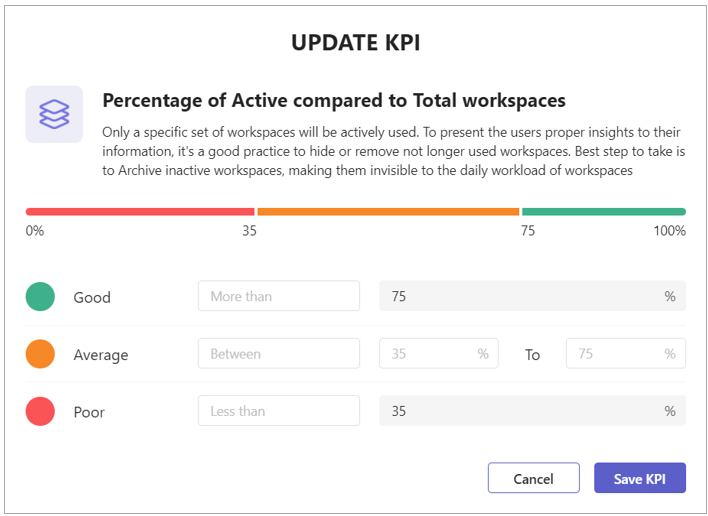
Adjust the KPI settings according to your preferences by modifying the top and bottom threshold percentages.
-
Click Save KPI.
Average Number Of Workspaces Per User
For an explanation of the user experience of this KPI board, you can consult the concerned paragraph in this manual.
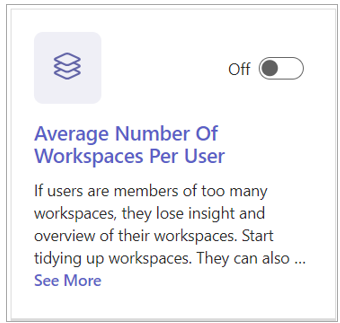
When users are members of an excessive number of workspaces, it can lead to a loss of insight and overview of their workspaces. It is then recommended to organize and tidy up workspaces. Additionally, workspaces that are no longer actively used can be deleted or archived. Owners can assist in cleaning up by archiving workspaces. Members also have the autonomy to leave MS Teams workspaces independently.
-
Click the board to view the current configuration settings.
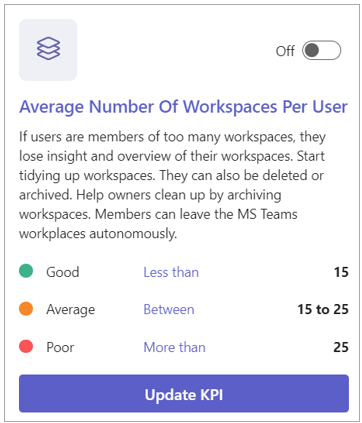
The preset KPI settings indictate that an average number of workspaces per user of 15 or lower is deemed as good, while anything higher than 25 is considered poor. Numbers falling between these thresholds are regarded as average.
-
Switch on the KPI to initiate the data sourcing and activate the reporting process for this specific metric.
-
Click the option Update KPI to access the dialog for editing the KPI settings.
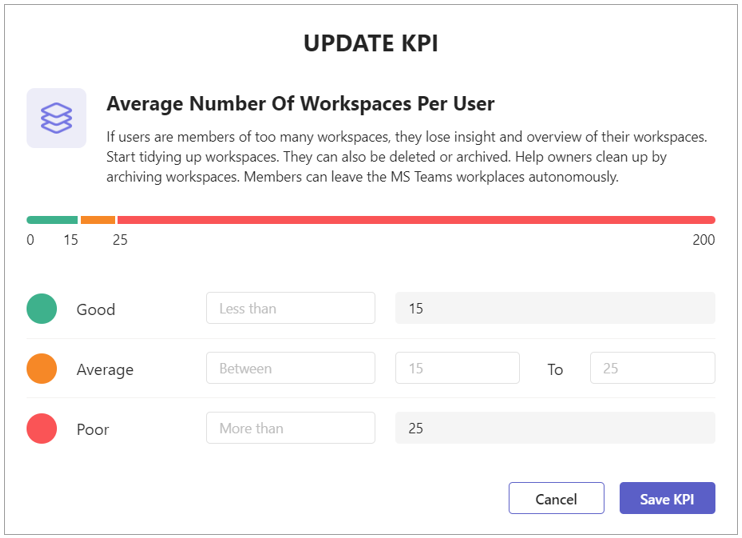
Adjust the KPI settings according to your preferences by modifying the top and bottom threshold numbers.
-
Click Save KPI.
Ratio of Public Workspaces
For an explanation of the user experience of this KPI board, you can consult the concerned paragraph in this manual.
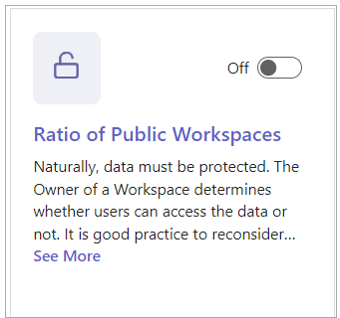
Naturally, data must be protected. The workspace owner determines whether users can or cannot access the workspace's data, ensuring its protection. On the other hand, it is worth noting that workspace owners can be overprotective when it comes to the information they manage, potentially limiting access to essential information.
It is good practice to periodically reassess these restrictions, identifying private workspaces that should provide broader organizational access to facilitate data utilization.
-
Click the board to view the current configuration settings.
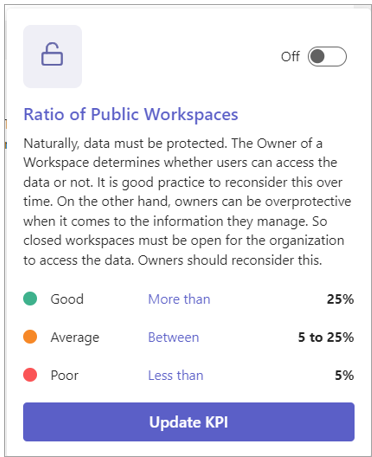
The preset KPI settings indictate that a public workspaces ratio between 5% and 25% is considered average.
Below 5% is considered poor, and above 25% is deemed to be good.
-
Switch on the KPI to initiate the data sourcing and activate the reporting process for this specific metric.
-
Click the option Update KPI to access the dialog for editing the KPI settings.
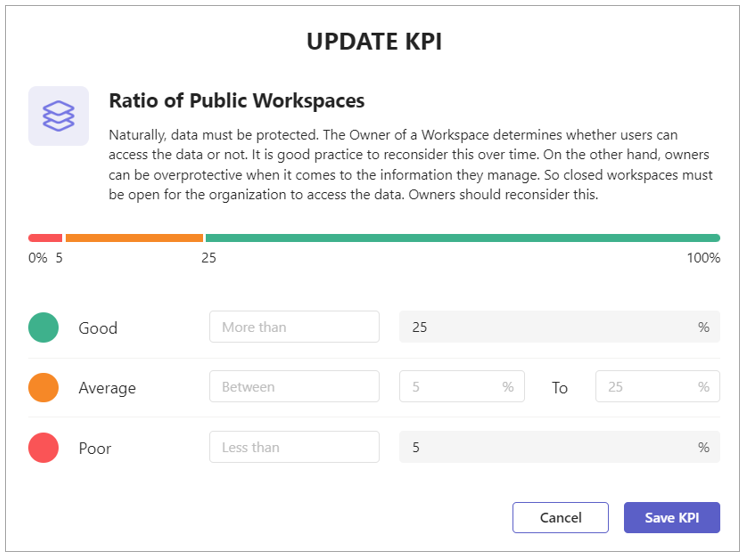
Adjust the KPI settings according to your preferences by modifying the top and bottom threshold percentages.
-
Click Save KPI.
MS Teams workspaces not registered in PortalTalk
For an explanation of the user experience of this indicator board, you can consult the concerned paragraph in this manual.
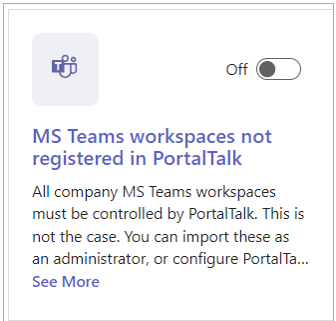
All company MS Teams workspaces should be managed through PortalTalk. Currently, this is not being implemented uniformly. PortalTalk administrators have the option to import "stray" workspaces manually or configure PortalTalk to import them automatically, allowing owners to assign the appropriate category. This method is applicable only to MS Teams workspaces.
-
Switch on the KPI to initiate the data sourcing and activate the reporting process for this specific metric.
Workspaces with high or low storage limits
For an explanation of the user experience of this KPI board, you can consult the concerned paragraph in this manual.
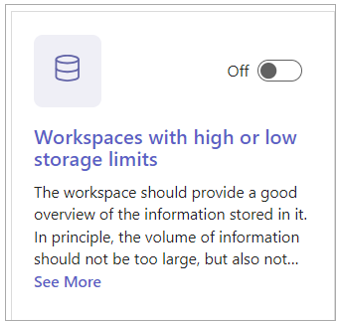
A workspace should provide a good overview of the information stored in it. In principle, the volume of information should not be too large, but also not too small. Workspace with a small amount of storage space can be merged with others. Workspaces with a large amount of storage space can be divided into multiple workspaces.
Best practice indicates that the optimal data volume in the workspace is within the limits of 5 MB and 25 GB.
-
Click the board to view the current configuration settings.
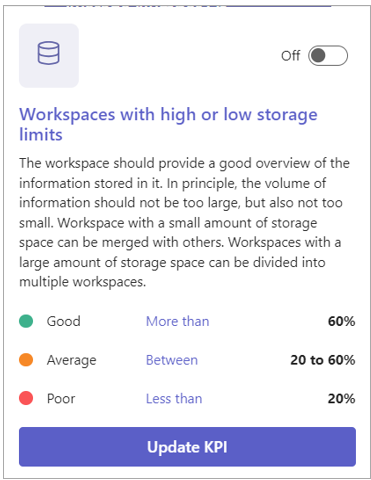
The preset KPI settings indictate that 75% or higher percentage of workspaces within the 5 MB to 25 GB data volume range, is deemed to be good.
A 35% percentage or lower of workspaces 35% or lower within the 5 MB to 25 GB data volume range, is considered poor.
Percentages falling between these thresholds are regarded as average.
-
Switch on the KPI to initiate the data sourcing and activate the reporting process for this specific metric.
-
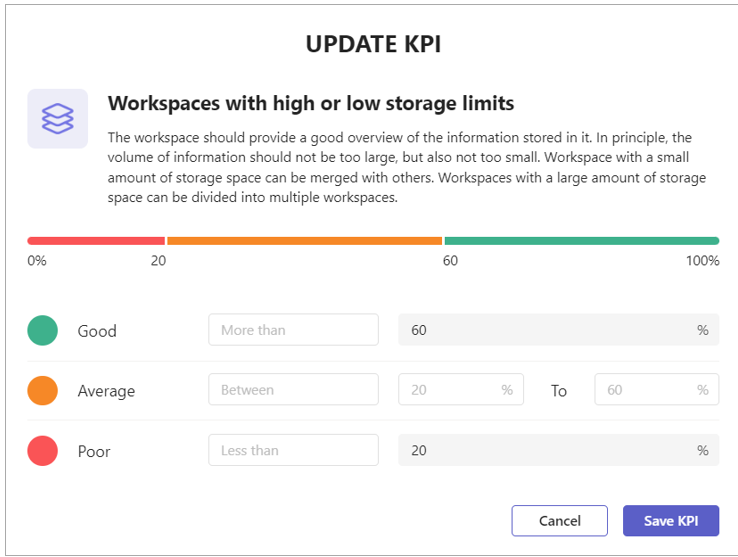
Click the option Update KPI to access the dialog for editing the KPI settings.
-
Adjust the KPI settings according to your preferences by modifying the top and bottom threshold percentages..
-
Click Save KPI.
Duplicate workspaces suspects
For an explanation of the user experience of this indicator board, you can consult the concerned paragraph in this manual.
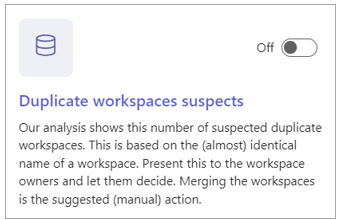
List of existing suspected duplicate workspaces.
When requesting or creating a new MS Teams workspace, the user receives immediate feedback if he is creating a suspected duplicate of an already existing MS Teams workspace. Duplicate suspicion of workspaces is based on their (almost) identical workspace name.
-
Switch on the KPI to initiate the data sourcing and activate the reporting process for this specific metric.
Number of private channels
For an explanation of the user experience of this KPI board, you can consult the concerned paragraph in this manual.
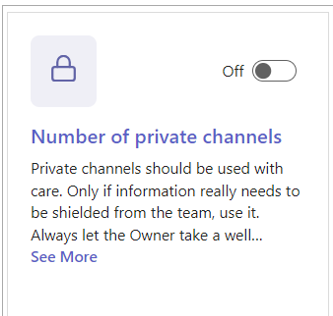
This KPI shows the Percentage of Private channels used within all active MS Teams workspaces. Too much Private channels in teams workspace is behavior we want to prevent. Users are hiding information for team members. To make information accessible to them all, the number of public channels should be low and the KPI will show up in Green color.
Best practice indicates that the percentage of private channels is not higher than 20%.
-
Click the board to view the current configuration settings.
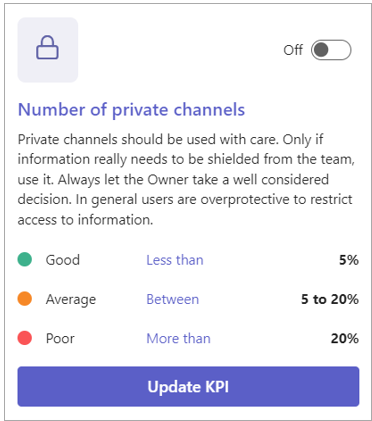
The preset KPI settings indicate that 5% or less percentage of private channels is deemed to be good.
A 20% percentage or higher of private channels is considered poor.
Percentages falling between these thresholds are regarded as average.
-
Switch on the KPI to initiate the data sourcing and activate the reporting process for this specific metric.
-
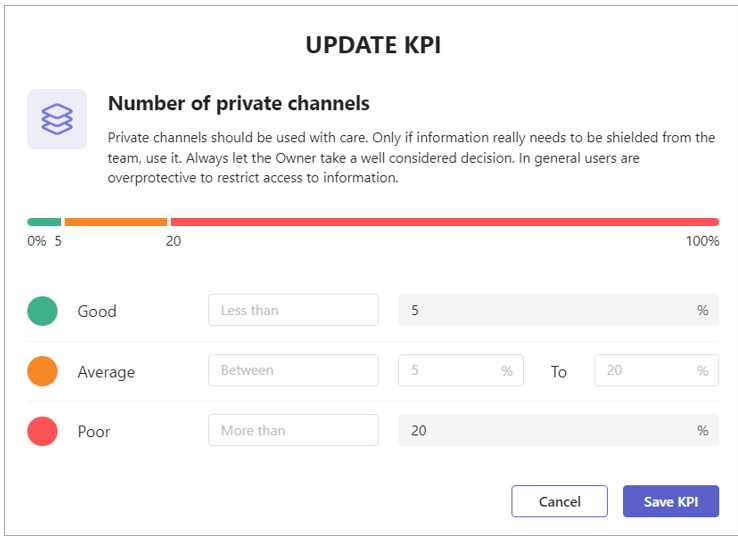
Click the option Update KPI to access the dialog for editing the KPI settings.
-
Adjust the KPI settings according to your preferences by modifying the top and bottom threshold percentages..
-
Click Save KPI.
Number channels per team
For an explanation of the user experience of this KPI board, you can consult the concerned paragraph in this manual.
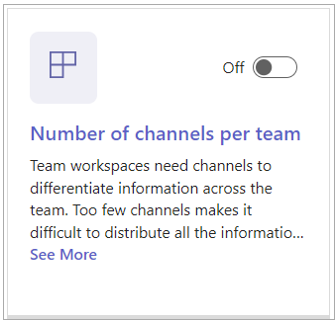
KPI on Workspaces with Low/High number of channels.
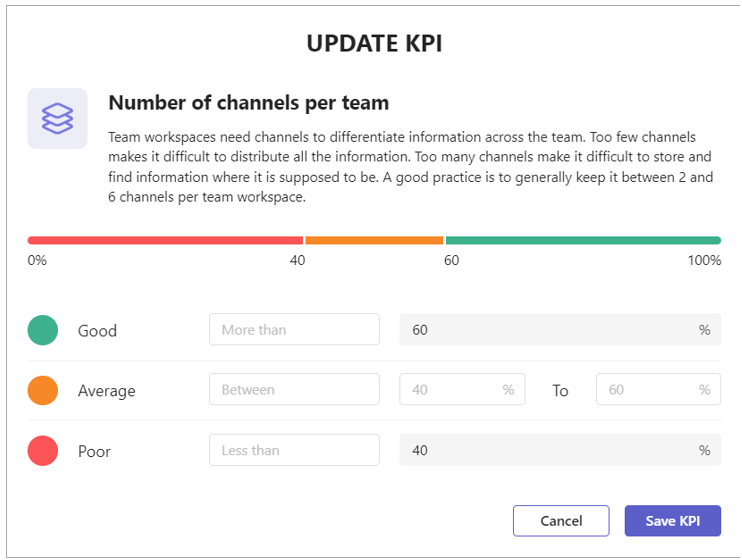
The use of channels is to differentiate information in a team workspace. Too few channels makes it difficult to distribute all the information. Too many channels make it difficult to store and find information where it is supposed to be. Our practice learned that the optimal number of channels is 2 to 6. This KPI will show you the percentage of active teams within this 2 to 6 channels range. The KPI board will give users more information about teams outside of the 2 to 6 channels range.
-
Click the board to view the current configuration settings.
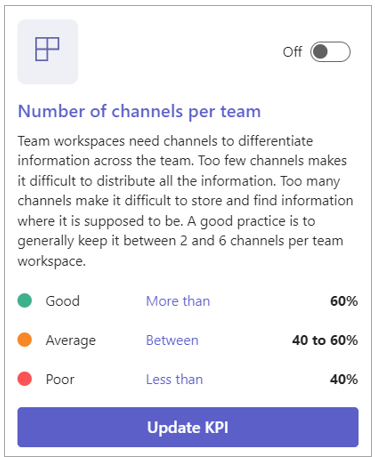
The preset KPI settings indicate that a 60% of teams inside the 2 to 6 channels range is deemed to be good.
A 40% percentage or lower of teams inside the 2 to 6 channels range is considered poor.
Percentages falling between these thresholds are regarded as average.
-
Switch on the KPI to initiate the data sourcing and activate the reporting process for this specific metric.
-
Click the option Update KPI to access the dialog for editing the KPI settings.
-
Adjust the KPI settings according to your preferences by modifying the top and bottom threshold percentages..
-
Click Save KPI.