.png)
Setting the User Analytics
-
Switch on the setting User Analytics.
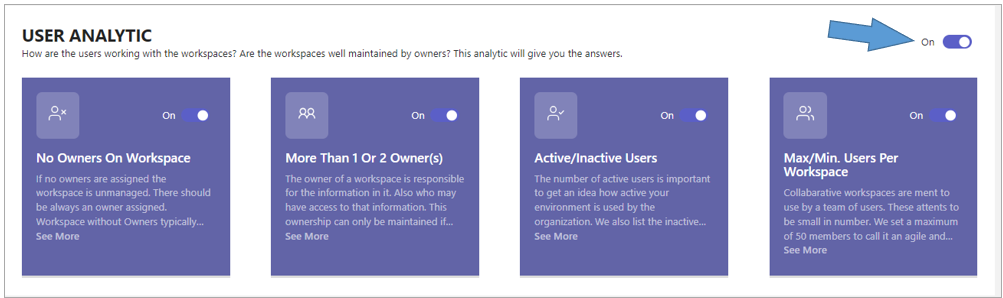
The configuration settings for the different User Analytics KPIs become available as rectangular boards, one board per KPI.
After the User Analytics setting has been activated, the following User KPIs can be activated and configured.
No Owners on Workspace
This KPI will give insight in the number of workspaces with no owner(s) assigned.
For an explanation of the user experience of this KPI board, you can consult the concerned paragraph in this manual.
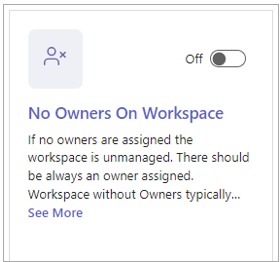
If no owners are assigned, a workspace is unmanaged. An owner must always be assigned. Ownerless workspaces usually occur when workspace owners leave the organization without transferring ownership of the workspace to another team member. Be aware of this and include ownership transfer in your organization’s offboarding process.
-
Click the board to view the current configuration settings.
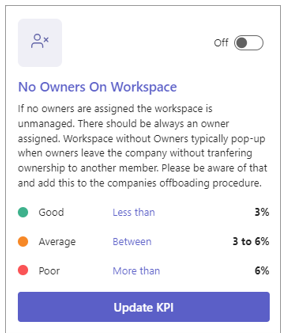
The preset KPI settings indicate that an ownerless workspace percentage below 3% is deemded as good, while anything above 6% is considered poor. Percentages falling between these thresholds are regarded as average.
-
Switch on the KPI to initiate the data sourcing and activate the reporting process for this specific metric.
-
Click the option Update KPI to access the dialog for editing the KPI settings.
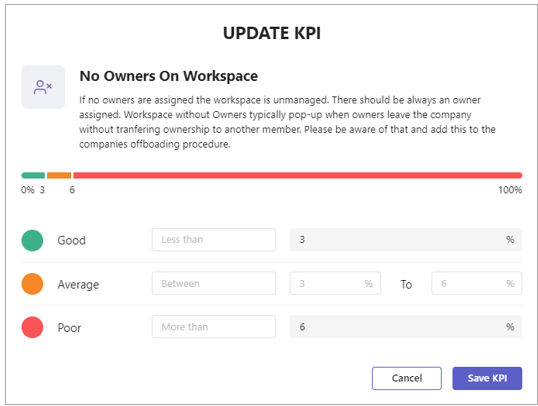
Adjust the KPI settings according to your preferences by modifying the top and bottom threshold percentages.
-
Click Save KPI.
More than 1 Or 2 Owners
This KPI provides insight into the workspace owner population within your organization.
For an explanation of the user experience of this KPI board, you can consult the concerned paragraph in this manual.
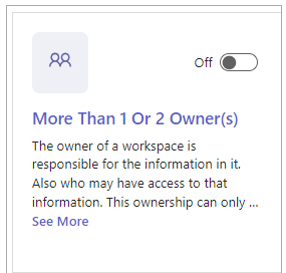
The owner of a workspace is responsible for the information it contains and who has access to it. This responsibility can only be assigned to a person if he is the sole owner of the workspace. Therefore, we recommend assigning only one owner per workspace. To bridge a temporary work interruption of the workspace owner, an additional owner is allowed. A maximum of two workspace owners is therefore acceptable.
-
Switch on the KPI to initiate the data sourcing and activate the reporting process for this specific metric.
Active/Inactive Users
How many of your licensed users are active? How many licenses are actually in use? How many inactive users still have licenses assigned? This KPI board provides the answers.
For an explanation of the user experience of this KPI board, you can consult the concerned paragraph in this manual.
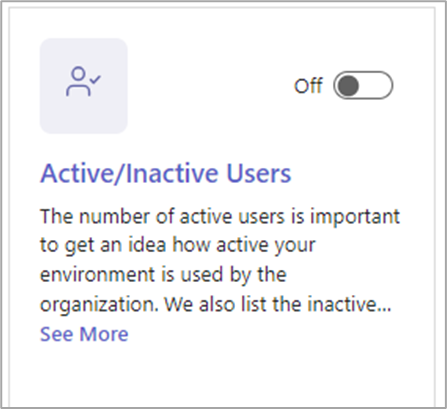
The number of active users is a key metric for understanding how actively your organization's environment is being utilized. Additionally, we have identified inactive users who still hold a Microsoft 365 license. These users require special attention, as they may be incurring unnecessary license costs.
You might want to consider reviewing and possibly lowering the number of licenses to optimize your subscription expenses.
-
Click the board to view the current configuration settings.
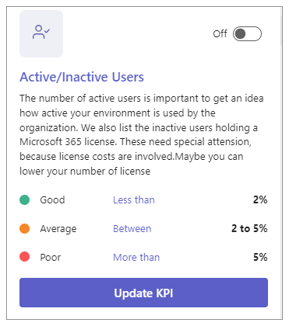
The preset KPI settings indictate that an inactive users ratio below 2% is deemded as good, while anything above 5% is considered poor. Percentages falling between these thresholds are regarded as average.
-
Switch on the KPI to initiate the data sourcing and activate the reporting process for this specific metric.
-
Click the option Update KPI to access the dialog for editing the KPI settings.
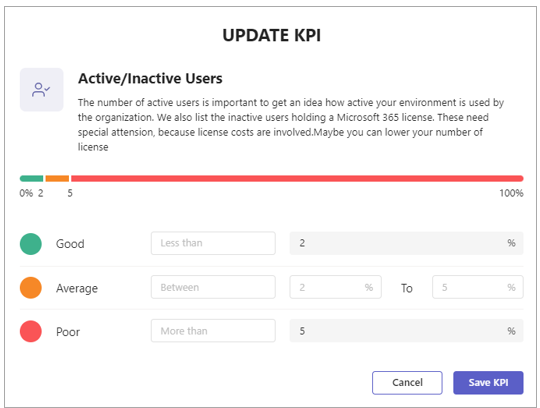
Adjust the KPI settings according to your preferences by modifying the top and bottom threshold percentages.
-
Click Save KPI.
Max/Min Users per Workspace
Workspaces should maintain a balanced number of users. The number of users should neither be too high nor too low to ensure optimal functionality and collaboration. This KPI provides valuable insight into the user distribution across workspaces, helping to assess whether the current distribution is aligned with operational expectations
For an explanation of the user experience of this indicator board, you can consult the concerned paragraph in this manual.
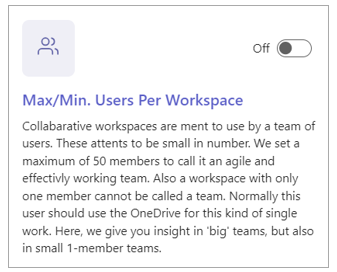
To maintain agility and effectiveness within a workspace, we consider 50 members to be the maximum team size.
Additionally, a workspace with only one member cannot truly be considered a team. In such cases, the user should utilize OneDrive for individual work.
This KPI provides insights into both 'big' teams, as well as in the workspaces containing only a single member.
-
Switch on the KPI to initiate the data sourcing and activate the reporting process for this specific metric.
Max/Min. Users Per Workspace
Workspace teams should maintain a balanced number of users, ensuring that there are neither too many nor too few members. This Key Performance Indicator (KPI) provides valuable insight into the number of users within each workspace, helping to monitor and maintain optimal team size.
For an explanation of the user experience of this KPI board, you can consult the concerned paragraph in this manual.
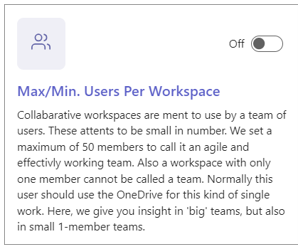
Collaborative workspaces are designed to be used by a team of users. To ensure efficient teamwork, it's important to maintain a balanced number of members, avoiding both overcrowded and underutilized teams. For this reason, we have set a maximum of 50 members, as this allows the team to remain agile and effective. Additionally, a workspace with only one member is not considered a team; such users are better suited to using OneDrive for individual tasks. This metric provides insight into both teams with too many members, as well as small workspaces with only a single user.
-
Switch on the KPI to initiate the data sourcing and activate the reporting process for this specific metric.