.png)
The User KPI boards
KPI is the acronym for Key Performance Indicator, representing a measurable metric of performance over a defined period for a specific objective.
The user metrics and analytics provide valuable insights into:
- Workspace content and usage permissions: Allowing you to monitor and control access effectively.
- Data integrity and confidentiality: Helping you maintain and safeguard sensitive information within your organization.
- Microsoft 365 software usage and licensing: Enabling you to analyze and optimize software adoption, ensuring efficient use of resources and licenses.
These analytics empower your organization to make informed decisions, ensuring both compliance and optimal use of Microsoft 365 applications.
-
Access the PortalTalk Admin Center.
-
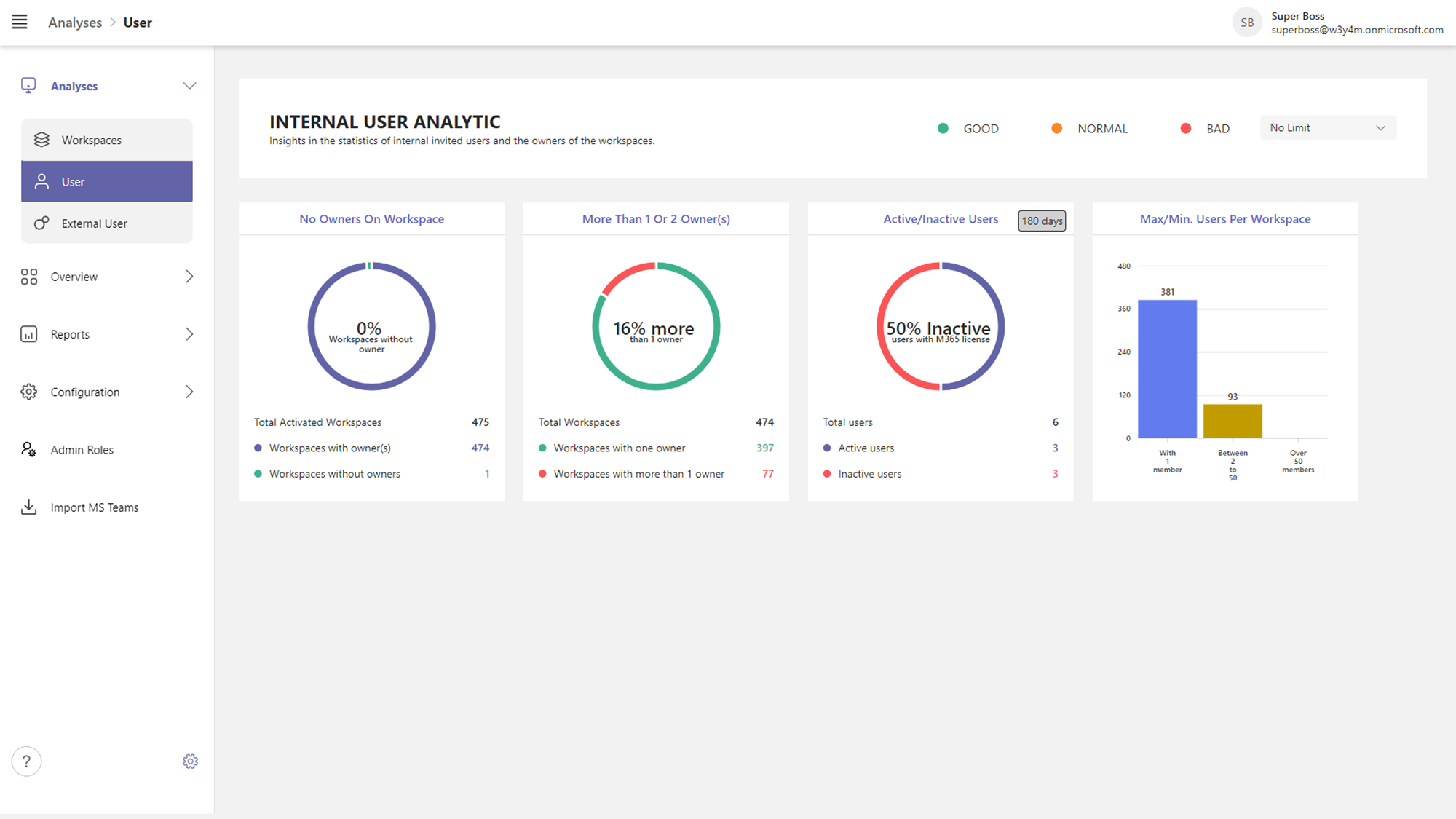
Select the navigation option Analyses ➖ Users to access the Internal User Analytics page:
Each KPI board provides statistical information on your tenant’s user population.
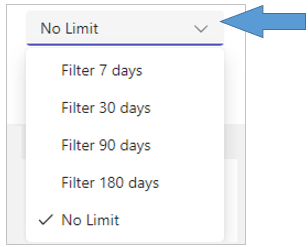
With the filter function at the top right corner of this page you can narrow down the duration of the past period over which the KPIs are calculated.
The following User KPIs are offered:
Number of Owners on Workspace
The Analytic KPI board on Number of Owners on Workspace
For the KPI board to generate output, the KPI must be activated and configured.
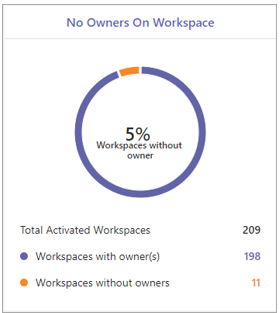
The KPI value at the top of the board, represents the percentage of workspaces without an assigned owner, in comparison to all active workspaces.
If no owner is assigned, the workspace is considered unmanaged. It is essential that every workspace has a designated owner. Workspaces without owners typically emerge when an owner leaves the company without transferring ownership to another member.
Please ensure that this is accounted for in your company's offboarding procedures to prevent any unmanaged workspaces.
Further down on the board, the numbers are displayed of respectively the total number of activated workspaces, the number of workspaces without owner, and the number of workspaces with owner.
-
Click the board to expand and view an explanation of the KPI, including any advice provided:
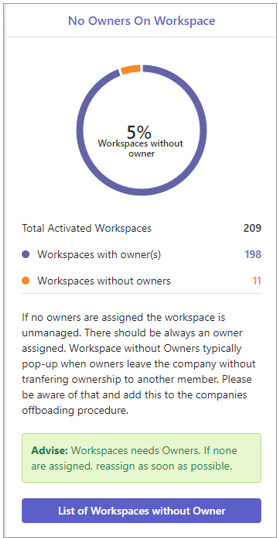
The bottom part of the expanded board lists any advice offered and any recommended action.
-
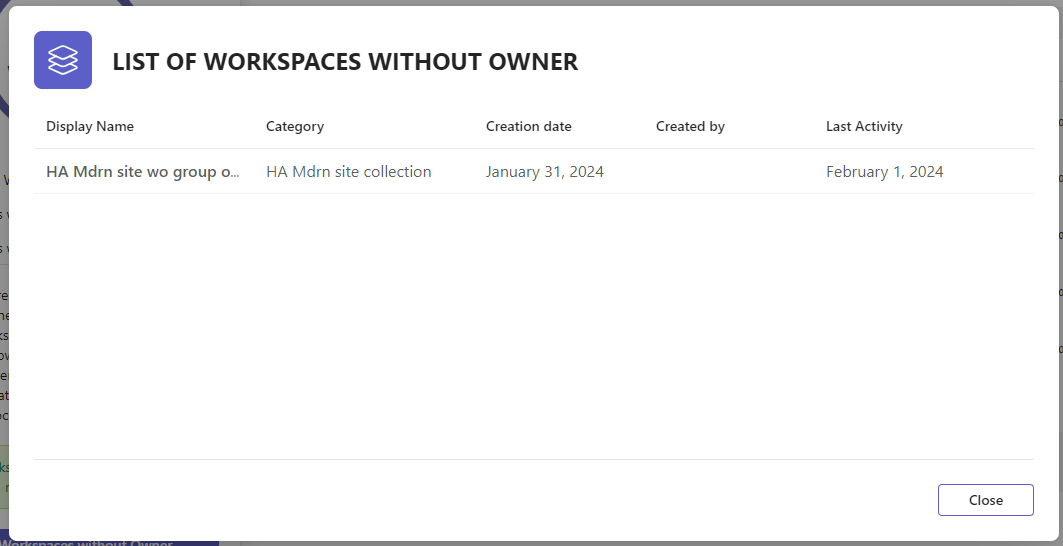
Click the List of Workspaces without Owner button to obtain a list of the workspaces without Owners.
-
As PortalTalk Admin you can use the Overview - Workspace Owners screen to take in assigning the correct numbers of Owner(s) again
More than 1 or 2 Owner(s) on a Workspace
This KPI provides insight into the possible over-representation of owners within the organization's workspaces.
For the KPI board to generate output, the KPI must be activated and configured.
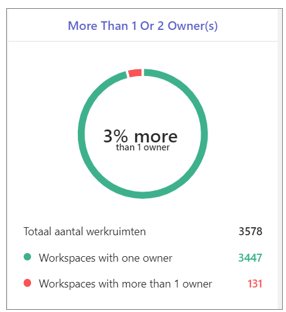
The KPI value at the top of the board, represents the percentage of workspaces having more than one owner, in comparison to all active workspaces.
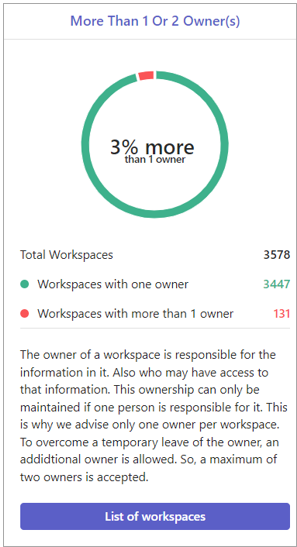
The owner of a workspace is responsible for the information it contains and who has access to it. This responsibility can only be assigned to a person if he is the sole owner of the workspace. Therefore, we recommend assigning only one owner per workspace. To bridge a temporary work interruption of the workspace owner, an additional owner is allowed. A maximum of two workspace owners is therefore acceptable.
Further down on the board, the numbers are displayed of respectively the total number of activated workspaces, the number of workspaces without owner, and the number of workspaces with owner.
-
Click the board to expand and view an explanation of the KPI:
-
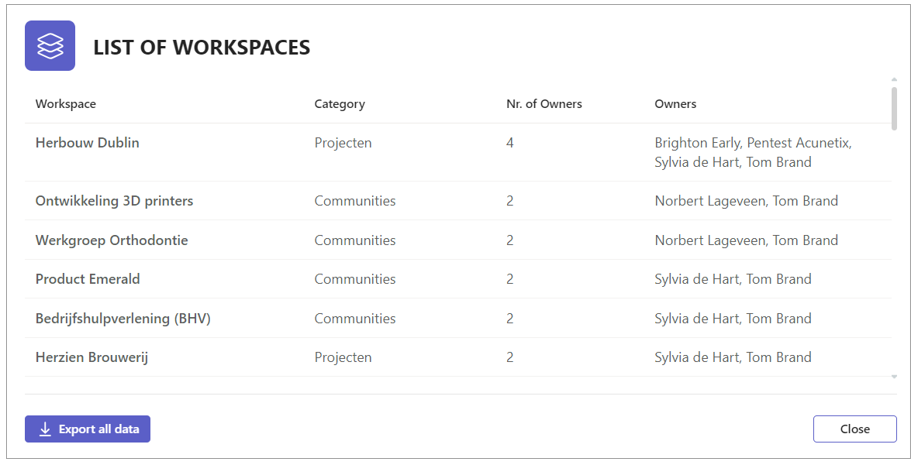
Click the List of Workspaces button to obtain a list of the workspaces two or more owners.
Active/Inactive Users
The Analytic KPI board on the numbers and ratio of active and inactive users.
For the KPI board to generate output, the KPI must be activated and configured.
How many of your licensed users are active? How many licenses are actually in use? How many inactive users still have licenses assigned? This KPI board provides the answers.
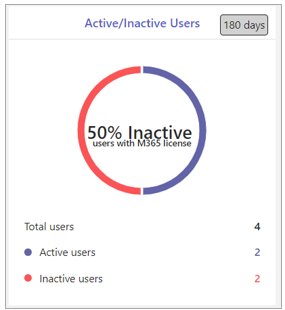
The KPI value at the top of the board represents the percentage of inactive users compared to the total user base. Please note that this KPI is calculated over a fixed time interval of 180 days and is not affected by the time interval filter.
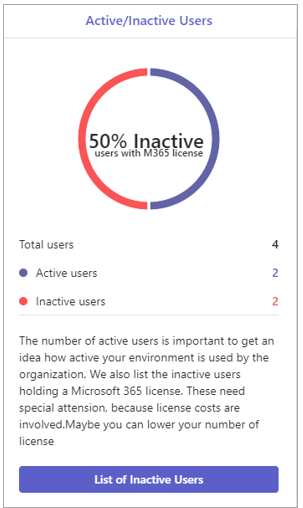
The number of active users is a key metric for understanding how actively your organization's environment is being utilized. Additionally, we have identified inactive users who still hold a Microsoft 365 license. These users require special attention, as they may be incurring unnecessary license costs.
You might want to consider reviewing and possibly lowering the number of licenses to optimize your subscription expenses.
Further down on the board, the numbers are displayed of respectively the total number of users, the number of active users, and the number of inactive users.
-
Click the board to expand and view an explanation of the KPI:
-
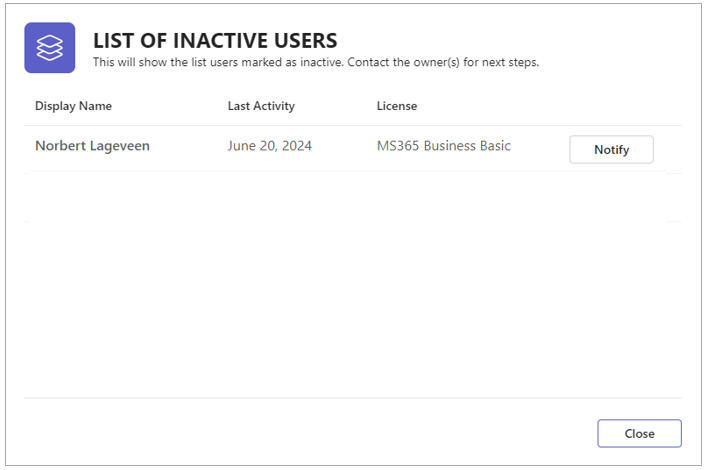
Click the List of Inactive Users button to obtain same.
-
Click the Notify option to alert the license management officer.
Max/Min. User per Workspace
The Analytic KPI board on Number of Owners on Workspace
For the KPI board to generate output, the KPI must be activated and configured.
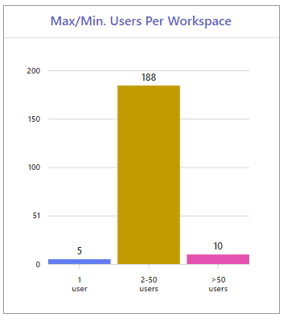
The KPI shows the numbers of workspaces categorized into three groups:
-
Workspaces with a single team member.
-
Workspaces with 2 to 50 team members.
-
Workspaces with more than 50 team members.
Workspaces should maintain a balanced number of users. The number of users should neither be too high nor too low to ensure optimal functionality and collaboration. This KPI provides valuable insight into the user distribution across workspaces, helping to assess whether the current distribution is aligned with operational expectations.
To maintain agility and effectiveness within a workspace, we consider 50 members to be the maximum team size.
Additionally, a workspace with only one member cannot truly be considered a team. In such cases, the user should utilize OneDrive for individual work.
This KPI provides insights into both 'big' teams, as well as in the workspaces containing only a single member.
-
Click the board to expand and view an explanation of the KPI, including any advice provided:
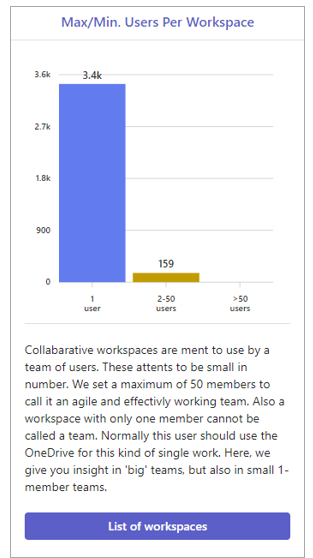
The bottom part of the expanded board displays an explanation of the KPI.
-
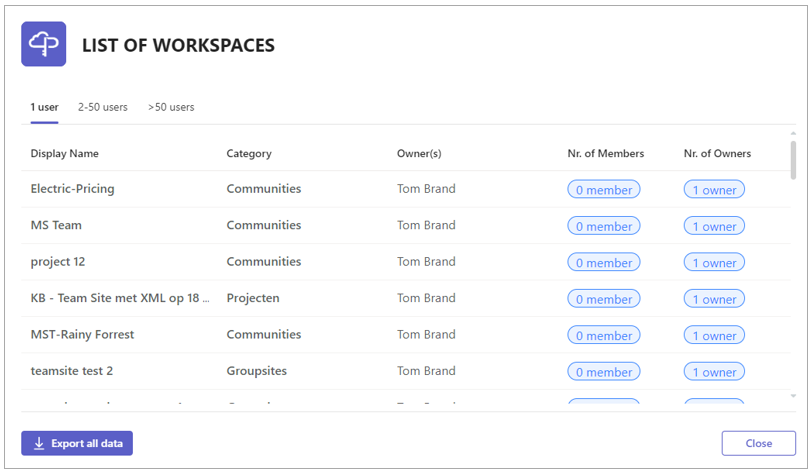
Click the List of Workspaces button to generate a list of all workspaces, categorized into three groups:
-
Workspaces with a single team member.
-
Workspaces with 2 to 50 team members.
-
Workspaces with more than 50 team members.
-