.png)
Installing the PortalTalk Microsoft Teams app
PortalTalk has an MS teams app which makes the PortalTalk functions available within MS Teams.
In order to offer this app centrally to users, it must be installed within the MS Teams app store of the organization.
This chapter describes the PortalTalk app installation procedure and making the PortalTalk navigation link available in MS Teams
Refer to the team owners' online manual page Managing your workspace from MS Teams for an explanation on the use of the PortalTalk app within Microsoft Teams.
|
1. |
Login as a user with global administrator role. Launch MS teams in the browser with the URL https://teams.microsoft.com/
|
Who is a Microsoft 365 tenant Global Administrator in my organization? |
|
2. |
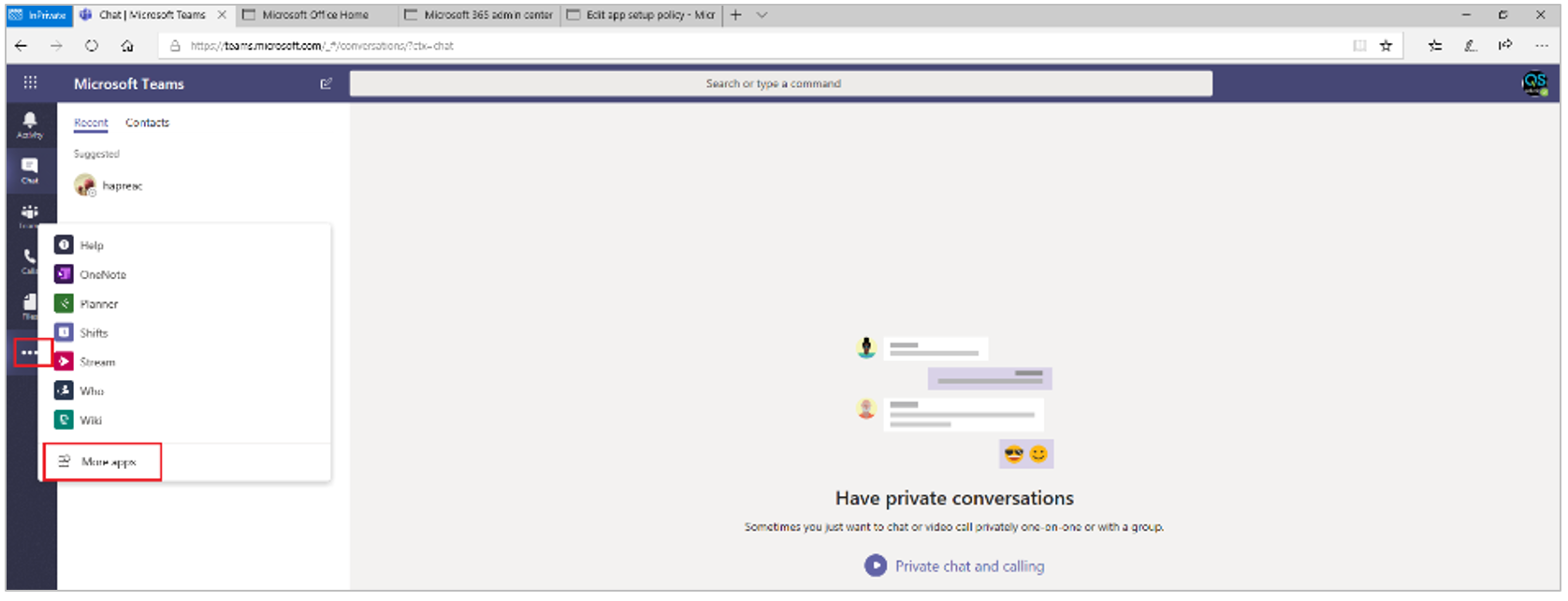
In MS teams, access the left navigation pane and click tne navitaion option 'More Apps'
|
|
|
3. |
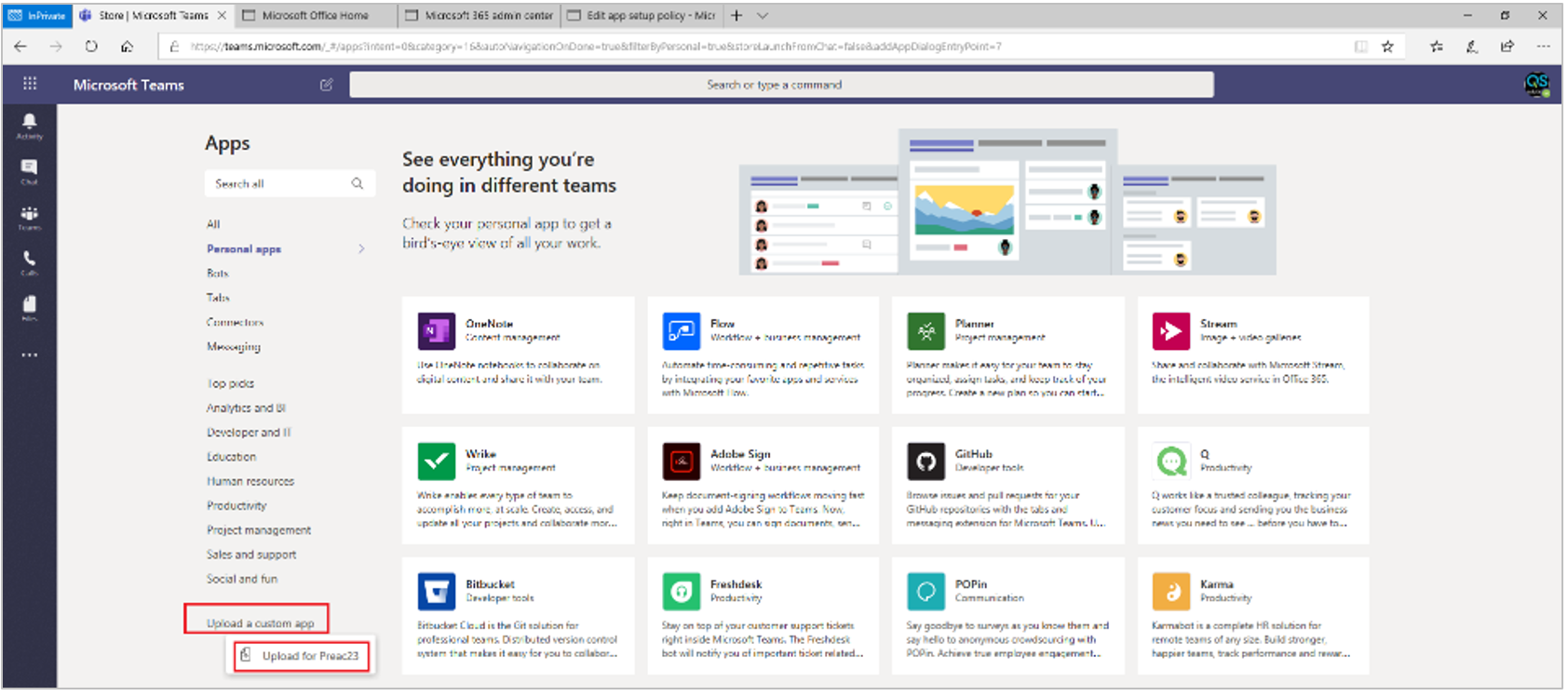
Choose; Upload for <tenant name>. This installs the app for the entire organization.
|
|
|
4. |
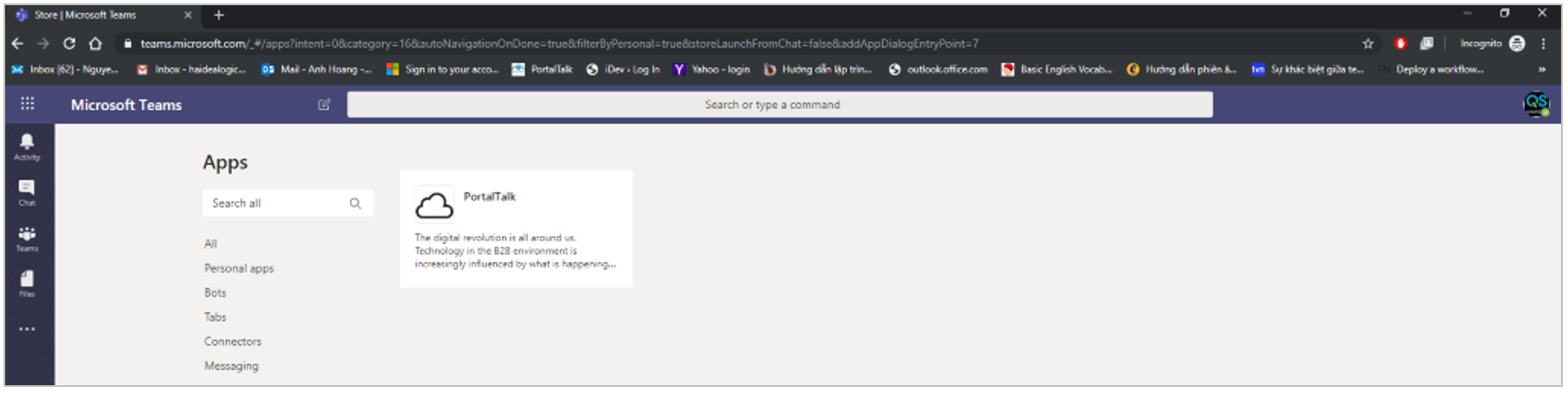
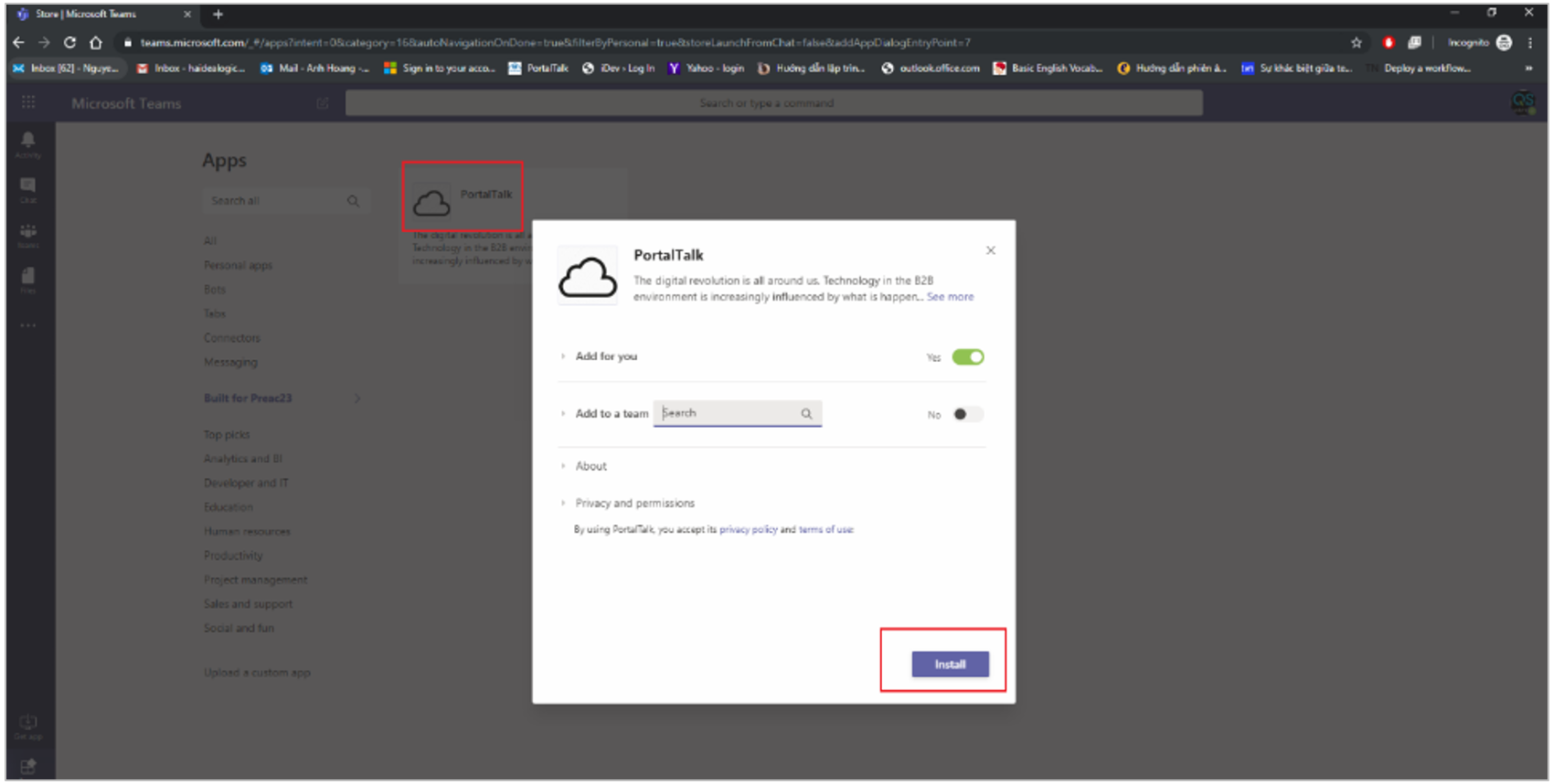
Upload the PortalTalk 365 app file to install. This is a ZIP file. User AC or PROD for your correct PT365 environment.
After these steps the PortalTalk app is installed within MS Teams.
|
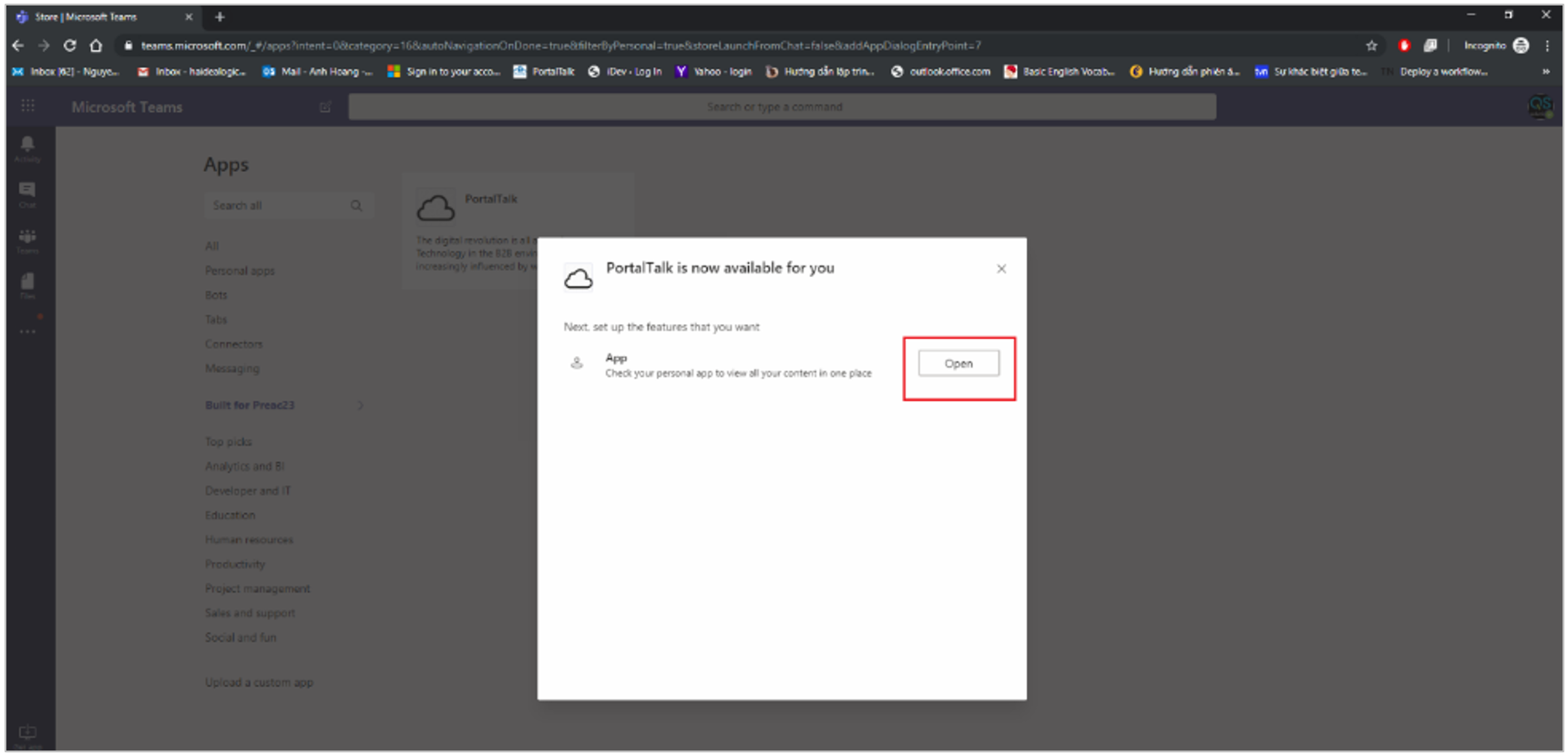
|
|
5. |
Now, the app has to be added and arranged in the left navigation pane of MS Teams. Access the MS Teams Admin center through https://admin.teams.microsoft.com/dashboard
|
|
|
6. |
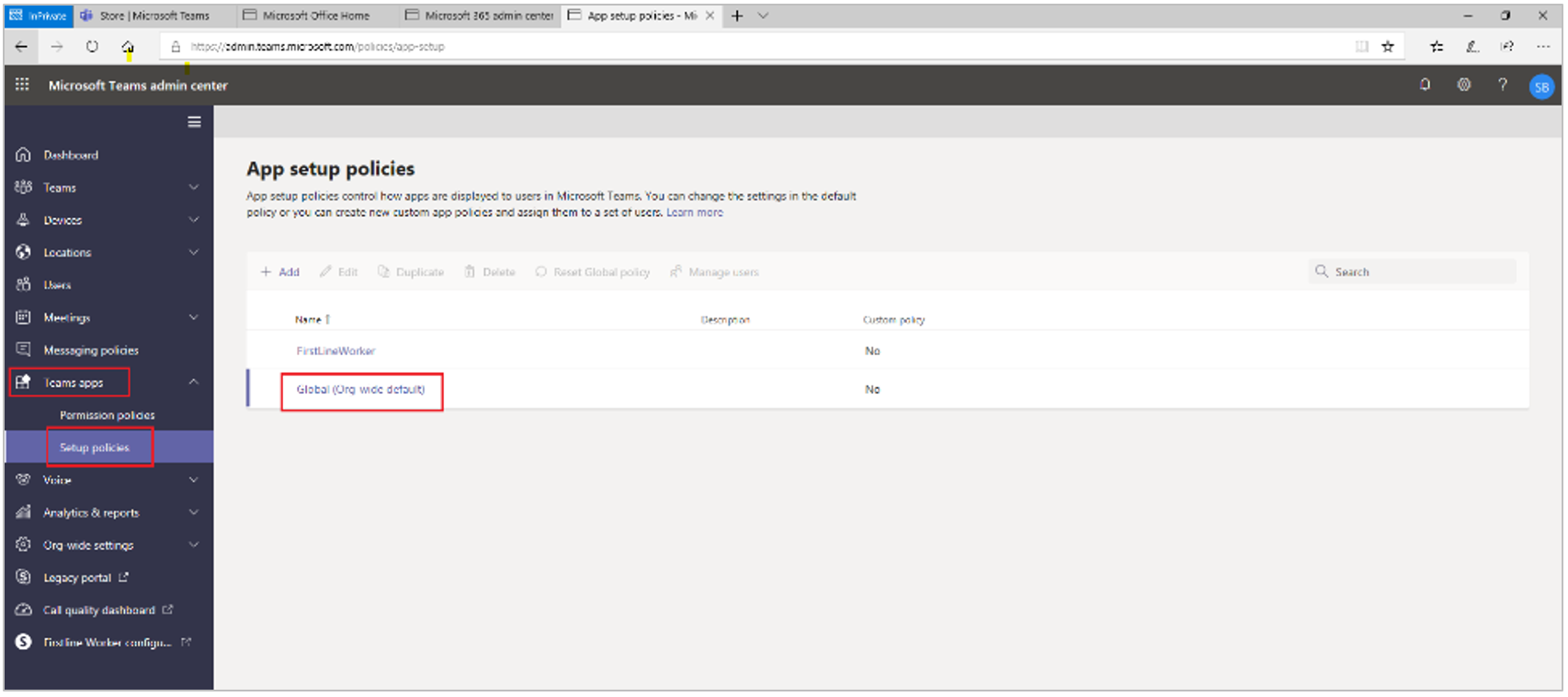
Choose to adjust the 'Teams Apps' -> 'Setup policies' and adjust the policy 'Global (org-wide default)'. |
|
|
|
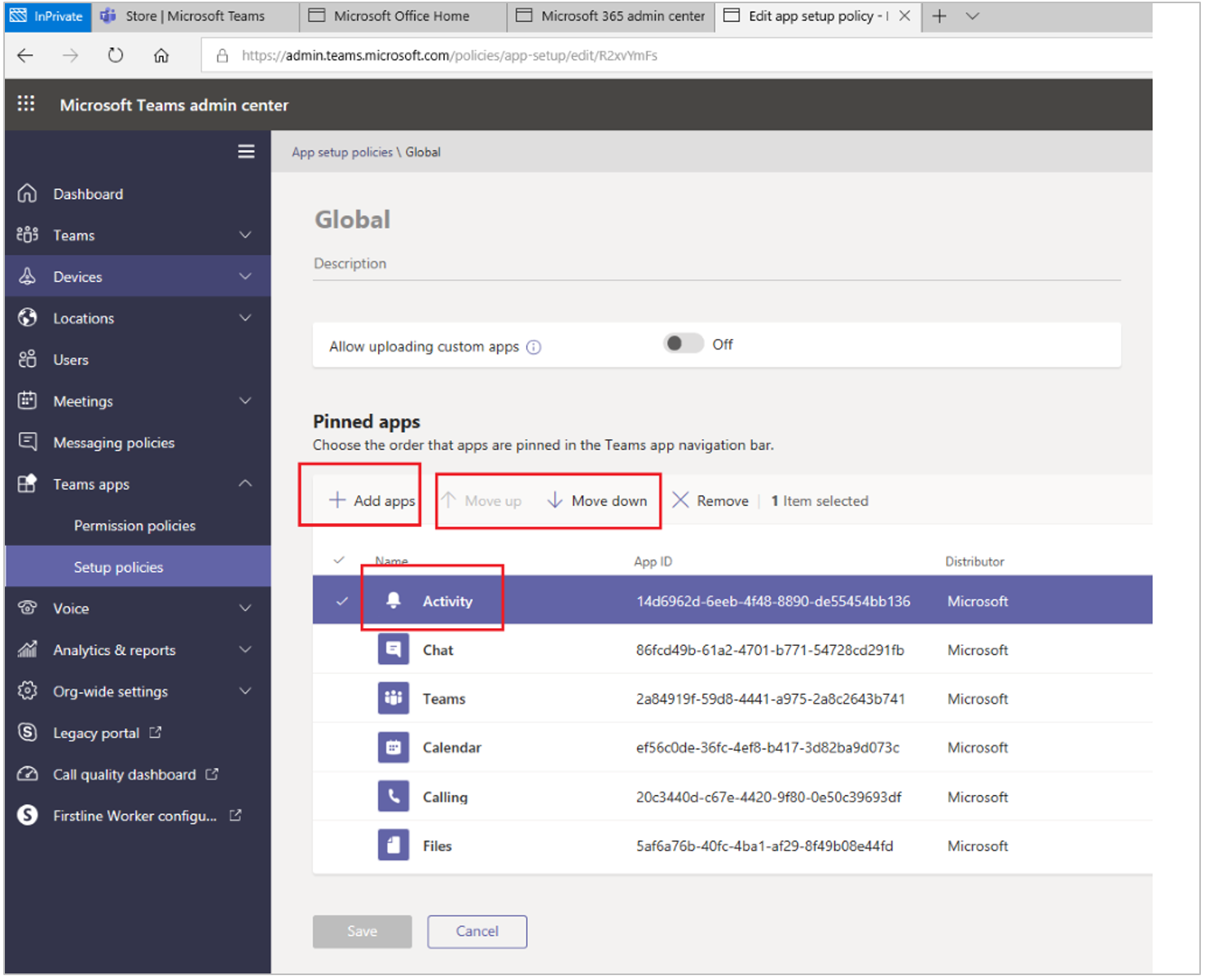
Add the 'PortalTalk' app to the policy. Change the position of the PortalTalk app so that it is placed on top. And save the policy settings.
It can take up to 24 hours before the navigation link to the PortalTalk app becomes visible in the left menu.
|
|
|
|
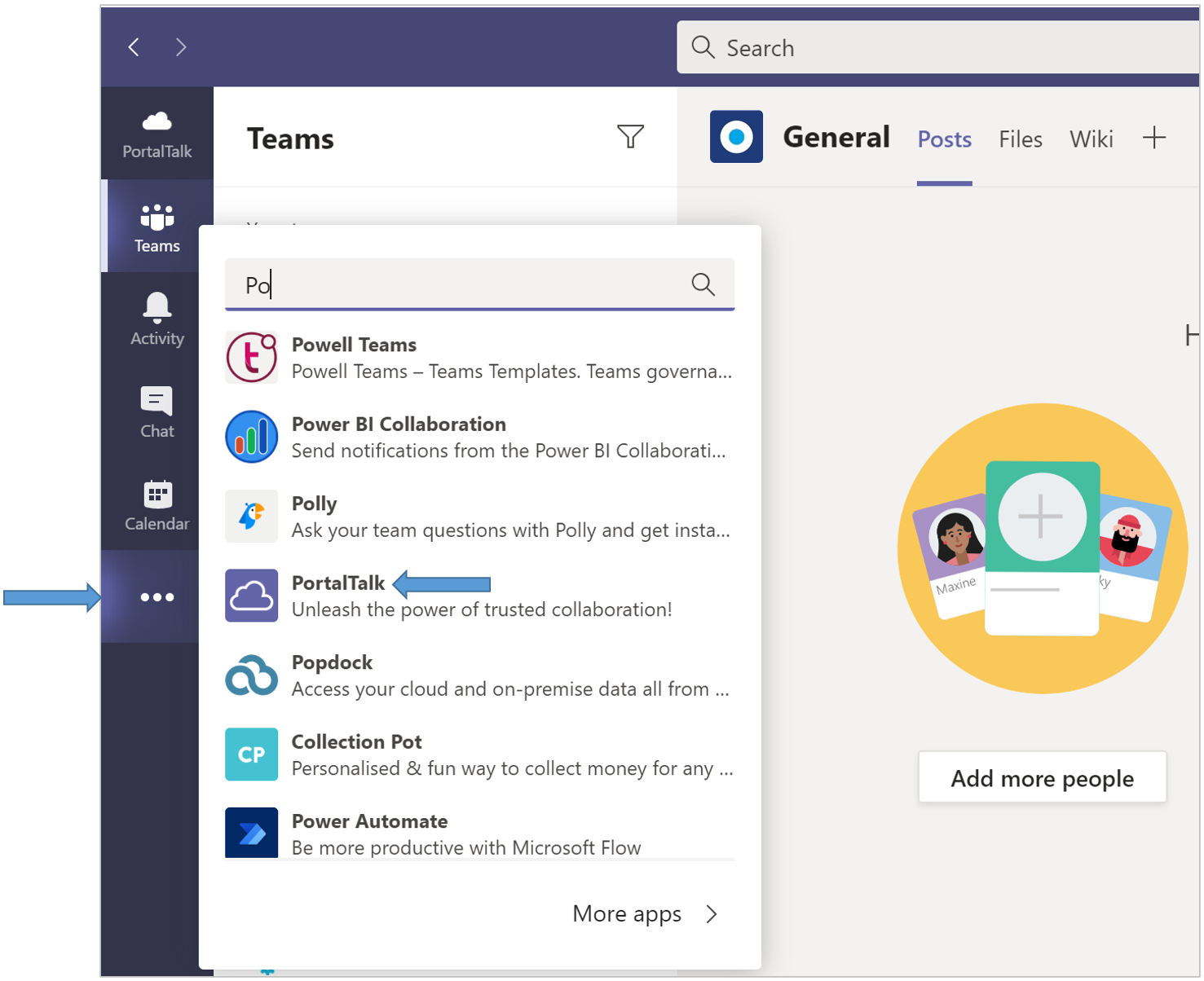
The PortalTalk app can straightaway be used, however, by navigating to the app through the ellipsis (...) menu. |
|