.png)

The settings that determine the behavior of the Teamsite (Site collection) workspaces within the user application
All category configuration actions are performed from the category list view in the Admin Center.
In the category list view, you can configure the workspace categories relevant to your organization.
In the second step of the category configuration process, the settings are configured that determine the behavior of the category’s workspaces within the user application.
If necessary, refer to the page on the Category Information configuration for a detailed explanation of the first step in the category configuration process.
Access the Category Settings configuration form
-
Access the PortalTalk Admin Center.
-
Select the Configuration - Categories navigation option to access the Workspace Category list.
-
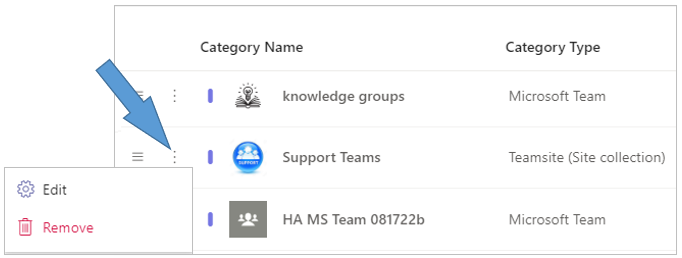
Find the workspace category of type Teamsite (Site collection) you need to configure.
-
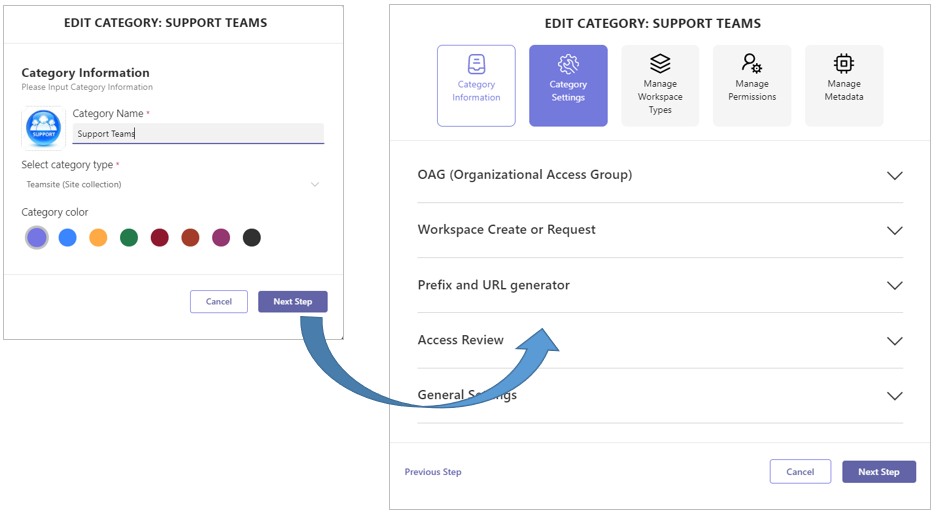
Click the category’s ellipsis menu button and select the Edit option to open the Edit Category - Category Information form.
-
Click the Next Step option in the lower right corner of the Category Information form to launch the Category Settings form:
-
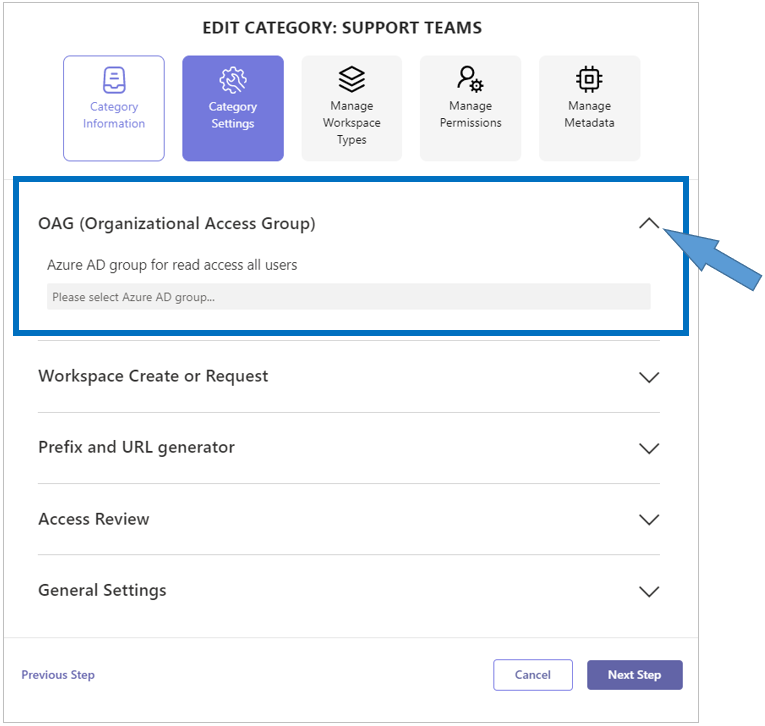
Expand the OAG (Organizational Access Group) section.
-
Azure AD group for read access all users - Select the Azure AD group to which the organization access permission applies, usually all internal users in the organization or business unit.
If this field is left empty, the workspaces created within this category will be accessible for the team members only.
-
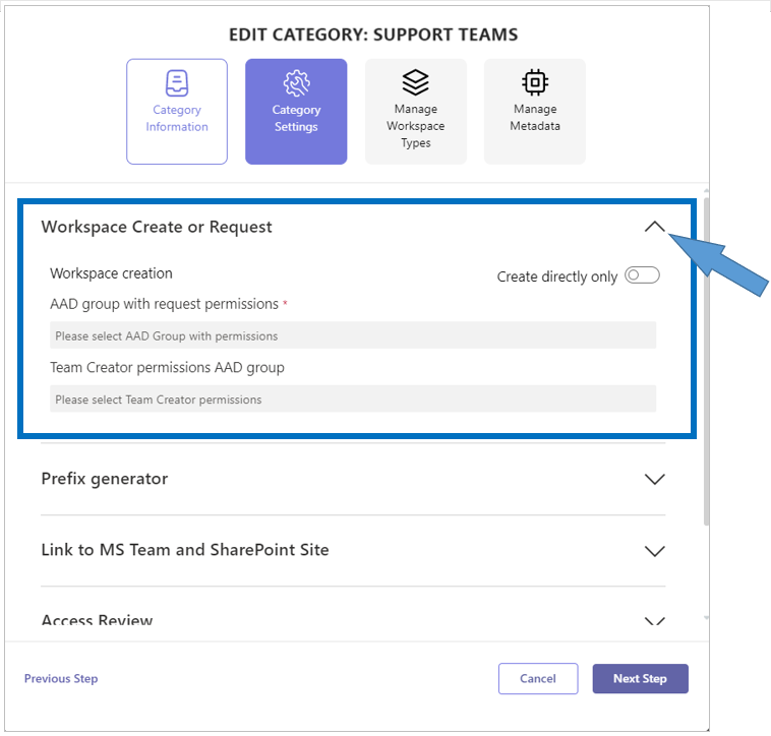
Expand the Workspace Create or Request section.
-
Workspace creation (Create directly only or Requestable) - Set the toggle button to the desired value.
-
AAD group with request permissions - In case of a requestable workspace category, select the AAD group to exercise the workspace create permission for this category.
-
Team Creator permissions AAD group - Select the AAD group to exercise the workspace create permission for this category.
-
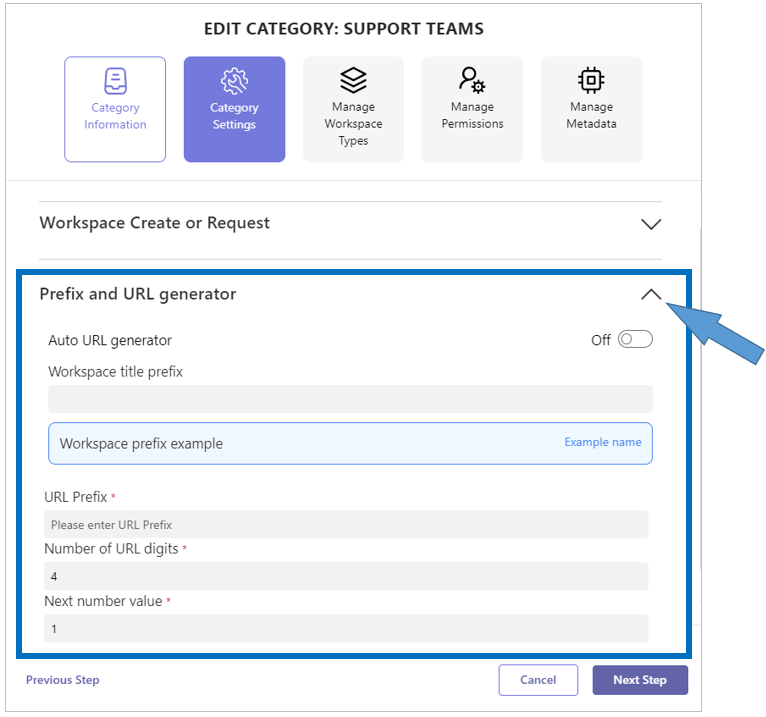
Expand the Prefix and URL generator section.
-
Auto URL generator (On/Off) - Indicate whether the URL of a newly created Teamsite (Site collection) workspace should be generated automatically.
-
Workspace title prefix - (Auto URL generator off) Enter the characters that are to precede the name of each workspace within this category.
-
URL Prefix - (Auto URL generator on) Enter the URL prefix to be applied.
-
Number of URL digits - (Auto URL generator on) Enter the number of digits for the numeric part of the workspace URL.
-
Next number value - (Auto URL generator on) Enter the number to use for the URL of the Teamsite (Site collection) workspace to be created next.
-
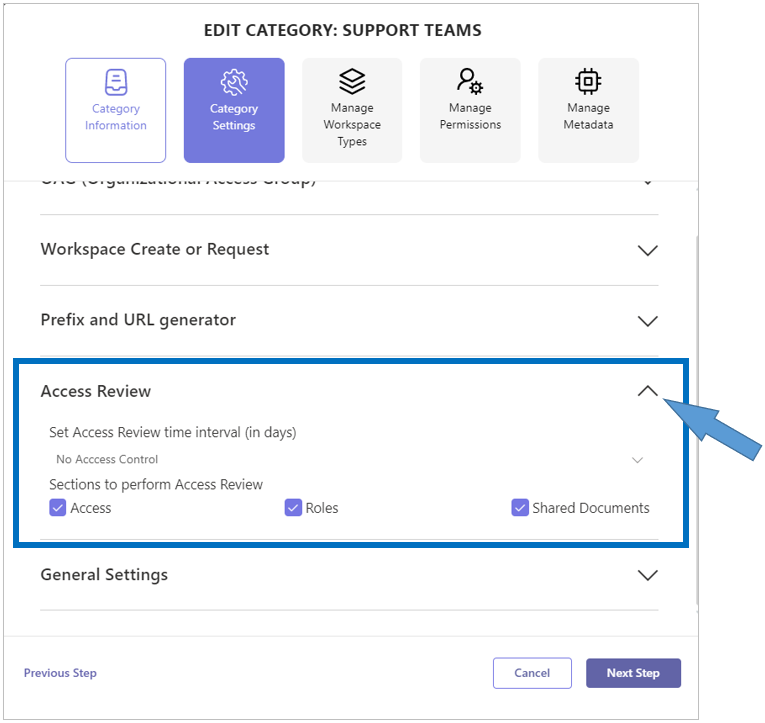
Expand the Access Review section.
-
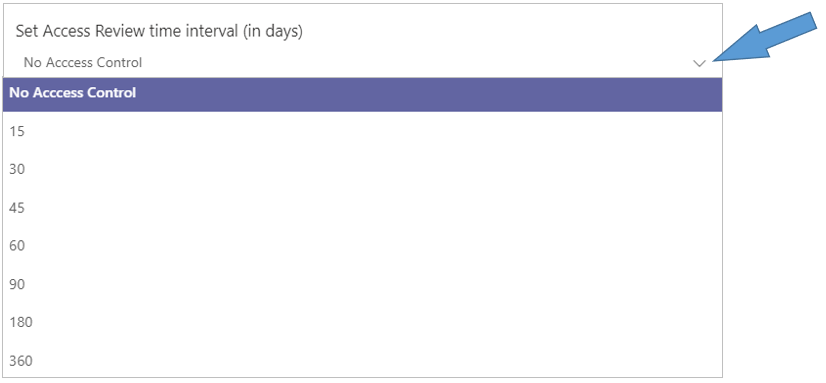
Set Access Review time interval (in days) - Select the appropriate time interval in between consecutive reviews.
-
Access control w.r.t. external team members only (On/Off) - Specify whether the periodic access review should be applied to external team members only.
-
Sections to perform Access Review - Check the items that must be verified each periodic access review. Access review can be applied to team-membership, team-member permissions and shared site content.
-
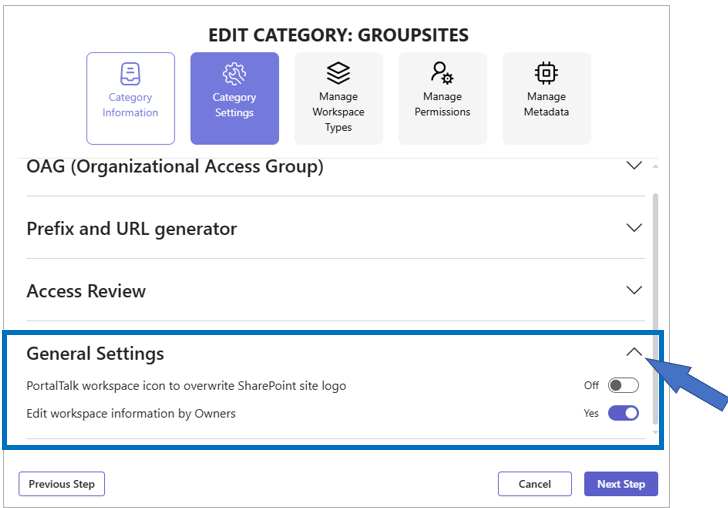
Expand the General Settings section.
-
PortalTalk workspace icon to overwrite SharePoint site logo (On/Off) - Indicate whether the logo assigned to a Teamsite (Site collection) workspace should also apply to the workspace’s SharePoint site.
-
Category and workspace type can be modified by the owner (Yes/No) - A team workspace owner may move, on the Workspace Edit screen, the workspace to another Category or Workspace Type. This action can be prevented at the category-level. Changing a MS Teams workspace's Category or Workspace Type, can change the workspace's 'Invite External Guest' setting accordingly, thus possibly compromising the company compliancy policies.
-
Click Next Step to save your settings and move from the Category Settings form to the Manage Workspace Types form.
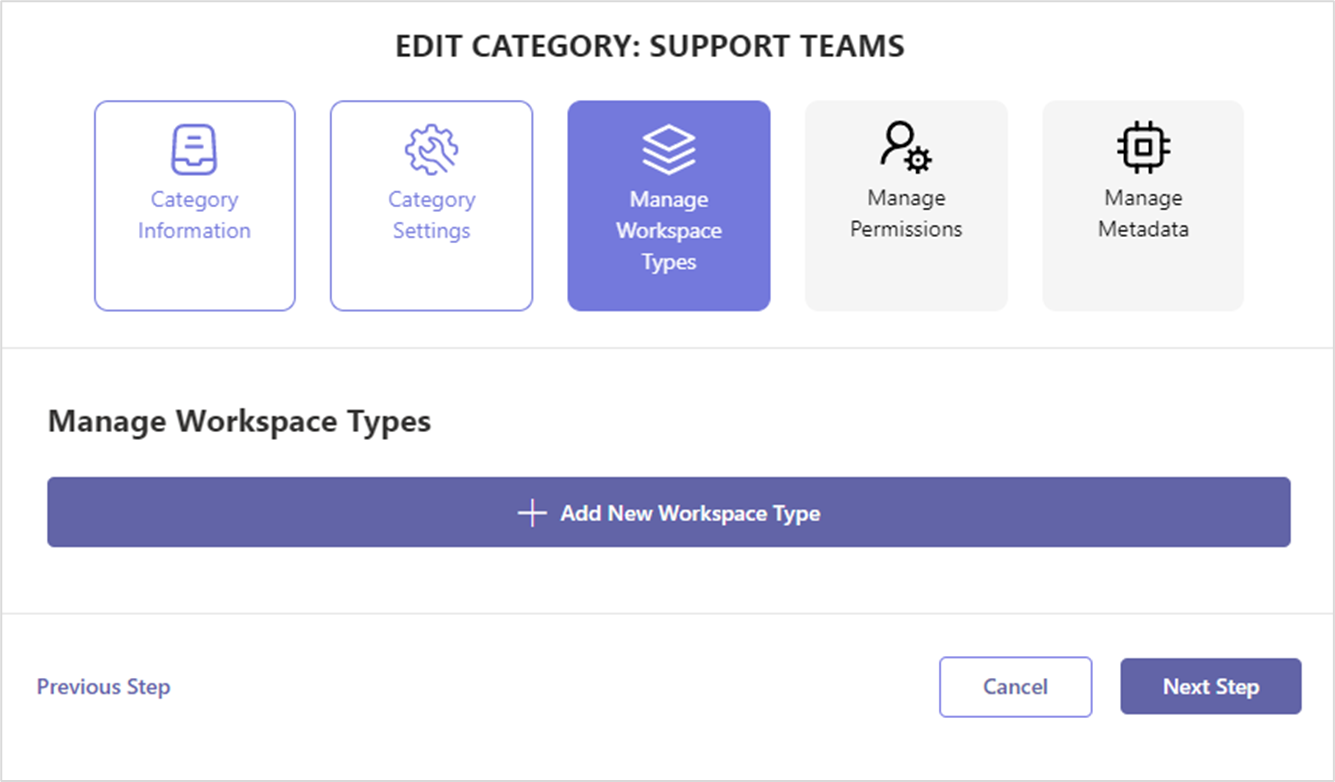
Continue the third step of the configuration process with the instruction Manage Teamsite (Site collection) workspace types.